
In this article
In this article: What Does 192/16 Mean? — CIDR Notation in Plain English — The 192.168.0.0/16 Private Range — How Many Addresses Is That? — Subnet Mask 255.255.0.0 Explained — /16 at Home vs at Work — How to Check Your Own Subnet — Common Mistakes — Frequently Asked Questions — Conclusion.
If you have come across the notation 192/16 in a router setting, a network guide, or a forum post, you may have wondered whether it is an address, a range, or a typo. It is none of those in the usual sense. It is shorthand — a compact way of describing a large block of addresses at once — and once you understand the slash notation behind it, a whole family of network labels, from /24 to /32, falls into place.
This guide explains 192/16 in plain English: what the number after the slash means, which addresses the notation covers, why it matters for home and office networks, and how to check what your own network uses.
What Does 192/16 Mean?
The notation 192/16 is an abbreviated form of an address block written in CIDR notation. CIDR stands for Classless Inter-Domain Routing, which is the modern system for describing groups of IP addresses. In full, the block behind 192/16 is usually written as 192.168.0.0/16, or sometimes 192.0.0.0/16 depending on context, but in home-networking discussions it almost always refers to the private 192.168 range.
The slash and the number after it — the “/16” — say how many bits of the address are fixed, and therefore how large the block is. An IPv4 address is 32 bits long. When the notation says /16, it means the first 16 bits identify the network, and the remaining 16 bits are free to vary, identifying individual devices inside that network. The shorthand “192/16” drops the middle octets and just keeps the leading part and the prefix length, which is why it can look cryptic at first glance.
It is important to be clear about one thing: 192/16 is not a single address you can type into a browser to reach a login page. It describes a range of addresses — tens of thousands of them — not one device. If you arrived here looking for a router login, what you actually need is your router’s gateway address, a single address such as 192.168.1.1, which you can find in your device’s network details. The /16 notation tells you about the size and shape of the network, not the location of its front door.
CIDR Notation in Plain English
CIDR notation pairs an address with a prefix length: for example, 192.168.1.0/24, 10.0.0.0/8, or 192.168.0.0/16. Think of it as giving a street name plus a rule for which house numbers belong to that street. The prefix length counts how many of the address’s 32 bits are locked in as the network part. The rest are host bits, free for individual devices.
A helpful way to picture it is to imagine an address as four boxes, each holding a number from 0 to 255. A /8 locks the first box and leaves three boxes free. A /16 locks the first two boxes and leaves two free. A /24 locks the first three boxes and leaves one free. A /32 locks everything, describing exactly one address. The smaller the number after the slash, the larger the block, because fewer bits are locked and more are free to vary.
This is why you see different prefix lengths in different places. Home networks commonly use /24, which gives one free box — up to 256 addresses, more than enough for a household. Large organisations use /16 or /8 when they need far more addresses under one umbrella. The notation is just a compact way to say “this network, this big”, without listing every address in it.
The 192.168.0.0/16 Private Range
In home-networking contexts, 192/16 refers to the private block 192.168.0.0/16. Private addresses are reserved for local networks and are not routable on the public internet, which means they can be reused in millions of homes without conflict. The 192.168.0.0/16 block covers every address that starts with 192.168, from 192.168.0.0 through 192.168.255.255.
That is a huge umbrella, and it contains all the familiar home subnets inside it: 192.168.0.x, 192.168.1.x, 192.168.50.x, 192.168.100.x, and every other 192.168 combination. Your own home network is almost certainly a small slice of this block — typically a /24 such as 192.168.1.0/24 — while the /16 describes the entire private range that slice sits within.
Why would anyone describe the whole /16 instead of just your home subnet? Usually for rules that apply broadly: a firewall rule, a VPN configuration, or a piece of documentation that needs to cover every possible 192.168 home network rather than one specific one. When a guide says “traffic for 192.168.0.0/16 stays local”, it means all private 192.168 traffic, whatever the third number happens to be.
There is a subtlety worth noting. Strictly, the notation “192/16” on its own is ambiguous, because it does not spell out the second octet. In formal CIDR writing you would always see the full form, such as 192.168.0.0/16. The shorthand appears in casual notes, search queries, and forum posts, where the writer assumes the reader knows the 192.168 context. If you meet 192/16 in a technical document without that context, look for the full address nearby — it will remove the ambiguity.
How Many Addresses Is That?
The arithmetic of prefix lengths is simple once you see it. A /16 leaves 16 host bits free, and each bit doubles the count, so the block holds 2 to the power of 16 addresses, which is 65,536. Two of those are reserved by convention — the network address itself, 192.168.0.0, and the broadcast address, 192.168.255.255 — leaving 65,534 usable addresses for devices.
Compare that with the more familiar sizes. A /24 leaves 8 host bits, giving 256 addresses, of which 254 are usable for devices — plenty for a home, and the reason home routers default to /24. A /8 leaves 24 host bits, giving over 16 million addresses, which is why the 10.0.0.0/8 private block suits very large organisations. The pattern is consistent: every step down in prefix length doubles the block, and every step up halves it.
These numbers also explain why a /16 is overkill for a single household. No home needs 65,534 device addresses. But as an umbrella description — a way to say “all 192.168 networks” — the /16 is exactly the right tool, because it captures the full private range in one short label.
Subnet Mask 255.255.0.0 Explained
Older networking documents express the same idea with a subnet mask instead of a slash. The mask for a /16 is 255.255.0.0. Each 255 marks an octet that is fully locked as network, and each 0 marks an octet that is free for hosts. So 255.255.0.0 says: the first two octets define the network, the last two define the device. That matches the /16 exactly — 16 locked bits, in two full octets.
You may still see subnet masks in router settings and operating-system network details, often alongside the CIDR form. They are two notations for the same fact, and converting between them is a matter of counting: the number of 255 octets, times eight bits each, gives the prefix length. A mask of 255.255.255.0 is a /24, and a mask of 255.0.0.0 is a /8. If your device reports a mask of 255.255.0.0, your network is using a /16, which is unusual for a home but common in larger setups.
For most home users, the mask is something the router handles automatically, and you will never need to change it. It becomes relevant when you set up a static address, configure a VPN, or troubleshoot a device that cannot see others on the network — in those cases, a mismatched mask is a classic culprit, and knowing that 255.255.0.0 means /16 helps you spot it.
/16 at Home vs at Work
At home, you will rarely need a /16. A typical home router creates a /24 network, hands out addresses from a small pool, and everything just works. The /16 appears in home contexts mainly in documentation, in VPN settings that route all private traffic, or in the settings of advanced users running larger home labs with many subnets under one roof.
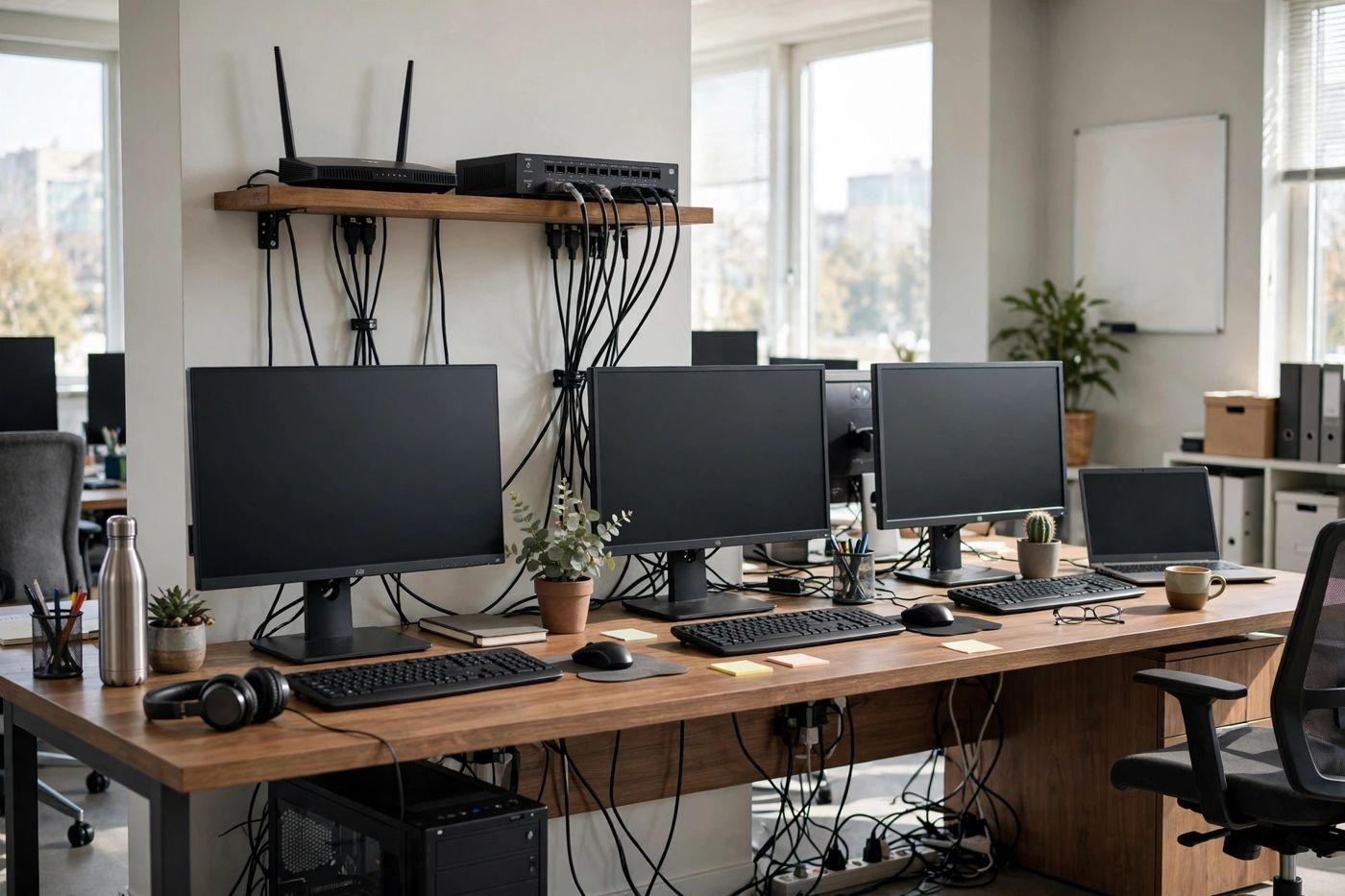
At work, /16 networks are everyday tools. A company might run its whole internal network as a /16, then carve it into smaller /24 subnets per department, floor, or site. That structure keeps the addressing tidy: one umbrella, many departments, each with its own range, all described by the same scheme. Network engineers also use /16 blocks when writing firewall rules and routing tables, because one rule can then cover an entire private range instead of dozens of individual subnets.
The practical difference for you is this: if your home network reports a /24, that is normal and you should leave it alone. If a work VPN or a piece of software mentions 192.168.0.0/16, it is talking about the whole private range, not asking you to change your home network to match.
How to Check Your Own Subnet
Finding your own network’s prefix length is easy. On Windows, open Command Prompt, type ipconfig, and look for the Subnet Mask line next to your connection. A mask of 255.255.255.0 means /24; 255.255.0.0 means /16. On a Mac, open System Settings, then Network, select your connection, and look at the details, where the mask is shown. On a phone, your Wi-Fi network’s details usually show the subnet mask or the IP address with its prefix length.
You can also infer it from your IP address and gateway. If your address is 192.168.1.25 and your gateway is 192.168.1.1, with a mask of 255.255.255.0, your network is 192.168.1.0/24 — a small slice of the big 192.168.0.0/16 umbrella. Devices on the same /24 can talk to each other directly; devices on different /24 slices of the /16 need a router between them, which is why two homes can both use 192.168 addresses yet never see each other’s devices.
Common Mistakes
The most common mistake is treating 192/16 as a single address. Typing it into a browser will not open anything, because it names a range, not a device. If you need a login page, find your gateway address instead.
The second mistake is confusing prefix lengths. A /16 is much larger than a /24, and mixing them up in a manual configuration — for example, entering 255.255.0.0 where 255.255.255.0 belongs — can make devices unreachable or expose them to the wrong subnet. When in doubt, leave the mask at the router’s default.
The third mistake is assuming every 192.168 network is the same network. Two homes can both use 192.168.1.x addresses, but they are separate local networks, and their addresses only have meaning inside each home. The /16 umbrella describes the range they both draw from, not a shared network between them.
Frequently Asked Questions
What does 192/16 mean? It is shorthand for the address block 192.168.0.0/16: every private address starting with 192.168, with the first 16 bits fixed as the network part and the remaining 16 bits available for devices.
How many addresses are in a /16? 65,536 in total, of which 65,534 are usable for devices after reserving the network and broadcast addresses.
What is the subnet mask for /16? 255.255.0.0, which locks the first two octets and leaves the last two free.
Can I type 192/16 into my browser to log in to my router? No. It describes a range, not a single device. Use your router’s gateway address, such as 192.168.1.1 or 192.168.100.1, for the login page.
Is my home network a /16? Almost certainly not. Most home routers use a /24, which provides 256 addresses. A /16 is mainly an umbrella term for the whole 192.168 private range or a structure used by larger networks.
Does /16 affect my internet speed? No. The prefix length affects how many addresses a network can hold and how devices find each other locally. It has no direct effect on your broadband speed.
Conclusion
The notation 192/16 looks mysterious until you know the slash rule: the number after the slash counts the locked network bits, and /16 leaves 16 bits free, covering 65,536 addresses. In home-networking talk it stands for the private block 192.168.0.0/16 — every address from 192.168.0.0 to 192.168.255.255, with the subnet mask 255.255.0.0. Your own home network is almost certainly a much smaller /24 slice of that umbrella, and that is exactly as it should be. Remember the key distinction: a /16 names a range, while a gateway address names a device — and when you want a login page, it is the gateway you need.
Read Also: 192.168.50.1 Router Login and Admin Setup (2026 Guide)

Admin
Contributor at Daily Scope 67.
Related reading
192.168.50.1 Router Login and Admin Setup (2026 Guide)
192.168.50.1 is the admin address for some routers and modems. Here is the full login guide, plus troubleshooting and security tips.
Read story
192.168.100 Router Login and Admin Setup (2026 Guide)
192.168.100 looks like a router address but it is missing a piece. Here is what it really means and the full address to use for your admin login.
Read story
192.168.11.1 Router Login and Admin Setup (2026 Guide)
192.168.11.1 is a private gateway address some routers use for their admin panel. This guide shows you how to log in, fix common problems, and change your Wi-Fi settings safely.
Read story