
In this article
If you typed 192.168.11.1 into your browser and ended up here, you were probably trying to get into your router’s settings — and something either worked, half-worked, or did not work at all. The short answer is this: 192.168.11.1 is a private IP address that some routers and modems use as their admin address. When it is the right address for your network, opening it in a browser takes you to a login page for your router’s admin panel, where you can change your Wi-Fi name and password, check connected devices, and tighten up your security settings.
If the page did not load, that does not necessarily mean you did anything wrong. It may simply mean your router uses a different gateway address, your device is not connected to that router’s network, or a small typo slipped in. This guide walks through all of it — what the address actually is, how to log in step by step, what to do when the page refuses to open, and how to change the settings most people actually need, without guessing at brand-specific defaults that vary from one router to another.
In this article:
- What Is 192.168.11.1?
- How to Log In to Your Router Through 192.168.11.1
- What You Can Do Inside the Admin Panel
- Changing Your Wi-Fi Name and Password
- Simple Security Settings Worth Checking
- If the 192.168.11.1 Page Will Not Load
- How to Find Your Actual Gateway Address
- Common Login Problems and Fixes
- Frequently Asked Questions
- Conclusion
What Is 192.168.11.1?
Every device on your home network has an IP address, a set of numbers that lets devices find each other. Most of those addresses are private, meaning they only work inside your own network and are not reachable from the wider internet. Addresses that start with 192.168 are in that private range, and 192.168.11.1 is one of them.
In a typical home setup, your router sits at the centre of the network. It hands out addresses to your phone, laptop, TV, and everything else that connects, and it also has an address of its own. That address is called the default gateway, and it is the door you knock on when you want to manage the router itself. For some routers and modems, that door is 192.168.11.1. For others it is a different address entirely, which is why one neighbour’s router login address may not work on yours even though the steps look identical.
It helps to think of it like the address of a building’s management office. The office is inside the building, not out on the street. You have to be inside — connected to that router’s network, by Wi-Fi or by cable — before the address means anything. Typing it into a browser while you are on mobile data, or while you are connected to a different network, will not take you to your router. That single detail explains a surprising number of “this page won’t load” moments.
Another point worth clearing up early: 192.168.11.1 is not a website, and it is not something you search for. You type it directly into the browser’s address bar, the strip at the top where you would normally type a web address. If you type it into a search engine instead, you will get search results about routers rather than your router’s login page. That distinction trips up a lot of people, especially on phones where the search bar and the address bar can look very similar.
You also do not need an internet connection for the login page itself to appear, in the usual sense. The page lives on your router, not on the internet. So if your broadband is down but your local Wi-Fi is still broadcasting, the admin page may still open. On the other hand, if the router itself is off, unplugged, or restarting, no address will work until it is back up. Keeping that separation in mind — local network versus internet connection — makes troubleshooting much less confusing.
How to Log In to Your Router Through 192.168.11.1
Logging in is straightforward once you know the order of operations. Take it slowly, and do not skip the first step, because it is the one people most often assume is already done.
Step 1: Connect to the router’s network
Connect your phone, tablet, or computer to the network of the router you want to manage. Wi-Fi works fine for most settings, but if your connection keeps dropping, a wired Ethernet cable gives you a steadier link. If you are trying to manage a router at home while you are out, or while connected to a different network, stop and connect to the right network first — remote admin access is usually off by default, and that is a good thing for security.
Step 2: Open a browser and type the address
Open any ordinary browser — Chrome, Edge, Firefox, Safari, whatever you already use — and type http://192.168.11.1 into the address bar, then press Enter. You can usually leave off the “http://” part and just type 192.168.11.1, and the browser will fill in the rest. Double-check the dots: 192.168.11.1, with no spaces, no commas, and no extra numbers. A common slip is typing 192.168.1.1 or 192.168.0.1 out of habit, which are different addresses and belong to different setups.
Step 3: Enter the admin username and password
If the address is right for your network, you should see a login page asking for a username and password. This is the router admin login, not your Wi-Fi password and not your internet provider account password, although on some setups they can overlap. The default details vary by brand and model, so do not rely on a random list from the internet. The most reliable place to find them is the sticker on the bottom or back of your router, which usually prints the default admin username and password alongside the default Wi-Fi name and password. If you or someone in your household changed the admin password at some point, use the changed one — the sticker only shows the factory default.
Step 4: Look around before changing anything
Once you are in, take a minute to get your bearings. Admin panels differ in layout, but most have a menu down the side or across the top with sections like Wireless, Network, Security, or Administration. Resist the urge to click every toggle at once. Change one thing, save it, and check that your devices still connect before moving on to the next change. That habit will save you from a situation where several changes stack up and you cannot tell which one broke the connection.
If the login page never appears, or the username and password are rejected, do not keep guessing wildly. The sections below cover both problems, and one of them almost always explains what is going on.
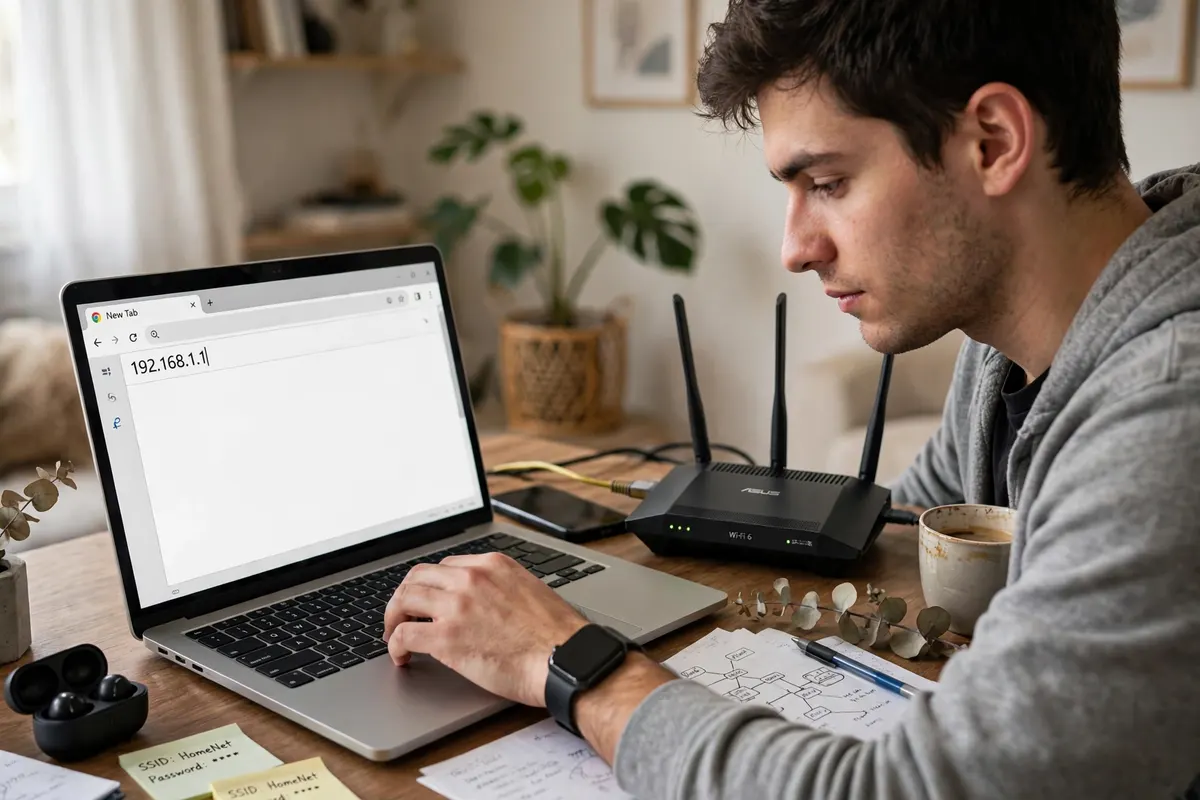
A person typing a router gateway address into a browser address bar on a laptop, with the router visible nearby
What You Can Do Inside the Admin Panel
The admin panel is where the router’s real controls live. You do not need to master all of it. For most households, a handful of settings covers nearly everything that matters.
The wireless settings let you change your Wi-Fi network name, known as the SSID, and your Wi-Fi password. You can usually set the 2.4 GHz and 5 GHz bands separately if your router shows them separately, or manage them together if your router combines them into one network name. The connected devices list shows what is currently on your network, which is handy when you suspect an unknown device has joined, or when you are trying to work out which device is hogging bandwidth.
Security settings let you choose your Wi-Fi encryption type, and this is one place where the right choice matters more than people realise. Modern routers offer WPA2 or WPA3, and you should pick the strongest option your devices support. Older, weaker options exist on some panels for compatibility with very old devices, but they leave your network much easier to break into, so avoid them unless you have a specific old device that genuinely needs them, and even then, think twice.
There are also tools for restarting the router from the panel, checking for firmware updates, setting up a guest network, and managing parental controls or device schedules on routers that include them. You do not need to use all of these on day one. Learn the wireless and security sections first, and leave the advanced routing and firewall pages alone unless you have a clear reason to change them. A wrong change in an advanced section can cut off your whole network in a way that takes a factory reset to undo, and that is a headache nobody needs over a setting they did not need.
Changing Your Wi-Fi Name and Password
This is the single most common reason people log in, and it is worth doing properly. A clear network name makes your Wi-Fi easy to recognise, and a strong password keeps neighbours and passers-by off your connection.
Start in the wireless settings section of the admin panel. Look for the field labelled SSID or wireless network name, and type the new name you want. Keep it recognisable but avoid putting personal details in it — your full name, your address, or your phone number do not belong in a network name that every nearby device can see. Something simple and neutral works best.
Next, find the password field, often labelled wireless password, network key, or passphrase. Choose a password that is long and not guessable: a phrase made of several unrelated words is usually stronger and easier to remember than a short jumble of characters. Avoid obvious choices like your street name, your pet’s name, or a string of identical digits. Type it carefully, save the change, and expect your devices to disconnect — that is normal, because the network they were connected to has just changed its credentials.
After saving, reconnect each device with the new password. Do the phone or laptop you are using first, so you can confirm the change worked before you go around the house updating everything else. If a smart device like a printer, speaker, or camera does not reconnect, it usually just needs the new password entered once in its own app or settings. It has not broken; it is simply still holding the old password.
One practical tip: if you change the network name as well as the password, some devices treat it as a brand-new network and may need to be set up again from scratch, especially smart home gadgets. If you want to minimise fuss, changing only the password and keeping the same network name is often the smoother option. If you do change both, set aside a few extra minutes for the smart devices.
Simple Security Settings Worth Checking
You do not need to become a network security expert to make your home network noticeably safer. A few basic checks go a long way, and they are all inside the same admin panel.
First, change the admin password itself if it is still the factory default. This is separate from your Wi-Fi password. The admin password is what keeps someone on your network — or someone who guesses the default — from opening your router settings and changing things. Pick something different from your Wi-Fi password, write it down somewhere safe at home, and do not share it casually. If you ever forget it, the recovery route is usually a factory reset, which wipes your settings, so keeping a private note of it matters.
Second, confirm your Wi-Fi encryption is set to WPA2 or WPA3, as mentioned above, and that WPS — the push-button quick-connect feature — is off if you do not actively use it. WPS is convenient, but its PIN method has well-known weaknesses, and leaving it on for convenience is rarely worth the risk. If your router has a guest network option and you often have visitors, turning on a separate guest network is a smart move: guests get internet access without getting access to your main network’s devices, like shared folders, printers, or cameras.
Third, check for a firmware update every few months. Firmware is the router’s internal software, and updates fix bugs and security holes. Many routers have a check-for-update button in the administration or system section. If yours offers automatic updates, turning them on is usually the easiest way to stay current. If an update is available, apply it when you can afford a few minutes offline, because the router will restart during the process.
Finally, glance at the connected devices list now and then. You should broadly recognise everything on it. If you see a device you cannot account for, changing your Wi-Fi password and then reconnecting only your own devices is the simplest way to push it off. You do not need to investigate every unknown name in a panic — some devices show up with odd manufacturer names — but a device you genuinely do not recognise, combined with slow speeds or odd behaviour, is worth acting on.
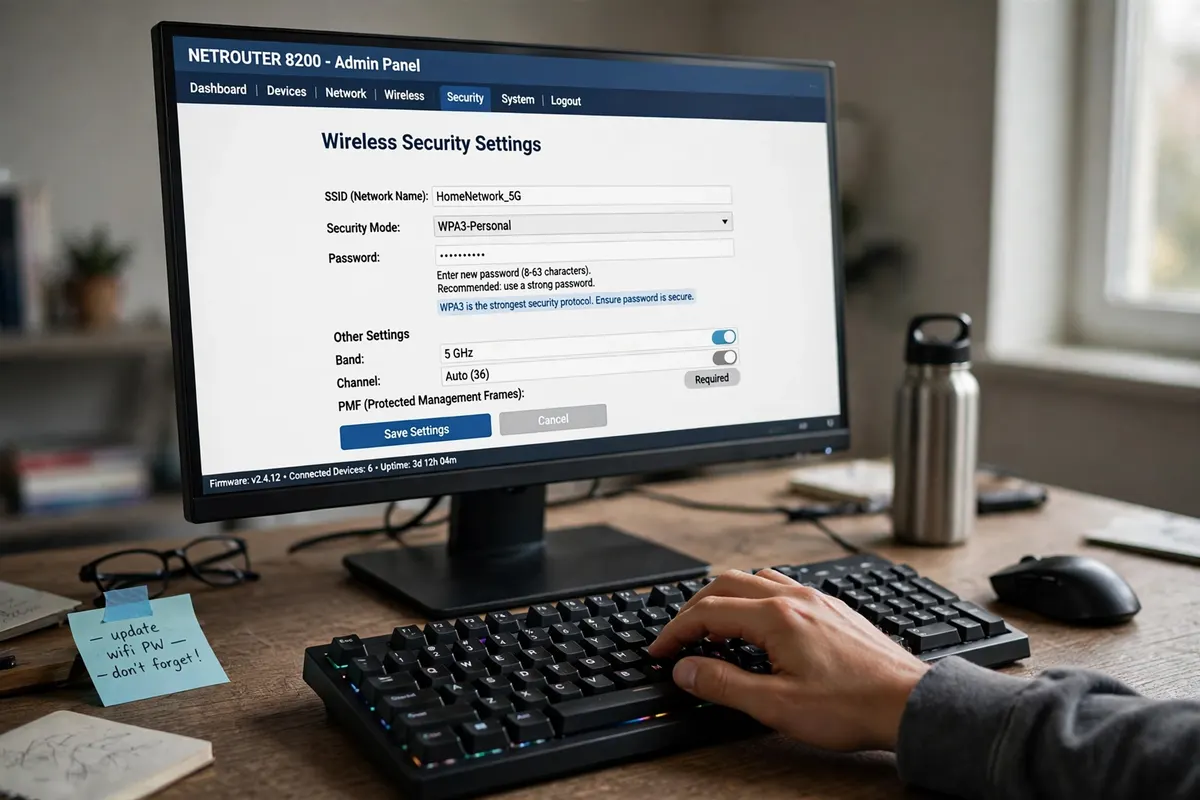
A router admin panel on a screen showing wireless security settings, with a strong password being entered
If the 192.168.11.1 Page Will Not Load
This is the most frustrating part of the whole process, because a blank page or an error message tells you very little on its own. Work through the causes in order, from the most likely to the least, and you will usually find it quickly.
Start with the connection itself. Are you actually connected to the router’s network? On a phone, it is easy to be on mobile data without realising it, or to be connected to a neighbour’s open network, or to a different access point in the house. Turn mobile data off temporarily, confirm the Wi-Fi name matches the router you want to manage, and try again. If you are on a computer, a wired connection removes Wi-Fi doubt entirely.
Next, check the address. Retype it slowly into the address bar, not a search box: 192.168.11.1. Watch for spaces, for the letter “l” typed instead of the number “1”, and for an autocomplete suggestion that quietly changes the address to something else, like a search results page. Clearing the browser’s suggestion or typing the full address and pressing Enter, rather than tapping a suggestion, avoids that trap.
Then consider whether your router actually uses this address. Many routers do not. If 192.168.11.1 is not your gateway, no amount of retrying will make it load, and that is not a fault — it just means your router lives at a different address. The next section shows you how to find the right one in under a minute on any device.
Browser quirks can also get in the way. Try a different browser, or a private or incognito window, to rule out a cached redirect or a stuck extension. Some browsers now default to secure HTTPS, and a router’s local page may only serve plain HTTP, which can trigger a “not secure” warning or a failed connection. If you see a warning about the connection not being private, that is expected for a local router page in many cases — the page is on your own network, not on the public internet, so it does not carry a public security certificate. Proceeding to the local page is normal here, but do not ignore the same warning on a public website.
If none of that helps, restart the router. Unplug it, wait about thirty seconds, plug it back in, and give it a couple of minutes to fully come back up before trying again. Restarting clears temporary glitches that can make the admin page unresponsive even while Wi-Fi seems to be working. Also restart the device you are browsing from, if you have not already — a stale network state on the phone or laptop can produce the same symptom.
Finally, check for anything between you and the router that could interfere: a VPN running on your device, a proxy setting, or a firewall rule. A VPN routes your traffic elsewhere, which can make a local address unreachable. Turning the VPN off just for the login, then turning it back on afterwards, is a quick test. If the page loads with the VPN off, you have found your culprit.
How to Find Your Actual Gateway Address
If 192.168.11.1 does not load, the fastest fix is to stop guessing and look up the gateway your device is actually using. The method depends on your device, but none of them take long.
On Windows, open the Command Prompt or the terminal and type ipconfig, then press Enter. Look for the network adapter you are connected through — Wi-Fi or Ethernet — and read the line labelled Default Gateway. That number is your router’s address. Type it into your browser’s address bar exactly as shown.
On a Mac, open System Settings, go to Network, select the connection you are using, and look for the router address in the details. On recent versions it is shown right in the connection details panel. That is the address to use.
On an Android phone, open Settings, go to Wi-Fi, tap the network you are connected to, and look for the gateway or router entry in the network details. The exact wording varies by phone brand, but the number is there. On an iPhone, open Settings, tap Wi-Fi, tap the small information icon next to your connected network, and look for the Router entry. That number is your gateway.
Whatever number you find, use that instead of 192.168.11.1. If it turns out to be something else entirely, that is a useful discovery, not a failure — it means your router simply uses a different gateway, and from here on the login steps are exactly the same, just with the right address. Write it down somewhere handy at home, because you will need it again the next time you want to change a setting, and hunting for it twice is nobody’s idea of fun.
Common Login Problems and Fixes
Even with the right address, login can still trip you up. Here are the problems people run into most, and the fix for each.
The first is the wrong password problem. The admin password is not your Wi-Fi password, and mixing the two up is extremely common. Check the sticker on the router for the default admin details, and if those do not work, consider whether anyone changed them after setup. Internet providers sometimes set their own admin details when they install a router, and those may be printed on a card that came with the installation rather than on the router itself. If you have tried the sticker details and any changed password you can remember, and nothing works, the remaining option is a factory reset — but treat that as a last resort, because it wipes every custom setting back to factory defaults, including your Wi-Fi name and password, and you will need to set the router up again from scratch.
A factory reset is usually done by holding a small reset button on the router, often recessed so you need a pin or paperclip, for around ten seconds while the router is powered on. The exact timing varies by model, so check the router’s manual or the label if you are unsure. After a reset, the sticker defaults will work again, and you can log in and reconfigure your settings. Only go down this road when you are prepared to redo your Wi-Fi setup afterwards.
The second common problem is the login page loading but the credentials being rejected again and again. Before assuming the password is wrong, check for caps lock, for an extra space at the start or end of the password, and for autocorrect changing a character on a phone keyboard. Password fields hide what you type, so a single mistyped character is invisible. Typing the password into a notes app first, where you can see it, then copying it into the password field, is an unglamorous but effective trick.
The third problem is the page loading very slowly or timing out halfway. This can happen when the router is busy, overheating, or struggling with a weak connection. Move closer to the router, use a wired connection if you can, restart the router, and try again. If the problem persists across devices and browsers, the router itself may need a firmware update or, in older units, may simply be reaching the end of its reliable life.
The fourth problem is being locked out after too many failed attempts. Some routers temporarily block further logins after several wrong tries, as a security measure. If that happens, wait fifteen to thirty minutes and try again with the correct details, rather than hammering away and extending the lockout. Use the wait to double-check the sticker details and any note of a changed password.
The fifth problem is subtler: you log in successfully, but the settings you change do not seem to stick. Almost always, this is a missed save button. Many admin panels require you to click Save or Apply on each section, and navigating away without saving discards the change. After saving, wait for the confirmation message before moving on, and if the router prompts you to reboot to apply a change, let it reboot — skipping that step can leave the old setting in place.
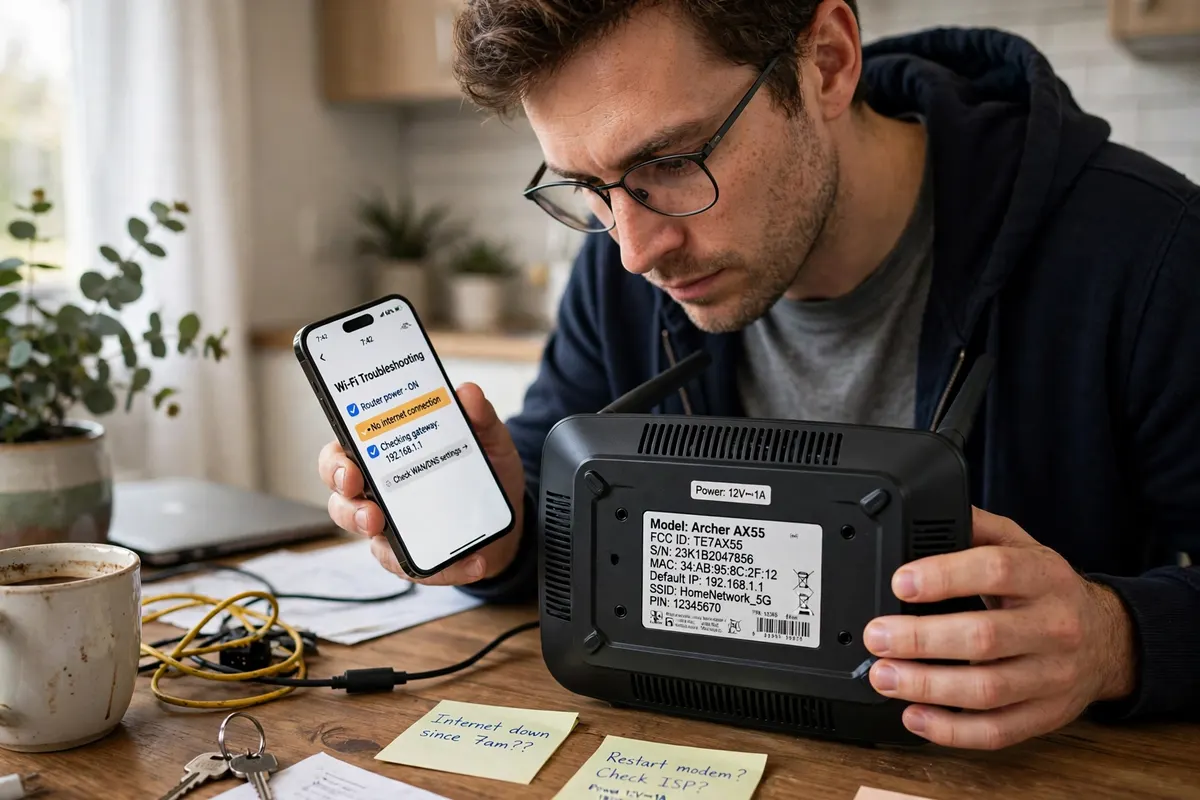
A troubleshooting scene showing a phone displaying a router login error and a person checking the label on the bottom of the router
Frequently Asked Questions
Is 192.168.11.1 the same for every router?
No. It is one of several private addresses routers can use as their gateway. Some routers use it, but many use a different address. If it does not load for you, find your actual gateway using the steps above and use that address instead.
Do I need the internet to open the 192.168.11.1 login page?
Not in the usual sense. The login page is hosted on your router itself, so it can load over your local network even when your broadband connection is down, as long as the router is powered on and you are connected to its network.
What is the difference between the admin password and the Wi-Fi password?
The Wi-Fi password is what devices use to join your wireless network. The admin password is what you use to log in to the router’s settings panel and change things. They serve different purposes, and on a well-set-up router they are different passwords. Keep both private, and do not confuse one for the other at the login screen.
I forgot my router admin password. What can I do?
First, check the sticker on the router for the factory default, and check any installation card from your provider. If the password was changed and you cannot recall it, a factory reset restores the default, but it also wipes your custom settings, so only use it when you are ready to set the router up again.
Why does the browser warn that the page is not secure?
Router admin pages are local pages on your own network, and most do not carry a public security certificate, so browsers flag them as not secure. That warning is expected for a local address like this. It does not mean the same thing as the warning on a public website, but you should still only proceed when you are certain the address is your own router’s local address.
Can someone outside my home open my router page through 192.168.11.1?
No, not through that address alone. Private addresses like 192.168.11.1 only work inside your own network. Someone would need to be connected to your network first. That is why keeping a strong Wi-Fi password and a non-default admin password matters: they are the locks on the door, and the private address is just the address of the door itself.
Conclusion
192.168.11.1 is a simple idea once you see it clearly: a private, local address that some routers use as the way into their admin panel. When it matches your network, logging in is a matter of connecting to the right network, typing the address into the browser’s address bar, and entering the admin details from the router’s label. When it does not match, the fix is equally simple — find your actual gateway address and use that instead, rather than fighting with an address your router never used.
The settings worth your time are the practical ones: a recognisable Wi-Fi name, a strong Wi-Fi password, a changed admin password, WPA2 or WPA3 encryption, and an occasional firmware check. Get those right and you have covered the security basics for a home network without wading into advanced pages you do not need. And when something goes wrong, work through the causes in order — connection, address, browser, restart — before assuming the router is broken. Most login problems turn out to be one small, fixable detail.
Keep a private note of your gateway address and your changed passwords somewhere safe at home. The next time you need to tweak a setting, you will be glad you did.
Read Also: 192.168.12.231 Router Login and Admin Setup (2026 Guide)

Admin
Contributor at Daily Scope 67.
Related reading
192/16 Network Meaning and Subnet Guide (2026 Guide)
192/16 is shorthand for a large private network range. Here is what the /16 means, how many addresses it covers, and when you will meet it.
Read story
192.168.50.1 Router Login and Admin Setup (2026 Guide)
192.168.50.1 is the admin address for some routers and modems. Here is the full login guide, plus troubleshooting and security tips.
Read story
192.168.100 Router Login and Admin Setup (2026 Guide)
192.168.100 looks like a router address but it is missing a piece. Here is what it really means and the full address to use for your admin login.
Read story
1 comment