

In this article
In this article: What Is 192.168.50.1? — Is It Your Router’s Address? — Logging In Step by Step — When the Page Will Not Load — When the Password Fails — Useful Settings Inside — Keeping Your Network Secure — Frequently Asked Questions — Conclusion.
The address 192.168.50.1 is the doorway to the settings of certain routers and modems. Type it into your browser on the right network, and you should reach a login page where you can rename your Wi-Fi, change its password, see every connected device, update the router’s firmware, and tighten security. When it works, the whole process takes a couple of minutes. When it does not, the cause is usually one of a small set of fixable problems, and this guide covers all of them.
What Is 192.168.50.1?
The address 192.168.50.1 is a private IP address. Private addresses are reserved for local networks — your home, a small office, a school — and they are not reachable from the public internet. The 192.168 range is the most widely used private range, and within it, the third number defines a subnet. Most people know 192.168.1.1 and 192.168.0.1 because the biggest router brands use them, but manufacturers and internet providers choose other subnets too, and 192.168.50.1 is one of those choices. It appears on certain routers and combination modem-routers, and on some provider-supplied equipment.
When a router uses 192.168.50.1, that address is the router’s own address on the local network, known as the gateway. Every device on that network sends its internet-bound traffic through the gateway, and the gateway is also where the admin panel lives. That is why typing the gateway address into a browser opens the login page: you are connecting directly to the router’s built-in web server.
It is important to keep the gateway concept separate from device addresses. On a network whose gateway is 192.168.50.1, your laptop might hold 192.168.50.12, your phone 192.168.50.23, and so on. Those device addresses identify individual gadgets, and typing one into a browser normally leads nowhere, because ordinary devices do not run a login page. Only the gateway address opens the admin panel, which is why confirming the gateway matters so much.
Is It Your Router’s Address?
Before investing time in troubleshooting, confirm that 192.168.50.1 is actually the gateway on your network. The fastest check is on a device already connected to the network. On Windows, open Command Prompt, type ipconfig, and read the Default Gateway line for your active connection. On a Mac, open System Settings, then Network, select your connection, and look at the Router field. On an iPhone or iPad, go to Settings, then Wi-Fi, tap the information icon beside your network, and read the Router entry. On Android, your connected network’s details will show a Gateway entry, though the exact path varies by manufacturer.
If the gateway reads 192.168.50.1, you have the right address, and any problem lies in the login steps rather than the address itself. If it reads something different, use that address instead — it is the correct one for your network, regardless of what any guide, including this one, suggests. Networks differ, and the gateway lookup is always authoritative for your own setup.
The router’s sticker is a useful second check. Most routers print the factory admin address, default Wi-Fi name, and default passwords on a label underneath or on the back. If the sticker says 192.168.50.1 and nobody has reconfigured the router, the sticker and the gateway lookup will agree. If they disagree, the lookup reflects the current configuration and should be trusted.
Logging In Step by Step
Start by connecting your device to the router’s network. Wi-Fi is fine, but an Ethernet cable is slightly more dependable for admin work, since it is immune to wireless hiccups. Then open a browser and type 192.168.50.1 into the address bar — the strip at the top of the browser window. Do not type it into a search engine’s search box; that is a very common mistake, and it yields search results about the address instead of the login page.

The router should answer with a login page requesting a username and password. These are the admin credentials, and they are not your Wi-Fi password — confusing the two accounts for a large share of failed logins. Factory defaults are usually on the router’s sticker. The combination “admin” for both username and password is common, as is “admin” with “password”, but some routers ship with a unique sticker password, which is more secure. Passwords are case-sensitive, so type carefully and watch out for Caps Lock.
Once logged in, you will see the admin dashboard. Layouts vary by brand, but the usual sections are a status overview, wireless settings, a connected-devices list, security options, and firmware updates. Spend a few minutes exploring before changing anything, note the current values of anything you intend to adjust, and change one setting at a time so any mistake is easy to undo.
When the Page Will Not Load
If nothing loads after typing 192.168.50.1, work through the likely causes in order. First, verify your connection. A phone running on mobile data, or a laptop connected through a VPN, cannot reach a private local address, because such addresses exist only inside the local network. Turn off the VPN, make sure Wi-Fi is on and joined to your own network, and try again.
Second, check the address itself. It must be exactly 192.168.50.1, with single dots, no spaces, and no extra characters. One wrong digit sends you to a different address entirely. If you pasted it, inspect the pasted text for stray characters.
Third, revisit the gateway check. If your gateway is actually 192.168.1.1, then 192.168.50.1 belongs to a different router’s world and will never open a page on your network. This mismatch — following a guide written for different hardware — is the most frequent cause of a stubbornly blank page.
Fourth, try another browser or another device on the same network. Extensions, cached redirects, and strict privacy settings can interfere with local addresses. If a second device succeeds, the fault is with the first device, and a private browsing window or a cache clear often resolves it.
Fifth, restart the router. Unplug it, wait about thirty seconds, plug it back in, and allow a couple of minutes for a full boot. The router’s admin web server can stop responding while normal internet traffic keeps working, and a restart resets that state.
If every device fails and the router shows no signs of normal operation, the fault may be hardware or your broadband line. Your provider’s support team can test the line and the equipment, and telling them what you have already tried will save time.
When the Password Fails
A login page that appears but rejects your credentials needs a different approach. Begin with the simple checks: Caps Lock off, both fields retyped slowly, and no reliance on autofill, which sometimes inserts a saved Wi-Fi password into the admin password field.
If the credentials were never changed, the sticker defaults should work. If the sticker is damaged or missing, the manufacturer’s support site or manual for your exact model lists the defaults. If someone else configured the router, ask whether they changed the admin password, because no published default will match a changed password.
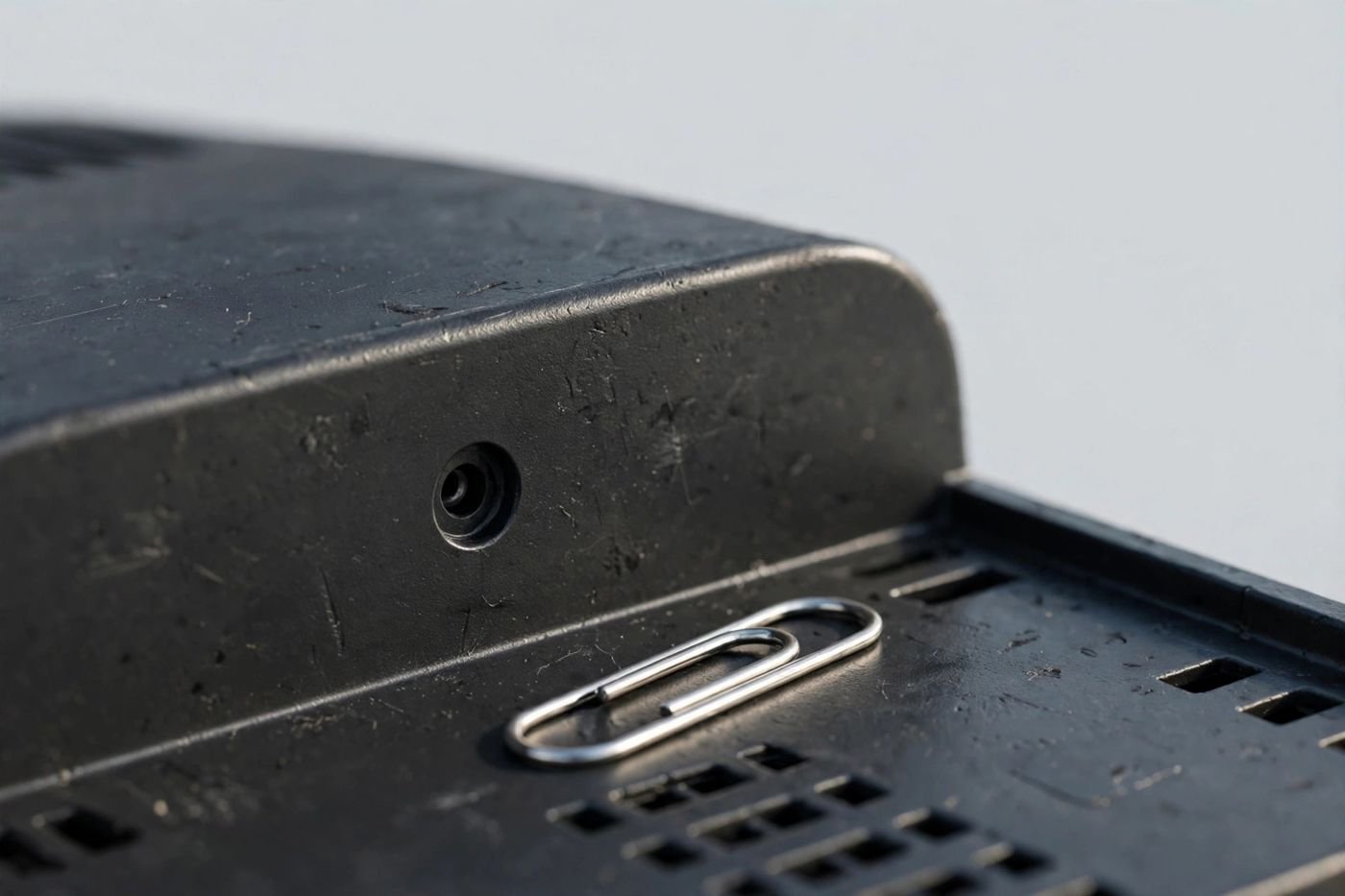
If the changed password is lost, the remedy is a factory reset: with the router powered on, press and hold the recessed reset button — a paperclip usually does the job — for around ten seconds until the lights change. The router restarts with factory settings, including the sticker credentials. The price is that your Wi-Fi name, Wi-Fi password, and all custom settings are erased, so a reset is a last resort, and you should be ready to reconfigure the network afterwards.
After recovering access, set a new admin password that is long and unique, and record it in a password manager. That single habit prevents most repeat lockouts.
Useful Settings Inside
The admin panel is worth exploring beyond the login itself. The wireless settings let you change the Wi-Fi name and password — handy if the current ones are hard to remember, or if someone who should no longer have access knows the password. The connected-devices list shows everything currently on the network, which is the quickest way to spot an unfamiliar device.
Security settings are the next stop. Your Wi-Fi should use WPA2 or WPA3 encryption; if it is on an older standard, upgrade it. The firmware section lets you install the manufacturer’s latest router software, which patches bugs and security holes. Many routers do not update themselves, so a manual check every few months is good practice.
A guest network is worth enabling for visitors. It provides internet access on a separate network, keeping guests away from your main network’s devices, such as shared storage and printers. Parental controls or device schedules can limit internet access for specific devices at set times. Quality of service settings, where offered, let you prioritise video calls or gaming traffic. None of these are mandatory, but knowing they exist turns the admin panel from a mystery into a toolbox.
Keeping Your Network Secure
Security for a home network rests on a few habits. The first is the admin password itself: change it from the factory default, make it long and unique, and store it safely. Factory defaults are widely documented, and anyone who joins your network could otherwise seize control of the router.
The second is Wi-Fi hygiene: a strong password, modern encryption, and a network name that does not advertise personal details. The third is firmware: keep it current, automatically if the router allows it. The fourth is surface area: turn off remote management unless you genuinely need it, since it exposes the admin panel to the internet, and disable WPS once your devices are connected, as it has a history of weaknesses.
Finally, glance at the connected-devices list now and then. A device you do not recognise is worth investigating: block it from the panel and change your Wi-Fi password, since something let it in. A monthly check takes a minute and catches problems while they are still small.
Frequently Asked Questions
What is 192.168.50.1? It is a private IP address used as the admin gateway by certain routers and modem-routers. On networks where the router holds this address, typing it into a browser opens the router’s login page.
Why does 192.168.50.1 not open a login page for me? Usually because your router uses a different gateway address, because your device is not on the router’s network, or because the address was mistyped. Check your device’s gateway address to find the correct one for your network.
What are the default login details? They depend on the brand and model, but “admin” for both fields is common, and many routers print their defaults on a sticker on the device. A changed and forgotten password requires a factory reset.
Is the admin password the same as the Wi-Fi password? No. The admin credentials open the router’s settings pages, while the Wi-Fi password connects devices to the wireless network. Changing one does not affect the other.
Can I reach 192.168.50.1 from outside my home? Not normally. Private addresses work only on the local network. Remote management can expose the panel online, but it is off by default on most routers and is best left that way.
Will a factory reset fix my login problem? It restores forgotten admin credentials and clears corrupted settings, but it wipes your whole configuration, including Wi-Fi details. Try the defaults and the gateway check first.
Conclusion
For routers that use it, 192.168.50.1 is a straightforward route into the admin panel — provided it is genuinely your network’s gateway, typed exactly into the browser’s address bar, and paired with the right credentials. Confirm the gateway on a connected device, use the sticker defaults or a reset if the password is lost, and once inside, spend a few minutes on a strong admin password, WPA2 or WPA3 encryption, current firmware, and remote management switched off. Those steps turn a routine login into a meaningfully more secure home network.
Read Also: 192.168.100 Router Login and Admin Setup (2026 Guide)

Admin
Contributor at Daily Scope 67.
Related reading
192/16 Network Meaning and Subnet Guide (2026 Guide)
192/16 is shorthand for a large private network range. Here is what the /16 means, how many addresses it covers, and when you will meet it.
Read story
192.168.100 Router Login and Admin Setup (2026 Guide)
192.168.100 looks like a router address but it is missing a piece. Here is what it really means and the full address to use for your admin login.
Read story
192.168.11.1 Router Login and Admin Setup (2026 Guide)
192.168.11.1 is a private gateway address some routers use for their admin panel. This guide shows you how to log in, fix common problems, and change your Wi-Fi settings safely.
Read story
1 comment