
In this article
In this article
- What Is an HTTP Error Roblox?
- Common Causes of HTTP Errors on Roblox
- Quick Fixes You Should Try First
- Step-by-Step Fixes for Persistent HTTP Errors
- Fixing HTTP Errors on PC, Mobile, and Console
- How to Tell If It Is a Roblox Outage
- How to Prevent HTTP Errors in the Future
- Frequently Asked Questions
- Conclusion
Introduction
You click on a game, wait for it to load, and instead of your avatar dropping into the world, you get an HTTP error Roblox. It is one of those messages that tells you something went wrong without really telling you what. One minute you were about to play with friends, and the next you are staring at a blank screen or an error box, wondering whether the problem is your internet, your device, or Roblox itself.
The good news is that most HTTP errors on Roblox are not serious. They are usually caused by something ordinary: a shaky Wi-Fi connection, a browser full of old cached data, an app that has not been updated in a while, or a temporary hiccup on Roblox’s side. In most cases, you can sort the problem out yourself in a few minutes, without reinstalling anything or changing complicated settings.
This guide explains what an HTTP error Roblox actually means in plain language, walks through the most common causes, and then gives you a clear order of fixes to try, starting with the quick ones. It also covers the differences between playing on a PC, a phone, and a console, and how to tell when the problem is not yours at all but a Roblox outage. By the end, you should know exactly what to try, in what order, and when to simply wait it out.
What Is an HTTP Error Roblox?
HTTP stands for Hypertext Transfer Protocol, which is simply the set of rules your device and Roblox’s servers use to talk to each other over the internet. Every time you open Roblox, join a game, or load your inventory, your device sends requests to Roblox’s servers, and those servers send information back. When that conversation breaks down somewhere along the way, Roblox shows you an HTTP error.
Think of it like ordering food at a counter. You place your order, but if the person behind the counter cannot hear you, or the kitchen is closed, you do not get your meal. An HTTP error is the equivalent of that failed exchange. Your device asked for something, and either the request never arrived properly, or the response never came back in a usable form.
It is worth knowing that an HTTP error is a symptom, not a single problem with one fixed solution. The same message can appear for very different reasons. Sometimes your internet dropped for a second at exactly the wrong moment. Sometimes Roblox’s servers are overloaded or down for maintenance. Sometimes an old file stored on your device is getting in the way. That is why troubleshooting works best as a process of elimination: you rule out the simple causes first, and only move on to the deeper fixes if the simple ones do not work.
You may also notice that the error does not always look the same. Some players see it when launching a game, others when opening the Roblox app or website, and some only when trying to join one particular experience. Where and when the error appears can actually be a useful clue, so pay attention to it before you start fixing things. If the error happens everywhere, the cause is probably your connection or device. If it happens only in one game, the problem may be with that specific game or server.
Common Causes of HTTP Errors on Roblox
Understanding the cause makes the fix much easier, so let us look at the usual suspects one by one.
An unstable or slow internet connection
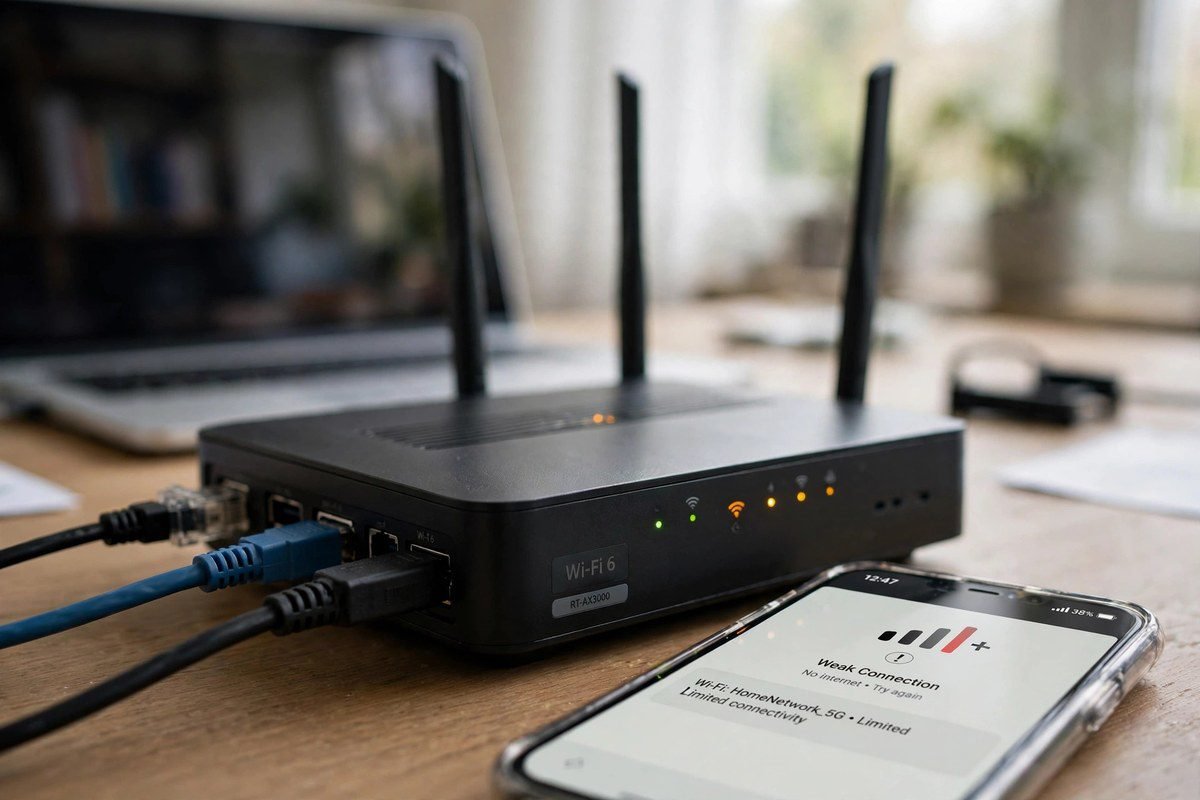
This is the most common cause by a wide margin. Roblox needs a steady connection, not just a fast one. If your Wi-Fi signal is weak, if you are far from your router, or if your connection keeps dropping for a second or two, requests to Roblox’s servers can fail partway through. That is often enough to trigger an HTTP error. The same thing can happen on mobile data when you move between areas with patchy coverage, or when several people in your home are streaming video and gaming at the same time.
Roblox server problems
Sometimes the problem is not on your end at all. Roblox is a huge platform, and like any online service, it can suffer outages, overload during busy periods, or planned maintenance. When the servers are struggling, your device’s requests may time out or get rejected, and you will see an HTTP error even though your internet is working perfectly for everything else. If your friends are getting the same error at the same time, this is a strong hint that the servers are the issue.
Outdated app or browser
Running an old version of the Roblox app, or an old browser, can also cause trouble. Roblox updates regularly, and older versions may no longer communicate properly with its servers. On a browser, the same thing can happen if the browser itself has not been updated, or if an extension is interfering with how pages load. This is one of those causes that is easy to overlook because everything else on your device may seem to work fine.
Corrupted cache and temporary files
Your browser and the Roblox app store temporary files, called cache, to make things load faster next time. Normally this is helpful. But over time, some of those stored files can become outdated or corrupted, and when Roblox tries to use them, the request fails. This is a very common cause of errors that appear suddenly, even though nothing about your setup seems to have changed.
Firewall, antivirus, or DNS issues
Security software is designed to protect you, but occasionally it gets overprotective and blocks Roblox from reaching the internet, or blocks part of its traffic. Similarly, DNS, which is the system that turns website names into addresses your device can connect to, can cause problems if it is slow or misconfigured. If Roblox worked yesterday and stopped working after a security update or a network change, this is a likely culprit.
Device and account glitches
Finally, sometimes the problem is smaller and stranger: a temporary glitch in the app, a session that has expired, or a device that has been running for days without a restart and is low on free memory. These are not dramatic problems, but they can still interrupt the connection between your device and Roblox’s servers.
Quick Fixes You Should Try First
Before you change any settings, run through these quick fixes. They solve the problem surprisingly often, and each one takes a minute or less.
First, refresh or restart. If you are on a browser, reload the page. If you are in the app, close it fully and open it again. A surprising number of HTTP errors are one-off glitches that disappear with a fresh attempt.
Second, restart your device. This clears temporary glitches, frees up memory, and resets the network connection. It is the oldest advice in tech support for a reason: it works more often than people expect.
Third, check your connection. Move closer to your router if you are on Wi-Fi, or switch between Wi-Fi and mobile data on your phone to see if one works better than the other. Try loading another website or app. If nothing else loads either, your internet is the problem, not Roblox, and you should focus on your connection first.
Fourth, try a different browser or device if you can. If Roblox works on your phone but not your computer, you have narrowed the problem down to that computer, which saves a lot of guessing.
If none of these quick fixes work, do not worry. The step-by-step section below goes deeper, and one of those fixes will very likely do the job.
Step-by-Step Fixes for Persistent HTTP Errors
Work through these in order, and test Roblox after each step. There is no need to do them all if an early one fixes it.
1. Clear your browser cache and cookies, or clear the app cache
On a browser, open your settings and clear cached images and files, and cookies for the Roblox site. This removes the outdated stored data that may be breaking requests. On a phone, you can clear the Roblox app’s cache from your device settings without losing your account or progress, since your games and items are stored on your account, not on the device. After clearing, sign back in and try again.
2. Update the Roblox app and your browser
Check your app store for a Roblox update, and check your browser for an update too. If you play through the website, make sure you are using a current, supported browser. Updates often include fixes for exactly the kind of connection problems that cause HTTP errors.
3. Restart your router
Unplug your router, wait about thirty seconds, and plug it back in. Give it a couple of minutes to fully reconnect, then try Roblox again. This clears temporary issues in your home network and often resolves errors caused by a stale or overloaded connection.
4. Check your firewall and antivirus settings
Open your firewall or antivirus settings and make sure Roblox is allowed through. If you are not sure how to do this, try temporarily disabling the software for a few minutes and testing Roblox. If the error disappears, you have found the cause, and you can add Roblox as an exception rather than leaving your protection off. Remember to turn your security software back on afterwards.
5. Change your DNS settings
If you are comfortable changing a network setting, switching to a well-known public DNS service can help when your internet provider’s DNS is slow or unreliable. On a PC, you can change this in your network adapter settings; on a phone, you can change it in your Wi-Fi network settings. This sounds technical, but it is a standard troubleshooting step, and there are simple guides for every device if you need one. If you are not comfortable with it, skip to the next step.
6. Reinstall the Roblox app
If you are using the app and nothing else has worked, uninstall it and install a fresh copy from your official app store. This replaces any corrupted app files that clearing the cache did not fix. Your account, friends, and items are safe, because they live on Roblox’s servers, not in the app itself. On a browser, the equivalent step is trying a different browser, or resetting your current one to its default settings.
7. Try a wired connection
If you normally play over Wi-Fi and keep getting errors, try connecting your computer directly to your router with an ethernet cable, even temporarily. A wired connection removes Wi-Fi interference from the picture entirely. If the error stops on a wired connection, you know your Wi-Fi signal or router placement is the real issue, and you can work on that instead of chasing Roblox settings.
Fixing HTTP Errors on PC, Mobile, and Console
The core fixes are the same everywhere, but each platform has its own quirks worth knowing.
On PC, most players use a browser, so cache, cookies, and browser extensions matter most. If you use the Roblox app from the Microsoft Store instead, treat it like the mobile app: check for updates and reinstall if needed. Also check that your PC’s date and time are set correctly, because a badly wrong system clock can interfere with secure connections.
On mobile, the app is the main route, so clearing the app cache and updating the app are your best first moves. Mobile data can also be part of the problem: if you are on a weak signal, Roblox may struggle even when messaging apps work fine, because games need a steadier connection. Switching to Wi-Fi, or moving to an area with better coverage, often clears the error.
On console, your options are more limited, but the basics still apply: restart the console fully, not just put it to sleep, and restart your router. Also check that your console’s system software is up to date, and that Roblox itself is updated. If the error appears only on your console while other devices work, a full console restart followed by a fresh install of Roblox usually resolves it.
Across all platforms, one rule stays the same: change one thing at a time and test after each change. If you change five settings at once and the error goes away, you will never know which one fixed it, and the problem may come back later.
How to Tell If It Is a Roblox Outage
This is the step that saves the most wasted effort. Before you spend an hour changing settings, spend two minutes checking whether Roblox itself is having problems.
The simplest clue is other people. Ask friends whether they are getting the same error, or check community spaces where players report problems. If many players are reporting HTTP errors at the same time, it is almost certainly a server-side issue, and no amount of clearing your cache will fix it.
You can also check Roblox’s official status resources, which the platform provides to report outages and maintenance. These pages describe in plain terms whether services are running normally or experiencing problems. If an outage is confirmed, the only real fix is patience: wait, and try again later. Roblox’s team works to restore service as quickly as they can, and most outages are resolved within a few hours at most.
It is also worth checking whether the problem is specific to one game. If you can open Roblox and browse games but get an error only when joining one particular experience, that game’s servers may be having trouble, or the game itself may have an issue. Try a different game. If other games load fine, wait and come back to that one later, or let its creators know if the problem persists.
Knowing when to stop troubleshooting is a skill in itself. If you have tried the quick fixes, your internet works for everything else, and other players are reporting the same problem, you have done your part. Step away, do something else, and try again in a little while.

How to Prevent HTTP Errors in the Future
Once you have fixed the error, a few small habits will make it much less likely to come back.
Keep the Roblox app and your browser updated, and let updates install rather than putting them off for weeks. Updates do not just add features; they fix the connection and compatibility issues that cause errors.
Restart your router occasionally, especially if your household has many devices connected. Like any piece of hardware, a router benefits from a fresh start now and then.
Avoid playing on a very weak Wi-Fi signal. If your usual gaming spot is far from the router, consider moving closer, or look into a Wi-Fi extender for that part of your home. A stronger signal means fewer dropped requests.
Clear your browser or app cache from time to time, particularly if Roblox starts loading slowly or behaving oddly. You do not need to do this every day, but doing it every few weeks keeps stale files from building up.
Finally, if you use security software, make sure Roblox is on its allowed list after any major update to that software. A surprising number of errors appear right after a security update quietly changes what is allowed through.
None of these habits take much time, and together they remove most of the conditions that lead to HTTP errors in the first place.
Frequently Asked Questions
What does an HTTP error Roblox mean?
It means your device and Roblox’s servers failed to communicate properly. Your device sent a request, but the response was interrupted, rejected, or never arrived. It is a connection problem, not a sign that your account is in trouble.
Why do I get an HTTP error Roblox but my internet works fine?
Because a connection can be good enough for browsing but not steady enough for Roblox, or because the problem is on Roblox’s side. Servers can be down or overloaded even when your own internet is perfect. Clearing your cache and checking whether other players have the same problem will help you tell the two apart.
Will reinstalling Roblox delete my games or items?
No. Your games, items, friends, and progress are tied to your Roblox account and stored on Roblox’s servers. Reinstalling the app only replaces the software on your device, so you can sign back in and pick up exactly where you left off.
How long do Roblox outages usually last?
Most are resolved within a few hours, though it varies with the cause. If a status check confirms an outage, the best thing to do is wait and try again later rather than changing settings on your device.
What should I do if nothing fixes the HTTP error?
Work through the steps in this guide one at a time, testing after each one, and make sure you have ruled out a server outage first. If the error persists on every device and every connection for more than a day, contact Roblox support and describe what you have already tried, including the device you play on and when the error appears. That detail helps them help you much faster.
Conclusion
An HTTP error Roblox is annoying, especially when it shows up right as you are about to play, but it is rarely a serious problem. In most cases, the cause is one of a handful of everyday issues: an unsteady connection, outdated software, old cached files, or a temporary server problem. Working through the fixes in order, from the quick restarts to the deeper steps like clearing your cache or reinstalling the app, will resolve it for the large majority of players.
The most important habit to take away is checking whether the problem is yours before you start fixing things. A quick check of your connection and whether other players are affected can save you a lot of time, and it tells you when the right move is simply to wait for Roblox to sort out a server issue.
If you have just fixed your error, take a moment to apply the prevention tips too. A kept-up-to-date app, a healthy Wi-Fi signal, and an occasional cache clear will keep those errors away far more reliably than any single fix. Now get back in the game.
Read Also: Homeassistant.local:8123: Open Home Assistant (2026 Guide)

Admin
Contributor at Daily Scope 67.
Related reading

192/16 Network Meaning and Subnet Guide (2026 Guide)
192/16 is shorthand for a large private network range. Here is what the /16 means, how many addresses it covers, and when you will meet it.
Read story
192.168.50.1 Router Login and Admin Setup (2026 Guide)
192.168.50.1 is the admin address for some routers and modems. Here is the full login guide, plus troubleshooting and security tips.
Read story
192.168.100 Router Login and Admin Setup (2026 Guide)
192.168.100 looks like a router address but it is missing a piece. Here is what it really means and the full address to use for your admin login.
Read story
1 comment