
In this article
In this article
- What Is Homeassistant.local:8123?
- How to Open It on Your Home Network
- What You Will See: First-Run Onboarding in General Terms
- If the Page Will Not Load
- Finding the Server by Its IP Address
- Everyday Uses Once You Are In
- Security Notes Worth Knowing
- Frequently Asked Questions
- Final Thoughts
If you have set up a smart home server and been told to visit http://homeassistant.local:8123, you may be wondering what that odd-looking address actually is. Here is the short answer: it is the default local web address for Home Assistant, a popular open-source smart home platform that runs on a small computer in your home. Typing that address into a browser on the same home network should open Home Assistant’s web interface, where you can set it up and, later, control your smart home. If the page does not load, the cause is usually simple — a network mismatch, a name-resolution hiccup, or a server that is not fully running yet — and this guide works through each one.
What Is Homeassistant.local:8123?
The address has two parts, and both matter. The first part, homeassistant.local, is a name. The second part, :8123, is a port number.
Home Assistant is software that runs on a device in your home — often a small single-board computer, a mini PC, or another always-on machine. That device acts as a server for your smart home: it talks to your lights, plugs, sensors, thermostats, and other devices, and it presents a single dashboard you can open in a browser or an app. Because the server lives in your home, you reach it over your home network, not over the public internet.
The “.local” ending is the clue. Names ending in .local are resolved on the local network using a technology often called mDNS (multicast DNS), with Apple’s version known as Bonjour. In plain terms, when your laptop asks the network “who is homeassistant.local?”, the Home Assistant device answers, “that is me, here is my address.” No public domain registration is involved, and the name only works inside your own home network. That is by design: it keeps your smart home dashboard local.
The :8123 part is the port. Think of a port as a numbered door on a device. A single device can run several services, each listening on its own port, and the port number tells your browser which service you want. Home Assistant’s web interface listens on port 8123 by default, which is why the address includes it. Leave the port off, and the browser will try the usual web port instead, and will not find Home Assistant there.
Put together, http://homeassistant.local:8123 means: “on this local network, find the device called homeassistant, and connect to the service on port 8123.” When everything is working, that service is the Home Assistant web interface.
Why a local address, rather than a website?
A smart home hub that lives in your house does not need a public website address to do its job. Keeping access local means your lights, sensors, and routines are managed inside your home, without depending on a distant server for everyday control. It also means the dashboard is only reachable by devices on your home network, which is a meaningful safety boundary, as discussed later in this guide.
It also explains why the address will not work from elsewhere. If you are at work, on mobile data, or on a friend’s Wi-Fi, homeassistant.local will not resolve to your home server. That is not a fault; it is how local names work.
How to Open It on Your Home Network
The steps are simple, but each one is worth checking, because a small slip is usually what stands between you and the dashboard.
First, confirm that your Home Assistant device is powered on and connected to your home network, either by Ethernet cable or Wi-Fi, and that it has had time to start up fully. A fresh start can take a few minutes, especially on a smaller device. If you have just plugged it in, give it time before judging whether the address works.
Second, make sure the device you are browsing from — your phone, tablet, or computer — is connected to the same home network. Same network means the same Wi-Fi network, or the same wired network, in the same home. If your phone is on mobile data, or has joined a guest network that is isolated from the main network, it will not be able to reach the server. Guest networks are often deliberately separated from other devices, which is good for visitors but unhelpful when you are trying to reach a local server.
Third, open a browser and type the address into the address bar, not into a search engine: http://homeassistant.local:8123 — then press Enter. Note the details: “homeassistant” is one word, there is a dot before “local”, and the colon and 8123 come right after “local” with no spaces. Typing the address into a search box will return search results instead of opening the dashboard, which is a common and easily fixed mistake.
If all is well, the browser should load the Home Assistant interface. On a first run, you will see onboarding screens. On a server that is already set up, you will see a login screen asking for the username and password created during setup. Either way, reaching a Home Assistant page at all is a good sign: the name resolved, the port answered, and the server is running.
A note on the browser warning: you may see a “Not Secure” notice, because the local connection does not carry a public security certificate. On your own home network, connecting to your own server this way is the expected situation. Still, only open this address on a network you trust, and be cautious about entering credentials anywhere you did not expect to see a login page.
What You Will See: First-Run Onboarding in General Terms
If this is the first time the server has been started, Home Assistant will guide you through an initial setup rather than dropping you straight onto a dashboard. The exact screens can change as the software evolves, so treat the following as a general picture rather than a click-by-click script.
You will typically be asked to create an owner account — a username, a password, and a name for the person using the system. Choose a strong password and store it safely, because this account controls your smart home. You may then be asked about your location and basic preferences, such as units, which help the system show weather and times sensibly. Home Assistant may also discover devices already on your network and offer to set them up, step by step.
Take onboarding slowly. You do not need to connect every device in the house on day one. Adding one or two devices, confirming they respond from the dashboard, and then expanding gradually is a far calmer way to build a smart home than trying to set up everything at once. If a device is not discovered immediately, it may need to be put into pairing mode, or it may need its own app or integration step first. That is normal, and it does not mean the server is broken.
Once setup is complete, the dashboard becomes your home base: a page of cards or tiles showing devices, their states, and controls. From there, you can turn lights on and off, check sensor readings, and, over time, build automations — rules such as “when this sensor triggers, do that.” Automations are where a smart home starts to feel genuinely helpful, but they are best built one at a time, testing each as you go.
If the Page Will Not Load
When http://homeassistant.local:8123 refuses to load, work through these checks in order. Most failures are explained by one of them.
- Are you on the same network? This is the most common cause. Check that your browsing device is on the same Wi-Fi network as the server, not on mobile data and not on an isolated guest network. If your home has separate network names for different bands or access points, make sure both devices are on the same home network in practice, not just in name.
- Is the server actually running? Check that the device is powered on, its network cable is firmly connected or its Wi-Fi is joined, and its indicator lights look normal. If you recently restarted it or updated it, wait several minutes and try again. A server that is still starting up will not answer on port 8123 yet.
- Did the address resolve? The “homeassistant.local” name depends on mDNS working on your network. Some networks, routers, or devices handle mDNS poorly, and some VPNs interfere with it. If you suspect this, try the IP-address method in the next section, which bypasses the name entirely.
- Is a VPN or firewall in the way? A VPN on your browsing device routes traffic elsewhere and can break local name resolution. Temporarily disconnect the VPN and try again. A strict firewall on your computer can also block local connections; if you recently changed firewall settings, that is worth revisiting.
- Try another browser and another device. If the page loads on one device but not another, the problem is with the first device’s network setup, browser, or mDNS support, not with the server. Trying a phone and a laptop, for example, quickly narrows things down.
- Restart in the right order. Restart your browsing device, then restart the Home Assistant device, then, if needed, restart your router. Wait for each to come fully back online before testing again. This clears stale network information that can quietly block local names.
Finding the Server by Its IP Address
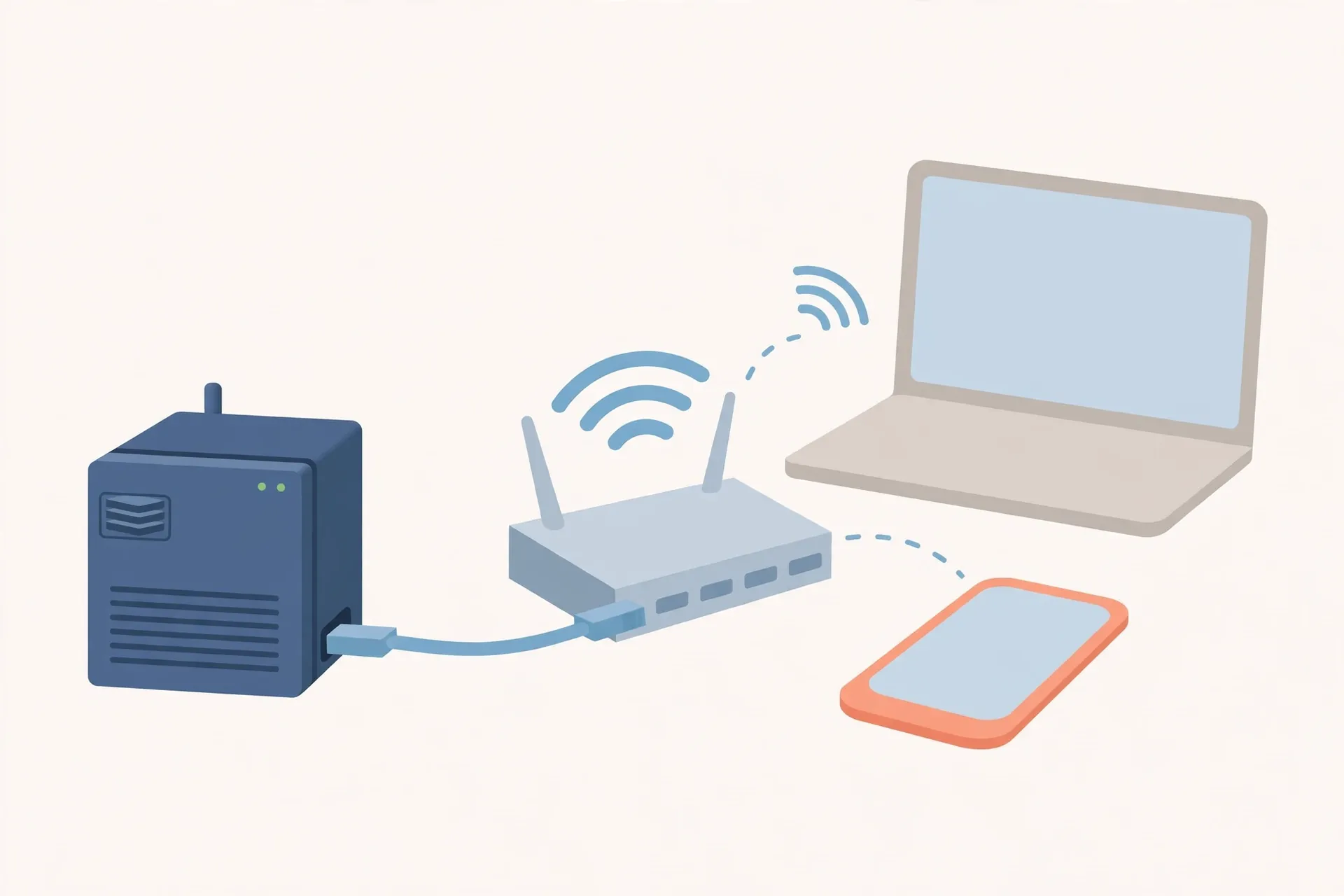
If the .local name will not resolve, you can reach the same server by its IP address, followed by the same port. For example, if the server’s address on your network is 192.168.1.50, you would type: http://192.168.1.50:8123
To find the server’s address, check your router’s connected-devices page, which usually lists device names and their addresses. The Home Assistant device may appear under its own name, or under the name of the hardware it runs on. Alternatively, a network scanning tool on your phone or computer can list devices on your network and help you identify it. Once you have the address, bookmark it as a backup way in, but remember that a device’s address can change when it reconnects, unless your router is set to reserve a fixed address for it. Reserving an address for the server, if your router offers that option, makes the IP method far more reliable over time.
If the IP address works but the .local name does not, you have learned something useful: the server is running fine, and only name resolution is failing. You can continue using the IP address, and investigate mDNS support on your router or devices at your leisure, rather than treating it as an emergency.
Everyday Uses Once You Are In
Once the dashboard loads reliably, Home Assistant becomes a quiet background helper rather than a project you tend daily. The most common everyday uses are simple: checking whether a light was left on, turning devices off from the sofa, seeing a temperature or sensor reading at a glance, and setting up a handful of automations that remove small daily chores.
A sensible approach is to start with visibility — seeing device states on one dashboard — then move to control, and only then to automation. An automation that turns a light on when a sensor detects motion, or sends a notification when a door is left open, is genuinely useful. An automation built in a hurry, without testing, can be annoying. Build slowly, test each rule, and keep a note of what you set up, so that a strange behaviour months later can be traced back to its cause.
It is also worth keeping the system updated. Home Assistant, like any software, receives updates that fix bugs and improve security. Updates are best done at a calm moment, with a backup taken first if the system offers that option, and with a little time afterwards to confirm that devices still respond as expected.
Security Notes Worth Knowing
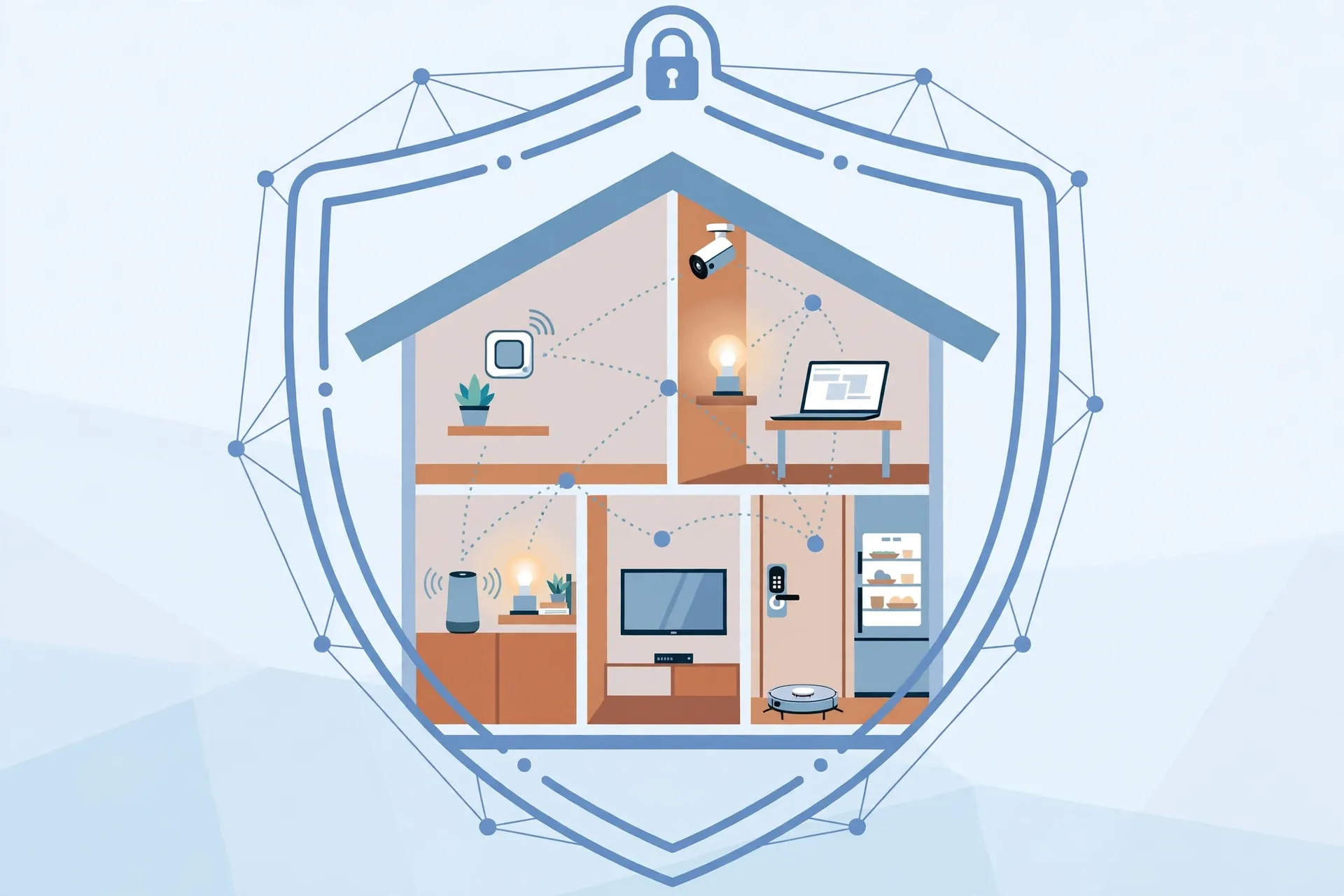
Local-only access is a strength, and it is worth preserving thoughtfully. By default, reaching Home Assistant through homeassistant.local:8123 only works from inside your home network. That means someone on the internet cannot simply type the address and reach your dashboard, because the address has no meaning outside your home. Keep it that way unless you have a deliberate, well-understood reason to change it.
Remote access — reaching your smart home dashboard while you are away — is possible, but it needs deliberate setup, and it should not be improvised. Opening ports on your router, or exposing a home server to the internet without proper protection, can create real risks. This guide deliberately does not walk through remote-exposure steps, because that is a decision that deserves careful reading of the official guidance for your setup, a strong unique password, and, where available, additional authentication. If you need remote access, take the time to research the recommended, secure method for your situation rather than following a shortcut.
Inside the home, the basics still matter. Use a strong, unique password for your Home Assistant account, keep the server software updated, and be thoughtful about who has access to your home Wi-Fi, since anyone on the network can attempt to reach the local dashboard. If you share your home with guests, a separate guest network keeps visitors online without giving them a path to your smart home server.
Finally, treat integrations and add-ons with the same care you would give any software: use well-known, maintained ones, keep them updated, and remove anything you no longer use. A tidy system is easier to secure and easier to troubleshoot.
For more smart-home and everyday tech reading, you can also explore the practical guides published at Adailyinsight360 (https://adailyinsight360.com/), which covers similar topics in accessible language.
Frequently Asked Questions
Do I need the internet to open homeassistant.local:8123?
No, not for local access itself. The address works over your home network, so you can open the dashboard even if your broadband connection is temporarily down, provided your local network and the server are both running. Internet access is still needed for some features, such as remote services or voice assistants that rely on the cloud.
Why does homeassistant.local work on one device but not another?
Local name resolution depends on mDNS support, which varies by device, operating system, and network setup. A device that handles mDNS well will resolve the name, while another may not. Trying the server’s IP address with :8123 usually works on the device where the name fails.
What does the 8123 mean?
It is the port number that Home Assistant’s web interface listens on by default. Without it, the browser tries the standard web port and will not find the interface. Always include :8123 when typing the address.
Can I use homeassistant.local:8123 when I am away from home?
No. The .local name only works on your home network. Reaching Home Assistant from elsewhere requires a deliberate remote-access setup, which should be done carefully and securely, as discussed above.
What if I forgot my Home Assistant password?
If you are locked out of an existing setup, recovery depends on how the server was installed and whether you have access to the device itself. In general, you will need to follow the recovery guidance for your installation type, and having a backup of your configuration makes recovery far less painful. Keep credentials in a password manager to avoid this situation.
Is Home Assistant free?
Home Assistant itself is open-source software, and the core platform is available without a licence fee. You will still need hardware to run it on, and some optional services or integrations may have their own costs. Check the current details for your setup before committing to any optional paid service.
Final Thoughts
Http://homeassistant.local:8123 may look like a strange address, but it is simply the front door to a smart home server that lives in your house. The name finds the server on your local network, and the port number 8123 takes you to its web interface. Connect to the same home network, type the address carefully into your browser’s address bar, and give the server time to start. If the name will not resolve, the server’s IP address with :8123 is a reliable fallback, and if nothing loads at all, the checklist — same network, server running, VPN off, restart in order — will solve most cases. Keep access local by default, use a strong password, and build your smart home one device at a time. That calm, local approach is exactly what makes Home Assistant so appealing in the first place.
Read Also: James Comer: Who Is He, What’s His Role, and Why Does He Matter? (2026 Guide) (https://dailyscope67.com/james-comer/)

Admin
Contributor at Daily Scope 67.
Related reading
192/16 Network Meaning and Subnet Guide (2026 Guide)
192/16 is shorthand for a large private network range. Here is what the /16 means, how many addresses it covers, and when you will meet it.
Read story
192.168.50.1 Router Login and Admin Setup (2026 Guide)
192.168.50.1 is the admin address for some routers and modems. Here is the full login guide, plus troubleshooting and security tips.
Read story
192.168.100 Router Login and Admin Setup (2026 Guide)
192.168.100 looks like a router address but it is missing a piece. Here is what it really means and the full address to use for your admin login.
Read story
1 comment