

In this article
In this article: What Is 192.168.100? — Why It Will Not Open a Login Page — The Address You Probably Meant — Finding Your Real Gateway — Logging In Step by Step — Troubleshooting — Securing Your Router — Frequently Asked Questions — Conclusion.
If you have been typing 192.168.100 into your browser and wondering why no router login page appears, the answer is refreshingly simple: the address is unfinished. It looks like a router address, it starts with the familiar 192.168 prefix, and it feels like it ought to work. But a complete IPv4 address has four groups of numbers, and 192.168.100 has only three. Until that missing piece is supplied, your browser has no valid destination to connect to, and no login page can appear.
This guide explains what 192.168.100 actually is, which complete address you most likely meant, how to find your router’s real admin address in under a minute, and how to log in and look after your network once you are there.
What Is 192.168.100?
An IPv4 address — the addressing system used by practically every home network — consists of four numbers, called octets, separated by dots. Each octet ranges from 0 to 255. A complete example is 192.168.100.1, which has all four groups filled in. The string 192.168.100 has only three groups, so it is not a complete address at all. It is a prefix, a fragment, a starting point — but not a destination.
That distinction explains the behaviour you see in the browser. When you type a complete private address such as 192.168.100.1, the browser attempts a direct connection to a device on your local network. When you type an incomplete address, the browser cannot form a connection, so it usually falls back to treating your input as a search query. Instead of a login page, you get a page of search results about router addresses, which is confusing but entirely expected.
It is also worth understanding what the three numbers do tell you. The 192.168 prefix marks the address as private, meaning it belongs to a local network rather than the public internet. The third number, 100, narrows it further: it identifies a particular subnet, or subdivision, of that private range. Many routers and internet providers use the 192.168.100.x range, which is why the fragment feels familiar. But a subnet is a neighbourhood, not a house — you still need the final number to knock on a specific door.
Why It Will Not Open a Login Page
There are two separate reasons 192.168.100 fails, and both matter. The first is format: as an incomplete address, it cannot be connected to at all. No device on your network has the address “192.168.100”, because devices hold complete four-part addresses. Typing it is like dialling a phone number with the last digits missing — the call cannot be placed.
The second reason is about which device you actually want. Even people who type a complete address in the 192.168.100 range, such as 192.168.100.50, often do not reach a login page, because addresses in that range are usually assigned to ordinary devices — a laptop, a phone, a smart TV — rather than to the router itself. The router’s admin panel lives at the gateway address, which is the router’s own address on the network. On networks built around the 192.168.100 range, the gateway is very often 192.168.100.1. So the fragment you typed is close to the right neighbourhood, but the login page lives at one specific address within it.
The Address You Probably Meant
In the great majority of cases, someone typing 192.168.100 means one of two things. The first possibility is 192.168.100.1, the gateway address used by a number of routers and by some internet providers’ supplied equipment. If your router’s documentation, sticker, or setup guide mentions an address starting with 192.168.100, it almost certainly means 192.168.100.1, and adding the final “.1” is the fix.
The second possibility is that you saw 192.168.100 somewhere as a shorthand. Network administrators sometimes write 192.168.100.0/24 to describe the whole subnet, and in casual notes the trailing part gets dropped, leaving 192.168.100. Either way, the practical step is the same: do not guess the final number. Find your network’s actual gateway address from a connected device, as described below, and use that. Guessing can send you to another device on the network or nowhere at all, while the gateway lookup gives you the definitive answer for your own setup.
Finding Your Real Gateway
The gateway lookup takes less than a minute and removes all guesswork. On Windows, open Command Prompt, type ipconfig, and press Enter. Look for the Default Gateway line under your active connection. On a Mac, open System Settings, go to Network, select your connection, and read the Router field. On an iPhone or iPad, go to Settings, then Wi-Fi, tap the information icon next to your connected network, and look for Router. On Android, open your connected network’s details under Wi-Fi settings and look for the Gateway entry.

Whatever number appears there is your router’s address, and it is the one to type into your browser. If it reads 192.168.100.1, then your instinct was right and the fragment just needed its final octet. If it reads something else — 192.168.1.1, 192.168.0.1, 10.0.0.1, or anything else — then that is the address for your network, and the 192.168.100 fragment was a red herring. Trust the device over the note.
You can cross-check with the sticker on the router itself, which usually prints the factory admin address. If nobody has changed the router’s configuration, the sticker and the gateway lookup will agree. If they disagree, the lookup wins, because it reflects the network as it is actually configured today.
Logging In Step by Step
Once you have the gateway address, connect a device to the router’s network — by Wi-Fi or, more reliably, by Ethernet cable — and type the address into the browser’s address bar. The address bar is the strip at the top of the browser window, not a search engine’s search box. Typing a local address into a search box is a common error, and it produces search results instead of a login page.
The router should respond with a login page asking for a username and password. These admin credentials are separate from your Wi-Fi password, and mixing them up is the single most common login failure. Factory defaults are usually printed on the router’s sticker; “admin” for both fields is common, but some routers use a unique password printed on the sticker, and some use “admin” with “password”. Enter them carefully, since they are case-sensitive.
If the credentials are accepted, you will see the admin dashboard: a status page, wireless settings, a connected-devices list, and sections for security, firmware, and advanced features. Take a few minutes to look around before changing anything. Note the existing settings for anything you plan to adjust, and change one thing at a time so you can reverse it if needed.
If the factory credentials do not work and nobody can recall a changed password, the fallback is a factory reset: hold the recessed reset button, usually with a paperclip, for about ten seconds while the router is powered on. This restores the sticker credentials, but it also erases your Wi-Fi name, Wi-Fi password, and all custom settings, so only use it when you are ready to set the network up again.
Troubleshooting
If the gateway address still does not load a login page, check the basics in order. First, make sure you are on the right network. A phone on mobile data, or a laptop on a VPN, cannot reach a private local address, because private addresses only exist inside the local network. Disconnect the VPN, confirm Wi-Fi is connected to your own network, and retry.
Second, re-check what you typed. Local addresses tolerate no errors: a missing digit, a transposed pair, or an extra dot all break the connection. Type slowly, and if you pasted the address, make sure no spaces or stray characters came with it.
Third, try a different browser or a second device on the same network. If the second device reaches the login page, the problem is with the first device — its cache, an extension, or a privacy setting — and a private browsing window or cache clear usually fixes it.
Fourth, restart the router. Unplug it, wait thirty seconds, plug it back in, and give it a couple of minutes to boot fully. The admin web server can stop responding while internet traffic continues normally, and a restart clears that state.
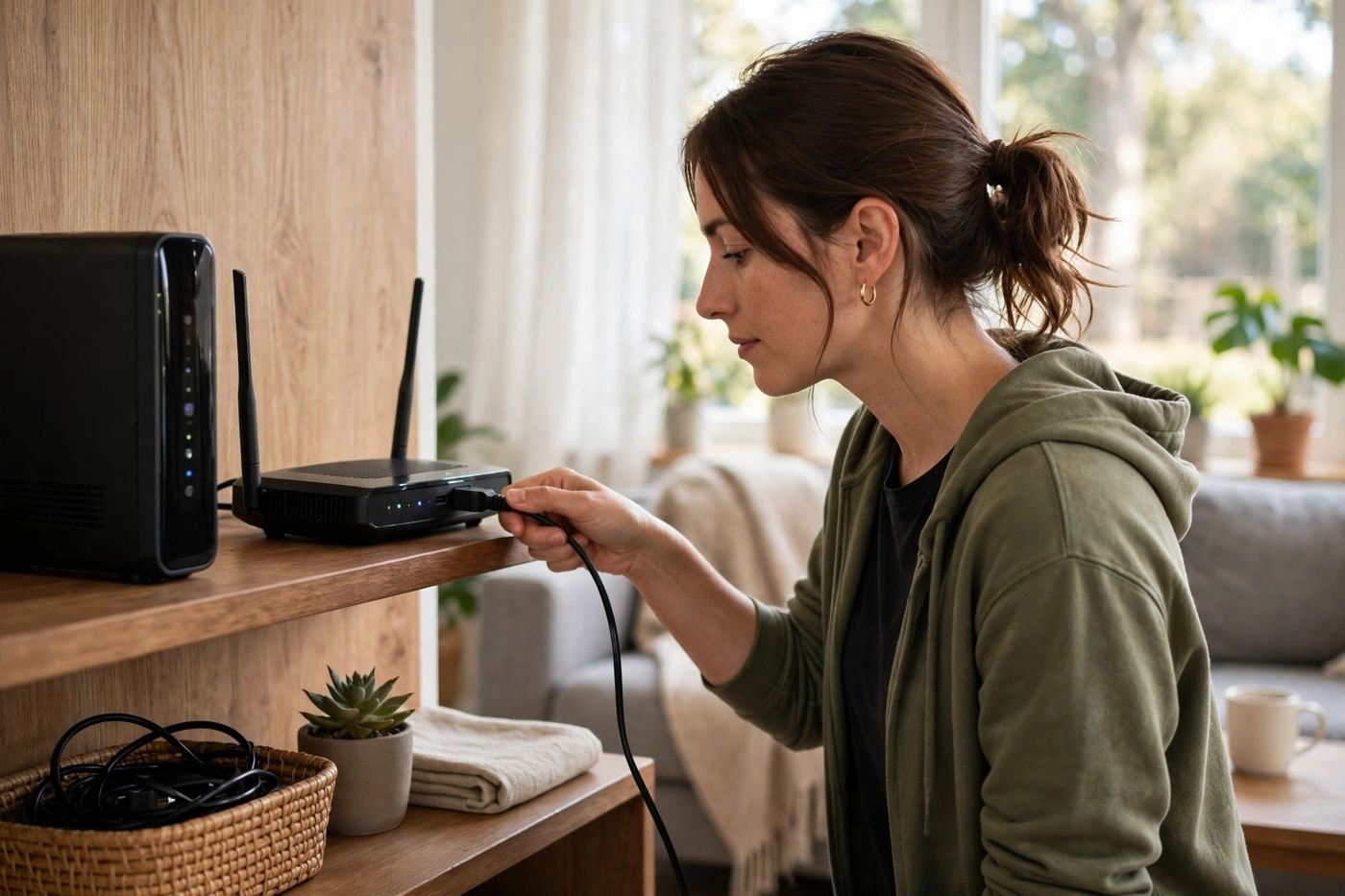
If no device can reach the router and the router’s lights suggest it is not starting properly, the issue may be hardware or your broadband service. Your provider’s support team is the next step, and listing the steps you have already tried will speed up the conversation.
Securing Your Router
A few settings in the admin panel are worth your attention on every router, and they matter more than most people think. Start with the admin password: if it is still the factory default, change it to something long and unique, and store it in a password manager. Factory credentials are public knowledge, and anyone who joins your network could otherwise take over the router.
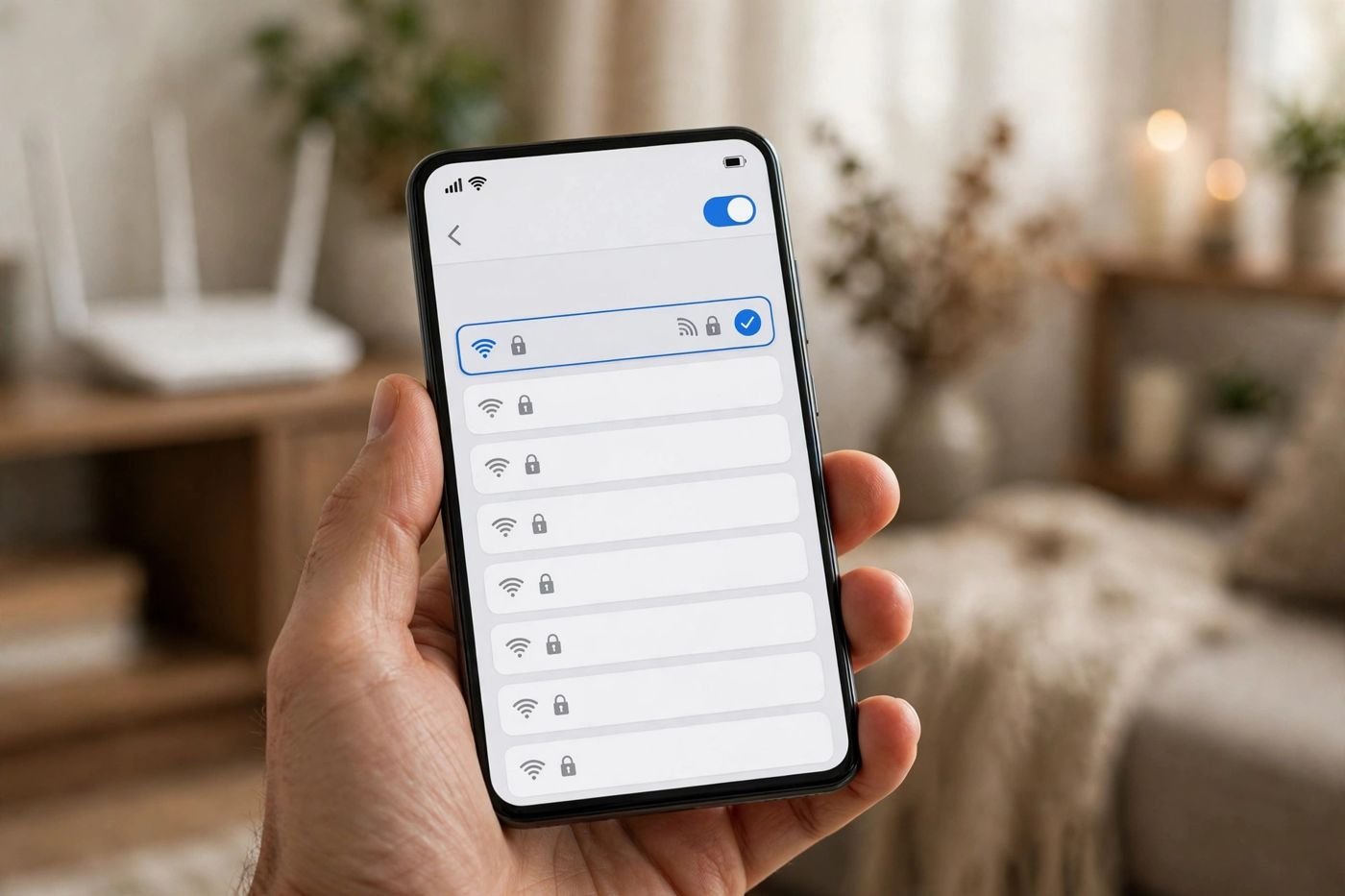
Next, check your Wi-Fi encryption. It should be WPA2 or WPA3 with a strong password. If it is set to an older standard, or if the network is open, fix that now. While you are there, consider whether your network name reveals personal details, and change it to something neutral if it does.
Check for firmware updates, too. Manufacturers release updates that fix bugs and patch security holes, and many routers do not install them on their own. The update option is usually under Administration, System, or Advanced. If your router offers automatic updates, enable them.
Two more settings are worth a look. A guest network gives visitors internet access without exposing your main network and its devices. And remote management, which exposes the admin panel to the internet, should stay off unless you have a specific reason to need it. Disabling WPS once your devices are connected removes another known weak point.
Frequently Asked Questions
Is 192.168.100 a valid IP address? No, not on its own. A complete IPv4 address needs four number groups, and 192.168.100 has only three. It describes a range of addresses rather than one specific device.
What full address should I try? Most often 192.168.100.1, which is the gateway on many networks using this range. But the reliable answer is your own network’s gateway address, found in your device’s network details.
Why do I get search results instead of a login page? Because the browser cannot parse an incomplete address as a destination, so it searches for it instead. This is the classic sign of a mistyped or incomplete address.
Can I find which device has a 192.168.100.x address? Yes — your router’s connected-devices list shows the full addresses of everything on your network, usually with device names. That list is visible once you log in to the admin panel.
What if I forgot the admin password? Try the sticker defaults first. If they were changed and forgotten, a factory reset restores them, at the cost of erasing your custom settings.
Is it safe to change router settings? Yes, if you change one thing at a time and note the original values. Most changes are reversible, and a factory reset remains available as a last resort.
Conclusion
The string 192.168.100 is not a broken router or a dead address — it is simply an unfinished one. A complete IPv4 address needs four number groups, and the login page you are looking for lives at a specific full address, most commonly the gateway 192.168.100.1 on networks that use this range. Find your gateway from a connected device, type it exactly into your browser’s address bar, and log in with the credentials on your router’s sticker. A few minutes spent afterwards on a strong admin password, WPA2 or WPA3 encryption, and a firmware check will leave your network in considerably better shape than you found it.
Read Also: 192.168.11.1 Router Login and Admin Setup (2026 Guide)

Admin
Contributor at Daily Scope 67.
Related reading
192/16 Network Meaning and Subnet Guide (2026 Guide)
192/16 is shorthand for a large private network range. Here is what the /16 means, how many addresses it covers, and when you will meet it.
Read story
192.168.50.1 Router Login and Admin Setup (2026 Guide)
192.168.50.1 is the admin address for some routers and modems. Here is the full login guide, plus troubleshooting and security tips.
Read story
192.168.11.1 Router Login and Admin Setup (2026 Guide)
192.168.11.1 is a private gateway address some routers use for their admin panel. This guide shows you how to log in, fix common problems, and change your Wi-Fi settings safely.
Read story
1 comment