
In this article
In this article:
- What 192.168..1.1 Actually Is
- Why 192.168..1.1 Does Not Work
- The Fix: Type 192.168.1.1 Correctly
- How to Log In to Your Router at 192.168.1.1
- Default Router Login Details
- What You Can Do Inside the Admin Panel
- Troubleshooting: When 192.168.1.1 Still Won’t Open
- How to Find Your Router’s Real IP Address
- Security Tips After You Log In
- Frequently Asked Questions
- Conclusion
If you typed 192.168..1.1 into your browser and got an error page, a search results page, or a message saying the site cannot be reached, you are not alone. This is one of the most common router login mistakes, and the good news is that it takes about ten seconds to fix.
Here is the short answer: 192.168..1.1 is not a valid address. The double dot in the middle breaks it. The address you almost certainly meant is 192.168.1.1, with a single dot between each group of numbers. That is the default admin address for a huge number of home routers, and typing it correctly should take you straight to your router’s login page.
In this guide, we will walk through exactly why 192.168..1.1 fails, how to correct it, and then give you the full login process: finding your credentials, getting into the admin panel, and fixing the most common problems if the page still will not load. No technical background needed.
What 192.168..1.1 Actually Is
Let us start with the plain truth: 192.168..1.1 does not point to any device on your network, and it does not point to anything on the internet either. It is simply a mistyped version of 192.168.1.1.
That mistype usually happens in one of a few ways. Sometimes a finger slips and hits the dot key twice. Sometimes someone copies an address from a page where the text was formatted oddly, and an extra dot creeps in. And sometimes people genuinely are not sure how many dots belong in the address, so they guess. All of these are easy to do, because IP addresses are strings of numbers and dots that most of us type from memory rather than reading off a label.
What matters is what happens next. When your browser receives 192.168..1.1, it cannot make sense of it as an address, so it does one of two things. It either shows you an error, or it treats the whole thing as a search term and sends you to a search engine instead. Either way, you never reach your router. That does not mean your router is broken, your internet is down, or you have done something wrong beyond a small typing slip. It just means the address needs correcting.
It is also worth clearing up a related confusion. Some people wonder whether 192.168..1.1 might be a special address for a particular brand of router, or a newer version of the usual address. It is not. There is no router brand, model, or setup that uses a double dot in its address. The format simply does not allow it, as the next section explains.
Why 192.168..1.1 Does Not Work
To understand why the extra dot matters, it helps to know how an IP address is put together. An address like 192.168.1.1 has four groups of numbers, called octets, separated by three single dots. Each group can hold a number from 0 to 255. That structure is strict. Browsers, routers, and every other device on a network expect exactly that pattern: number, dot, number, dot, number, dot, number.
Now look at 192.168..1.1. Between 168 and 1 there are two dots with nothing between them. That empty space is the problem. The address now appears to have an empty group, and an empty group is not a number, so the whole thing fails validation. Your browser cannot guess what you meant, because guessing wrong could send you somewhere unintended. So it refuses, and you see an error.
The same thing happens with other small slips. Typing a letter instead of a number, adding a space, or using a comma instead of a dot will all break the address in the same way. Even 192.168.1.1 with a trailing dot or an extra digit at the end will fail. IP addresses are unforgiving about format, which is actually a good thing: it means a typo fails loudly instead of quietly connecting you to the wrong device.
Another point worth knowing is what 192.168.1.1 itself is. It belongs to a range of private addresses reserved for local networks, which means it only works inside your own home or office network. You cannot use it to reach someone else’s router, and nobody on the internet can use it to reach yours. When you type it while connected to your own Wi-Fi or wired network, your browser looks for the device on that network that owns the address, which is normally your router. That is why the address works from your living room but would be meaningless typed into a computer in another city.
The Fix: Type 192.168.1.1 Correctly
The fix itself is simple, but it is worth doing carefully, because a second typo in 192.168..1.1 will send you back to the same error.
First, click into your browser’s address bar, not the search box on a search engine’s homepage. The address bar is the long bar at the top of the browser window where website addresses appear. Delete everything in it, then type the address slowly: 192.168.1.1. Count the dots as you go. There should be exactly three: one after 192, one after 168, and one after the second 1. Then press Enter.
A few practical tips make this go more smoothly. Type the address by hand rather than pasting it from a random page, since pasted text can carry hidden characters or extra dots. Make sure there are no spaces before, after, or inside the address. And do not add anything to the end of it. A web prefix is fine if your browser adds it automatically, but extras like a slash followed by random words can interfere, so keep it clean on your first attempt.
If you want to double-check yourself, read 192.168..1.1 back digit by digit: one, nine, two, dot, one, six, eight, dot, one, dot, one. If what you typed matches that, you have got it right.
It is also possible that your router does not use 192.168.1.1 at all. Some routers use a different default address, and if yours is one of them, typing the correct 192.168.1.1 will still not bring up a login page. That does not mean you did anything wrong. It just means your router’s address is different, and later in this guide we will show you how to find the right one for your network.
Here are the most common default gateway addresses used by home routers, so you can see how close 192.168..1.1 is to the real thing:
- 192.168.1.1 — the most common default, and almost certainly what you meant
- 192.168.0.1 — another very common default on many routers
- 192.168.1.254 — used by some internet providers’ supplied routers
- 10.0.0.1 — used by some routers and business-style setups
If 192.168.1.1 does not work for you, trying the others in that list is reasonable, but check the label on your router first. The label is the most reliable source, and it saves you from guessing.
How to Log In to Your Router at 192.168.1.1
Once you have the address right, logging in is straightforward. Work through these steps in order.
Step one: connect to your network. Your device must be connected to the router you want to manage, either over Wi-Fi or with an Ethernet cable. This matters more than people expect. If your phone is on mobile data instead of Wi-Fi, or your laptop is connected to a neighbour’s network or a public hotspot, typing 192.168.1.1 will either fail or reach the wrong device. Connect to your own home Wi-Fi first.
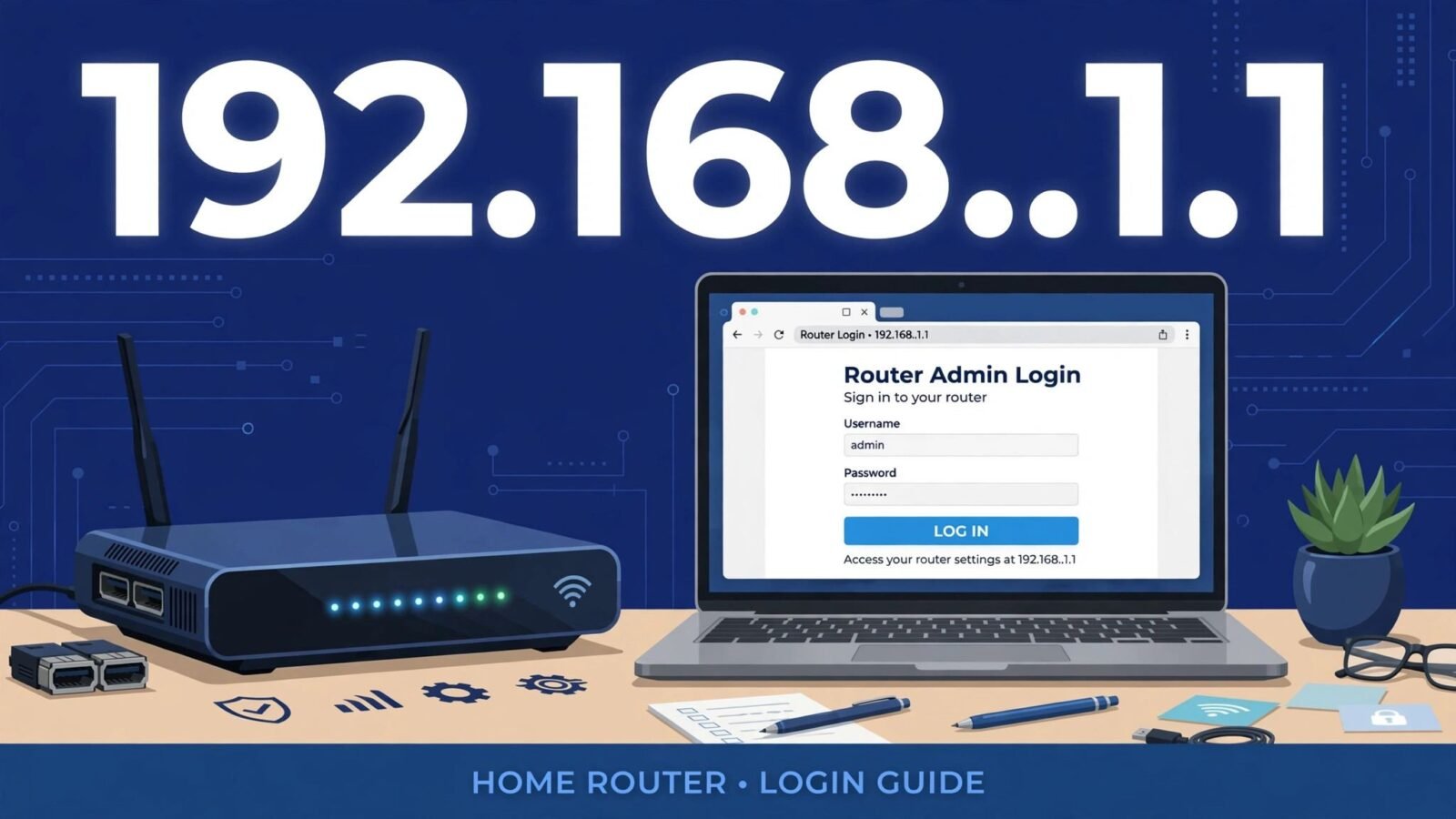
Step two: open a browser and type 192.168.1.1 into the address bar, then press Enter. You should see a login page asking for a username and password. Some routers show a branded page with their logo, while others show a plain login box. Both are normal.
Step three: enter your login credentials. If you have never changed them, use the default username and password printed on the sticker on the bottom or back of your router. If you changed them in the past and remember the new ones, use those instead. Then click the login or sign-in button.
Step four: you should now be inside the admin panel, sometimes called the router settings, control panel, or web interface. From here you can change your Wi-Fi name and password, check connected devices, update settings, and more. We will cover the most useful options shortly.
One thing that trips people up at step two is the browser treating the address as a search. If typing 192.168.1.1 takes you to search results instead of a login page, you probably typed it into a search box rather than the address bar, or your browser added a search prefix. Click directly into the address bar at the very top of the window, clear it fully, and try again.
Another common hiccup is a security warning. Some routers use a local security certificate that your browser does not recognise, and the browser may warn that the connection is not private. This is normal for a local device on your own network. Most browsers offer an “Advanced” option that lets you proceed to the page anyway. Only do this on your own network, for your own router, never for an unfamiliar address.
Default Router Login Details
If you have never logged in before, the default credentials are your starting point. Many routers ship with a username of “admin” and a password of “admin” or “password”. Some leave the password field blank, and some use a unique password printed on the router’s label. Because this varies so much, the label on your router is the single best place to look. It usually lists the default username, the default password, the default Wi-Fi name, and the default Wi-Fi password all in one place.
If the label has worn off or you cannot find it, the paperwork that came with the router, or your internet provider’s setup guide, usually lists the same defaults. As a last resort, you can search for your router’s model number together with the words “default login” and check the manufacturer’s own documentation, but be careful to use the manufacturer’s official information rather than random lists, which can be out of date.
If you or someone in your household changed the login details and nobody remembers them, the defaults will not work. In that case, the only reliable reset is the factory reset button on the router, usually a small recessed button you hold down with a paperclip for around ten seconds. Be aware that this wipes all custom settings, including your Wi-Fi name and password, and returns the router to the state it was in when it left the factory. Only use it if you are prepared to set the router up again, and only after you have tried every password you might have used.
And a word of advice that applies the moment you get in: if you are still using the default login, change it. Default credentials are the same on thousands of identical routers, so anyone who knows the model can guess them. Pick a strong, unique admin password and store it somewhere safe, like a password manager or a written note kept at home.
What You Can Do Inside the Admin Panel
The admin panel is where your router’s real controls live, and most people only ever use a small part of it. Here are the settings worth knowing about.
Wi-Fi settings are the most visited section. Here you can change your network name, which is the name your devices see when they look for Wi-Fi, and your Wi-Fi password. If you have just moved house, or you are still using a password that is hard to remember, this is where you fix it. After saving a change here, your devices will disconnect and you will need to reconnect them with the new details, so do this when nobody is in the middle of something important.
Connected devices is another useful page. It lists everything currently on your network, from phones and laptops to smart TVs, speakers, and cameras. If your internet feels slow, a quick look here can reveal an unfamiliar device or a gadget quietly using bandwidth. If you see something you do not recognise, you can block it or change your Wi-Fi password to force everything to reconnect.
Security settings let you choose how your Wi-Fi is protected. Look for WPA2 or WPA3 encryption and make sure one of them is selected. Older options like WEP are outdated and easy to crack, so if your router is still set to WEP, switching to WPA2 or WPA3 is one of the best improvements you can make. While you are there, check whether remote management is turned on. Unless you specifically need to manage your router from outside your home, it is safer to leave remote management off.
Other handy features include a guest network, which gives visitors internet access without sharing your main Wi-Fi password, and parental controls or scheduling, which can limit internet access for specific devices at certain times. Firmware updates live in the admin panel too. Firmware is the router’s internal software, and keeping it up to date patches security flaws and sometimes improves performance, so it is worth checking for updates every few months.
Troubleshooting: When 192.168.1.1 Still Won’t Open
So you fixed 192.168..1.1, typed 192.168.1.1 correctly, and the page still will not load. Do not worry. Work through this checklist in order, and most cases resolve within a few minutes.
First, confirm you are actually connected to the right network. Check your device’s Wi-Fi settings and make sure it shows your home network name. If you are on mobile data, a VPN, or a different network, the address will not resolve. Temporarily turning off a VPN can also help, since some VPNs route your traffic away from your local network entirely.
Second, try a different approach to the same address. Switch to another browser, or try another device, such as a phone instead of a laptop. If it works on one device but not another, the problem is with the first device’s browser or network settings, not the router. Clearing the browser cache, or opening a private or incognito window, can also clear a stuck redirect or cached error page.
Third, restart your router. Unplug it from power, wait about thirty seconds, plug it back in, and give it a minute or two to fully start up. Watch for the lights to settle into their normal pattern before trying again. This simple step resolves a surprising number of admin page problems, because it clears temporary glitches in the router’s own web server.
Fourth, try a wired connection. If you have an Ethernet cable, plug your computer directly into one of the router’s LAN ports and try again. A wired connection removes Wi-Fi signal problems from the equation and is also how many routers prefer to be managed.
Fifth, check whether your router uses a different address. This is the most common remaining cause. Use the steps in the next section to find your network’s actual gateway address, and try that instead. If your gateway turns out to be 192.168.0.1 or 10.0.0.1, then 192.168.1.1 was never going to work on your setup, no matter how correctly you typed it.
Finally, if nothing works and the router’s lights look wrong, for example the power light is red or off, or no lights come on at all, the problem may be hardware or a service outage. Check the cables, try a different power socket, and if the router still shows no signs of life, contact your internet provider or the router manufacturer for support. A factory reset is a last resort, and as noted earlier, it erases all your settings, so keep it for when you have exhausted the other steps.
How to Find Your Router’s Real IP Address
If 192.168.1.1 is not your router’s address, finding the right one takes less than a minute on most devices.
On Windows, open the Command Prompt and type “ipconfig”, then press Enter. Look for the line labelled “Default Gateway” under your active connection. The number beside it is your router’s address. Type that number into your browser’s address bar exactly as shown.
On a Mac, open System Settings, go to Network, select your active connection, and look for the router address shown in the connection details. Older versions of macOS show it under Network preferences in the same place. That number is the one to use.
On an Android phone, open Settings, go to Wi-Fi, tap the network you are connected to, and look for the gateway or router entry in the network details. On an iPhone, open Settings, tap Wi-Fi, tap the small information icon beside your connected network, and look for the router entry. In both cases, the address shown is your router’s real address, and typing it into a browser should bring up the login page.
Whatever method you use, note the address down somewhere safe once you find it. The next time you need to log in, you will not have to go hunting for it again, and you will not risk retyping 192.168..1.1 from memory.
Security Tips After You Log In
Getting into the admin panel is only half the job. A few minutes of security housekeeping now can save you real trouble later.
Change the admin password first, as discussed above, if it is still set to the factory default. Use something long and unique that you do not use anywhere else. Next, make sure your Wi-Fi password is strong too. A short or obvious Wi-Fi password is easy for a neighbour or a passer-by to guess, and once someone is on your network, they can see your devices and potentially reach the admin panel themselves.
Then check your encryption setting and confirm it is WPA2 or WPA3, not WEP or an open network with no password at all. Turn off remote management unless you genuinely need it, and consider turning off WPS, the push-button connection feature, if you do not use it, since it has a history of security weaknesses. Set up a guest network for visitors rather than handing out your main password, and check the firmware update section for any available updates. Finally, glance at the connected devices list every so often. Knowing what is on your network is the simplest form of monitoring there is, and it takes seconds.
None of this requires buying anything or installing software. It is all built into the admin panel you have just learned to reach, and it is the difference between a router that is merely working and one that is working securely.
Frequently Asked Questions
Is 192.168..1.1 a real IP address?
No. It is a typo. A valid IPv4 address has four groups of numbers separated by three single dots. The double dot creates an empty group, which is not allowed, so the address is invalid and will not load in any browser.
What is the correct address I should type instead?
In almost every case, the intended address is 192.168.1.1. Type it with exactly three single dots and no spaces, into your browser’s address bar, while connected to your own network. If that does not work, check your router’s label or find your gateway address using the steps above, since some routers use a different default.
Why does my browser show search results instead of the login page?
This usually means the address was typed into a search box rather than the address bar, or the browser did not recognise it as an address because of a typo. Click into the address bar at the top of the browser window, clear it completely, type 192.168.1.1, and press Enter.
What are the default username and password for 192.168.1.1?
There is no single universal answer, because defaults vary by router. Many routers use “admin” as the username with “admin” or “password” as the password, while others print a unique password on the label. Always check the sticker on the bottom or back of your router first, since that is specific to your device.
I forgot my router password. What can I do?
If you changed the admin password and cannot remember it, the reliable fix is a factory reset using the small reset button on the router. This restores the default login details, but it also erases all custom settings, including your Wi-Fi name and password, so you will need to set the router up again afterwards.
Can I log in to 192.168.1.1 from my phone?
Yes. Connect your phone to your home Wi-Fi, open the mobile browser, type 192.168.1.1 into the address bar, and enter your admin credentials. The admin panel may look slightly cramped on a small screen, but all the same settings are available. If your phone is on mobile data instead of Wi-Fi, the page will not load.
Is it safe to log in to my router’s admin panel?
Yes, as long as you are on your own network and using your own router’s address. The admin panel is a local page, not a public website. Just be sure to change any default admin password, keep remote management off unless you need it, and never enter your router credentials on a page you reached through an unexpected link or message.
Conclusion
The mystery of 192.168..1.1 turns out to be a simple one: it is a typo, not a technical fault. The extra dot breaks the address format, so your browser cannot use it, and nothing you do with 192.168..1.1 will ever reach your router. Remove one dot, type 192.168.1.1 into your browser’s address bar while connected to your home network, and you should be looking at your router’s login page within seconds.
From there, the rest is straightforward. Log in with the credentials on your router’s label, change any defaults you are still using, and take a few minutes to check your Wi-Fi security settings. And if 192.168.1.1 still does not load, remember the checklist: confirm your connection, try another browser or device, restart the router, and find your real gateway address. One of those steps resolves the problem in the vast majority of cases.
Keep the correct address written down somewhere handy, and the double dot in 192.168..1.1 will never slow you down again.
Read Also: 192/16 Network Meaning and Subnet Guide (2026 Guide)

Admin
Contributor at Daily Scope 67.
Related reading
192.168.0..107: Why This IP Address Fails (2026 Guide)
If you typed 192.168.0..107 into your browser and nothing loaded, the extra dot is the problem. This guide explains the typo, the two addresses you probably meant, and how to find and open your real router login page.
Read story
192/16 Network Meaning and Subnet Guide (2026 Guide)
192/16 is shorthand for a large private network range. Here is what the /16 means, how many addresses it covers, and when you will meet it.
Read story
192.168.50.1 Router Login and Admin Setup (2026 Guide)
192.168.50.1 is the admin address for some routers and modems. Here is the full login guide, plus troubleshooting and security tips.
Read story