
In this article
In this article
- What Is 192.168.1.100, Exactly?
- How to Open http://192.168.1.100 in Your Browser
- How to Log In Without Guessing
- If the Page Will Not Load: Work Through This Checklist
- Settings Worth Checking Once You Are In
- Security Basics You Should Not Skip
- Frequently Asked Questions
- Final Thoughts
If you have typed http 192.168 1.100 into a browser and wondered what should happen next, here is the short answer: on some home and small-office networks, 192.168.1.100 is the local address of a router, and opening it in a browser should bring up that router’s admin login page. If nothing loads, it does not necessarily mean something is broken. It may simply mean your network uses a different gateway address, you are not connected to that network, or the address was typed with a small mistake. This guide walks through what the address means, how to use it properly, how to log in without guessing credentials, and what to check when the page refuses to open.
What Is 192.168.1.100, Exactly?
An IP address is a number that identifies a device on a network, much like a house number identifies a home on a street. The address 192.168.1.100 belongs to a range of addresses reserved for private networks. That word — private — matters a great deal. A private address only works inside a local network, such as the Wi-Fi in your home. It is not reachable from the wider internet, and typing it into a browser while you are on a different network, or on mobile data with no connection to that home network, will not take you to anyone’s router.
On many networks, the router itself sits at an address like 192.168.1.1 or 192.168.0.1. On other networks, however, the router or gateway may sit at 192.168.1.100, or that address may be assigned to another device on the network. That is why you will see it mentioned in two different contexts: sometimes as a router login address, and sometimes as the address of a particular device, such as a computer, a camera, or a network storage box. The safest way to think about it is this: 192.168.1.100 is a private local address, and whether it opens a login page depends entirely on what your own network has assigned to that address.
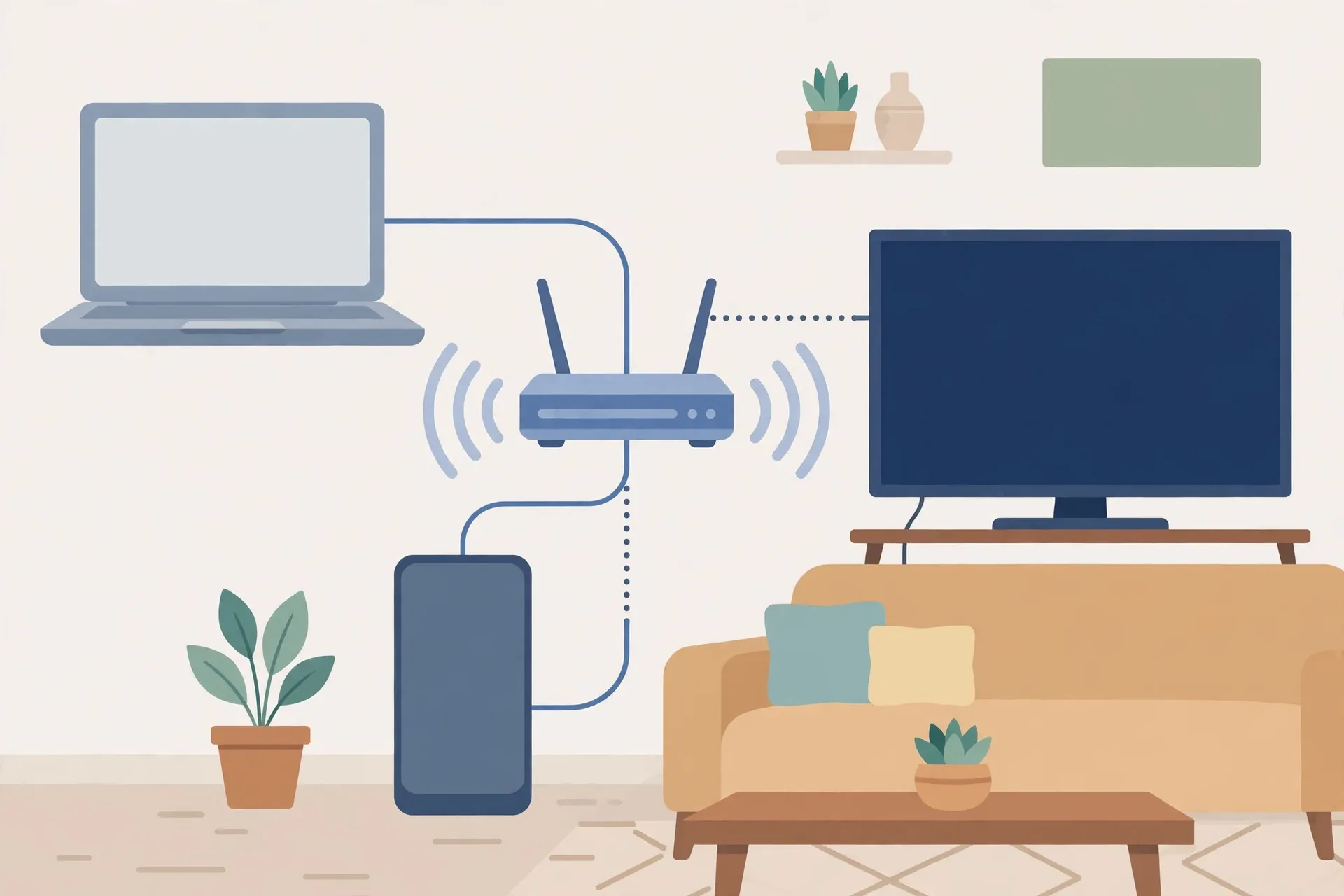
Private addresses and public addresses
It helps to keep private and public addresses separate in your mind. Your internet provider gives your home a public address, which is how the outside world sees your connection. Inside your home, your router hands out private addresses to each device so they can talk to each other and share the internet connection. Addresses that start with 192.168 are private by design. They are reused in millions of homes, which is fine, because they never travel beyond the local network on their own.
| Type of address | Example | Where it works |
|---|---|---|
| Private address | 192.168.1.100 | Only inside your own local network |
| Public address | Assigned by your internet provider | How your home appears on the internet |
| Router or gateway address | Varies by network and brand | The address you use to reach the admin panel |
That distinction also explains a common point of confusion. If a friend in another city types 192.168.1.100 into their browser, they will not reach your router. They will reach whatever device, if any, holds that address on their own network — or nothing at all. The address is local, not global, and that is actually a useful safety feature.
Why some routers use 192.168.1.100
Routers differ. Some brands use one default gateway address across most of their models, while others let the installer or the internet provider choose something different. A network may also have been set up with a custom range, or a second router, an access point, or a modem-router combination may be sitting at 192.168.1.100. None of this means your network is unusual. It just means you should confirm what your own router uses rather than assuming that any one address will work for every home.
How to Open http://192.168.1.100 in Your Browser
Opening the address is straightforward, but small typing mistakes cause a surprising number of failed attempts, so it is worth going slowly.
First, make sure the device you are using is connected to the network you want to manage. If you are trying to reach your home router, connect to your home Wi-Fi or plug in with an Ethernet cable. If you are on mobile data, or on a neighbour’s Wi-Fi, or on a coffee-shop network, you will not reach your home router.
Next, open any modern browser — Chrome, Firefox, Edge, Safari, or another browser you trust — and click into the address bar at the top, not a search box on a search engine’s homepage. Type the address exactly like this: http://192.168.1.100 — then press Enter. Note the dots: there are dots between each group of numbers, not spaces, and there is no “www” at the start. The full form, with http:// in front, is the clearest way to type it, because it tells the browser you mean a local web address rather than a search query. If you type the numbers into a search engine instead, you will get search results about the address rather than the login page itself.
If your network does use 192.168.1.100 as its gateway, the browser should load a login page for your router. That page may look plain — often just a logo, a username field, and a password field. A plain design is normal for router panels; they are built for function, not for looks.
A note on the padlock: you may see a “Not Secure” warning, or a browser warning about the connection. That happens because local router pages usually do not carry the kind of public security certificate that ordinary websites use. On your own home network, reaching your own router’s local page is the expected situation, but you should still be careful. Only log in to a router page when you are on a network you trust, and never enter router credentials on a page you reached through a suspicious link or an unfamiliar network.
How to Log In Without Guessing
This is where most people get stuck, and it is also where guessing causes the most trouble. There is no single universal username and password that works on every router, and any article that claims otherwise is oversimplifying. Different brands, models, and providers use different defaults, and many routers now come with a unique password printed on the device itself.
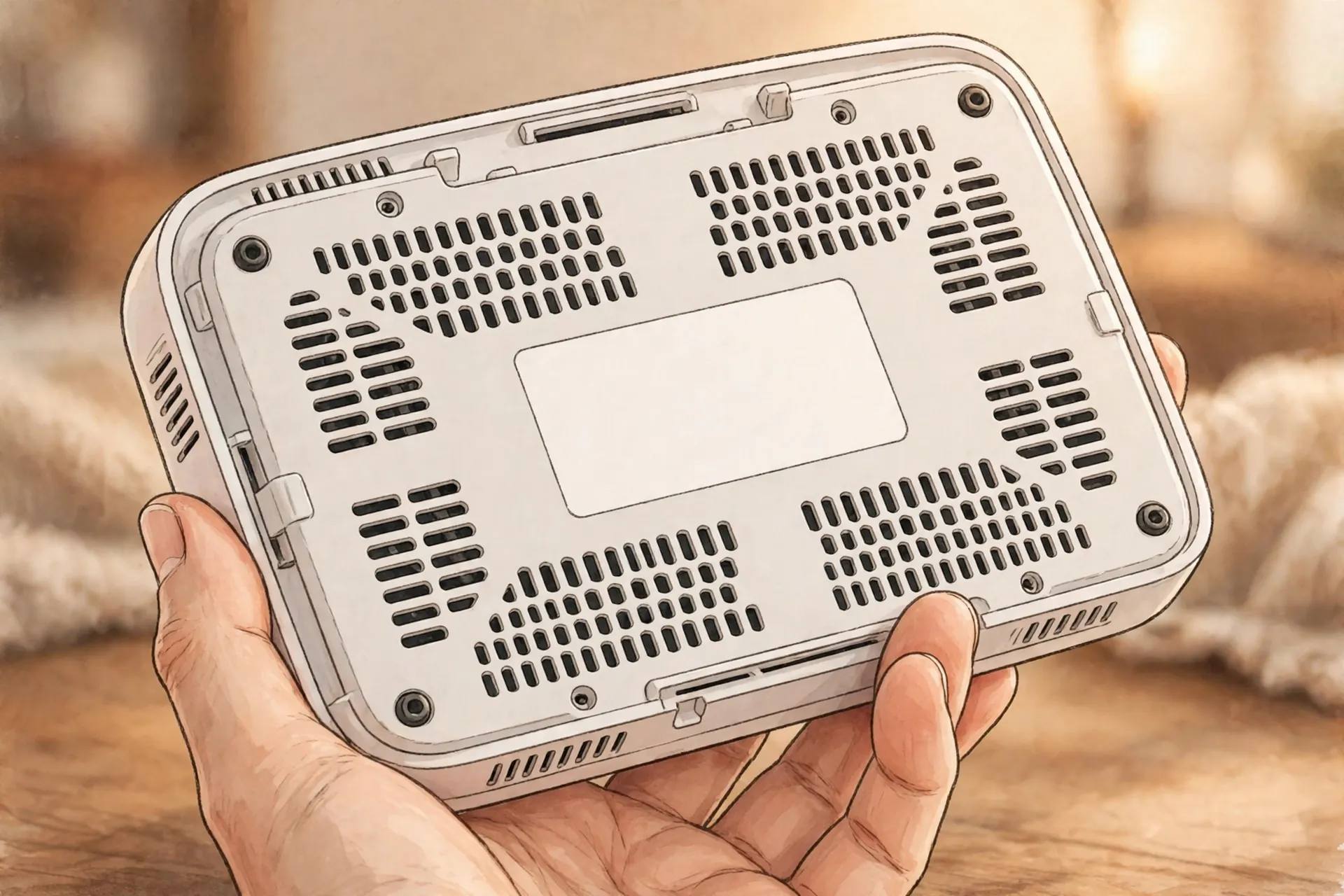
Start with the label. Turn the router over, or check its side or back, and look for a sticker. It often lists the router’s address, the default Wi-Fi name and password, and sometimes the admin username and password. If your router was supplied by your internet provider, the label may also carry a provider-specific login. Write nothing down in a public place, but keep the label in mind as your first source.
If the label does not list an admin login, check the documentation that came with the router, or the manufacturer’s support pages for your exact model number. The model number is usually on the same label. Searching for your model, rather than for a generic “default password,” gives you a far better chance of finding the right information, and it avoids the trap of trying credentials that belong to a different device entirely.
If someone set the router up for you, ask them whether they changed the admin password. Many people change it during setup and then forget, which is understandable. If the password has been changed and nobody remembers it, the usual last resort is a factory reset, using the small reset button on the router. Be careful here: a factory reset wipes your settings, including your Wi-Fi name and password, and you will need to set the router up again. Treat it as a last resort, not a first step, and only do it if you are comfortable reconfiguring the connection or can get help from your provider.
Once you are in, the single most useful thing you can do is change the admin password to something strong and private, if it is still set to a factory default. That one change closes off the easiest way for an unwanted visitor on your network to take over your router settings. Store the new password somewhere safe, such as a password manager, rather than on a note stuck to the router.
If the Page Will Not Load: Work Through This Checklist
A blank page, a timeout, or a “site can’t be reached” message is frustrating, but it usually has a plain explanation. Work through these checks in order, and test the address again after each one.
- Check that you are on the right network. This is the most common cause. If your phone has switched to mobile data, or your laptop has joined a different Wi-Fi network, the address will not resolve to your home router. Reconnect to the correct Wi-Fi network, turn mobile data off temporarily if it helps, and try again.
- Check the typing. Re-read what you entered. Common slips include spaces instead of dots, a comma instead of a dot, a missing digit, or an extra digit. The address should read 192.168.1.100, with four groups of numbers separated by dots. Also try the full form, http://192.168.1.100, typed directly into the address bar.
- Try a different address variant — carefully. If 192.168.1.100 does not load, your router may live at a different gateway address. On a Windows computer, you can open a command prompt and run ipconfig, then look for the “Default Gateway” entry. On a Mac, check the network settings for the router entry. On a phone, look in the Wi-Fi details for the router or gateway field. Whatever address appears there is the one your network actually uses, and that is the one to try. Do not blindly try a long list of addresses from the internet; use the gateway your own device reports.
- Restart the browser, then the device, then the router. Close the browser completely and reopen it, or try a different browser. If that does not help, restart the device you are browsing from. If the problem persists, restart the router by switching it off, waiting about thirty seconds, and switching it back on, then wait a couple of minutes for it to fully come back online before trying again. This simple sequence clears a surprising number of temporary glitches.
- Check the connection itself. If you are on Wi-Fi, move closer to the router, or try an Ethernet cable if you have one. If no device in the house can reach the internet, the problem may be with the broadband connection rather than the address, and your provider’s status page or support line is the next step.
- Consider firewall, VPN, or security software. A VPN routes your traffic elsewhere, which can stop a local address from loading. Temporarily disconnect the VPN and try again. Some strict firewall or security settings can also block local pages; if you changed such a setting recently, that is a clue worth following up.
- Confirm the router is actually at this address. If your device’s gateway shows a different address, then 192.168.1.100 may belong to another device on your network, or to nothing at all. In that case, use the gateway address your device reports. If you are trying to reach a specific device at 192.168.1.100 — a camera, for example — check that the device is powered on, connected, and still holding that address, since addresses can change when devices reconnect.
If you have worked through this list and the page still will not load, it is worth contacting your internet provider or the router manufacturer’s support, with your model number and the gateway address your device reports. That information helps support staff help you far faster than a generic description of the problem.
Settings Worth Checking Once You Are In
Router admin panels vary in layout, but most offer a similar set of useful pages. You do not need to change everything — in fact, changing settings you do not understand can cause more problems than it solves — but these are the areas most people find genuinely useful.
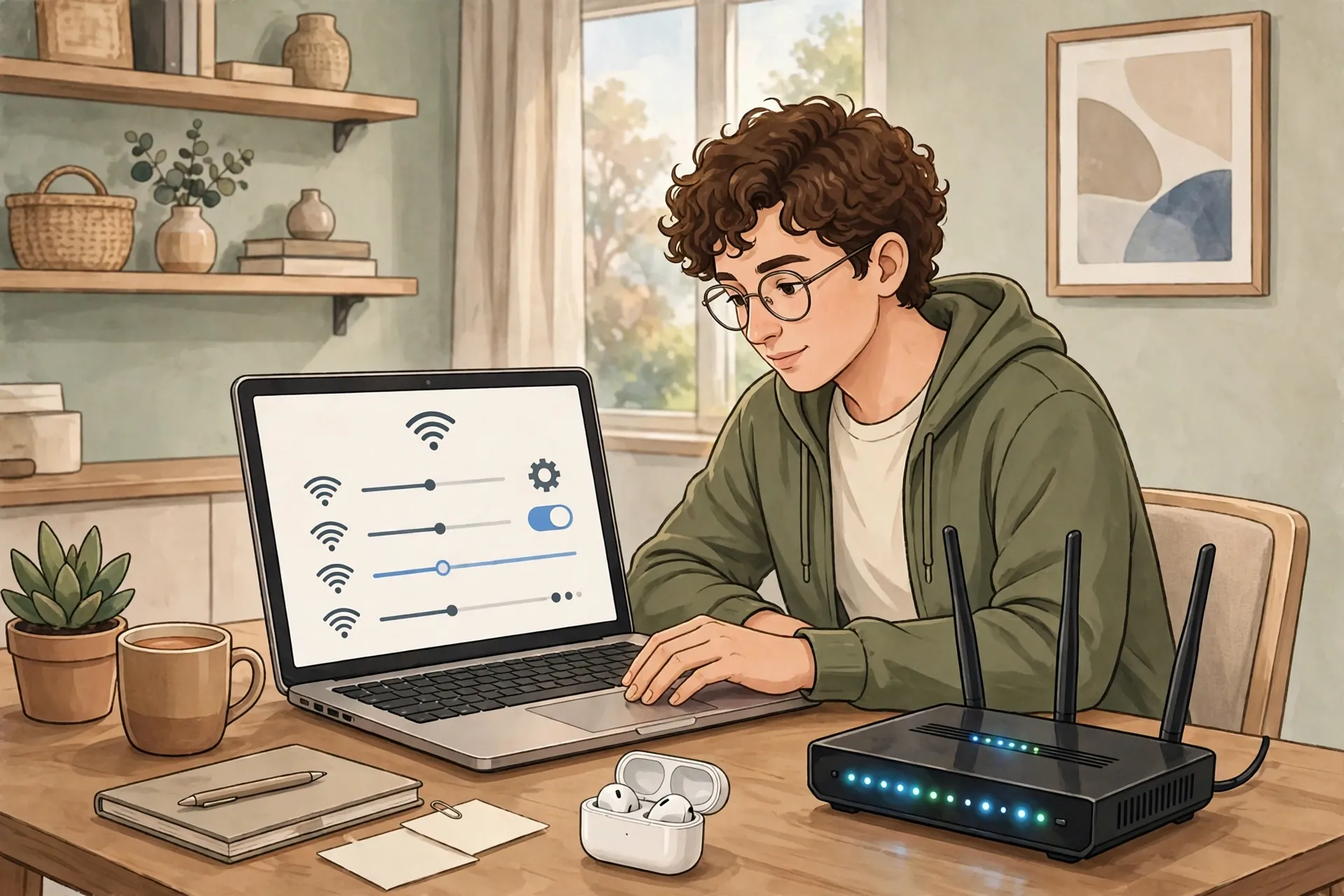
Wi-Fi name and password
This is the network name (SSID) that appears when devices search for Wi-Fi, and the password devices use to join. If you have never changed them, this is a good place to set a name you recognise and a strong password you can share safely with guests. Changing the Wi-Fi password will disconnect every device, so you will need to reconnect phones, laptops, televisions, and smart devices with the new password. Do this at a quiet moment, not in the middle of something important.
Connected devices
Most routers have a page listing the devices currently connected, sometimes with their names, addresses, and connection types. This is a handy way to spot an unfamiliar device, or to confirm that a smart speaker or printer is actually connected. If you see a device you do not recognise, do not panic immediately — some devices report odd names — but do check: change your Wi-Fi password, and look into it further if the unknown device persists.
Firmware updates
Firmware is the router’s built-in software. Manufacturers release updates to fix bugs and close security gaps, and many routers can check for updates from within the admin panel. Look for a firmware, update, or system section, and follow the on-screen guidance. Do not switch the router off during an update, and if your router offers automatic updates, turning them on is usually a sensible choice.
Guest network and parental controls
If your router offers a guest network, it lets visitors use the internet without giving them your main Wi-Fi password or access to your other devices. Parental controls, where available, let you set time limits or filtering for particular devices. Both features are optional, but they are worth knowing about, especially in a busy household.
Restart and backup options
Many panels include a restart option and, sometimes, a way to back up your settings. A backup is useful before making bigger changes: if something goes wrong, you can restore the saved configuration rather than starting from scratch.
Security Basics You Should Not Skip
Router security sounds technical, but the basics are simple, and they make a real difference. First, as mentioned, change any factory-default admin password. Second, use a strong, unique Wi-Fi password — not a short word, and not the same password you use for email or banking. Third, keep the firmware updated. Fourth, turn off remote management unless you have a specific reason to need it and understand what it does; remote management lets the admin panel be reached from outside your home, which is a feature most households never need.
It is also worth thinking about who has your Wi-Fi password. Every person and device with the password is inside your network’s perimeter, so share it thoughtfully. A guest network, where available, is a cleaner way to give visitors internet access without handing over the keys to everything else.
Finally, be wary of instructions that tell you to disable security features, open ports, or turn off your firewall to “fix” a problem. Some advanced settings do have legitimate uses, but if a guide asks you to weaken your network’s defences and you do not fully understand why, pause and get a second opinion first. For most households, the default security settings, plus a strong password and updated firmware, are the right balance.
For a broader look at home tech and everyday guides, you might also enjoy browsing the team at 9bio, where similar practical explainers are published regularly.
Frequently Asked Questions
Is 192.168.1.100 a public website I can visit from anywhere?
No. It is a private address that only has meaning inside a local network. From outside that network, it will not take you to the router, the device, or anything else. If you are away from home, you cannot use it to reach your home router.
What is the difference between 192.168.1.100 and 192.168.1.1?
They are simply different addresses in the same private range. Which one your router uses depends on how your network was set up. Neither is inherently better. The correct address for your network is the one your device reports as its gateway, or the one printed on your router’s label.
Why does my browser say “Not Secure” on the router page?
Local router pages usually do not have a public security certificate, so the browser flags the connection. On your own trusted home network, reaching your own router this way is normal. Still, only log in on networks you trust, and be cautious if you reach a login page through an unexpected link.
I typed the address into a search engine and got search results. What went wrong?
You typed it into a search box rather than the browser’s address bar. Click into the address bar at the very top of the browser window, type http://192.168.1.100, and press Enter. That tells the browser to go to the address directly instead of searching for it.
What should I do if I forgot my router admin password?
First, check the label on the router and any documentation for your model. If the password was changed and cannot be recovered, a factory reset is the usual last resort, but remember that it erases your settings, so only do it when you are prepared to set the router up again.
Can someone on the internet hack my router through 192.168.1.100?
Not through the private address itself, because it is not reachable from the internet. The real risks come from weak passwords, outdated firmware, or remote management left switched on. Keeping those three things in order is the most effective protection for most homes.
Final Thoughts
The address http 192.168 1.100 looks technical, but the idea behind it is simple: it is a private, local address that, on some networks, opens the door to your router’s settings. Connect to the right network, type the address carefully into the browser’s address bar, and use the login details from your router’s label or its documentation rather than guessing. If the page will not load, work through the checklist — network, typing, gateway, restart — before assuming anything is broken. And once you are in, a strong admin password, a sensible Wi-Fi password, and up-to-date firmware will keep your home network in good shape for a long time.
Read Also: James Comer: Who Is He, What’s His Role, and Why Does He Matter? (2026 Guide)

Admin
Contributor at Daily Scope 67.
Related reading
192/16 Network Meaning and Subnet Guide (2026 Guide)
192/16 is shorthand for a large private network range. Here is what the /16 means, how many addresses it covers, and when you will meet it.
Read story
192.168.50.1 Router Login and Admin Setup (2026 Guide)
192.168.50.1 is the admin address for some routers and modems. Here is the full login guide, plus troubleshooting and security tips.
Read story
192.168.100 Router Login and Admin Setup (2026 Guide)
192.168.100 looks like a router address but it is missing a piece. Here is what it really means and the full address to use for your admin login.
Read story