

In this article
In this article
- What HTTP Error 500.30 Really Means
- Common Causes of the ASP.NET Core Startup Failure
- Fixing IIS and the ASP.NET Core Module Configuration
- How to Read stdout Logs and Event Viewer Entries
- Step-by-Step Fix for IIS and General Hosting
- Prevention Checklist for Future Deployments
- Frequently Asked Questions
- Conclusion
Introduction
You deploy an ASP.NET Core application, open it in the browser, and instead of your home page you see a short, unhelpful message: HTTP Error 500.30 – ASP.NET Core app failed to start. Nothing else loads. No login screen, no helpful stack trace, and often no obvious clue about what went wrong. If you have just changed a server, updated a framework version, or pushed a new release, that moment can feel especially frustrating, because the site may have been working perfectly an hour earlier.
The good news is that this error is usually specific, even though the browser message is vague. It does not normally mean that your code is fundamentally broken or that your database is gone. It means that the hosting process tried to start your application and the application stopped before it could answer requests. In other words, the problem is at startup, not somewhere deep inside a page or an API endpoint. Once you understand that distinction, troubleshooting becomes much more focused: you are not hunting through every feature of the app, you are asking one question — why did the process exit before it was ready?
This guide walks through that question in plain, practical terms. It explains what HTTP Error 500.30 means, especially in the in-process hosting model used with IIS, and it covers the causes that administrators and developers run into most often. You will learn how to read the stdout logs and the Windows Event Viewer, how to check the runtime, the ASP.NET Core Module, web.config, permissions, and environment settings, and how to work through a step-by-step fix on IIS and on other hosting setups. By the end, you should be able to narrow the failure down to a single cause, fix it, and put a simple checklist in place so the same deployment problem does not come back with the next release.
What HTTP Error 500.30 Really Means
HTTP Error 500.30 is an IIS error code that appears when an ASP.NET Core application fails to start. The full text that visitors usually see is “ASP.NET Core app failed to start,” and that wording is accurate: the application process started, or tried to start, and then failed. IIS itself is running, which is why you get a formatted error page rather than a connection failure, but there is no healthy application behind it to handle the request.
To make sense of this, it helps to understand how ASP.NET Core hosting on IIS works. In the in-process hosting model, which is the default for many IIS deployments, your application runs inside the IIS worker process itself, rather than as a completely separate process that IIS forwards requests to. The ASP.NET Core Module, often shortened to ANCM, is the native IIS module that manages that relationship. It launches your application, watches its health, and passes requests into it. If the application crashes during startup, throws an unhandled exception before it finishes configuring itself, or cannot even load because a required component is missing, ANCM reports the failure as a 500.30 error.
That is different from a 500 error caused by a bug in a single controller action, and it is also different from a 404 error, a permission error on a static file, or a database timeout on one page. With 500.30, the failure happens before the application is ready to serve anything at all. That is why refreshing the page rarely helps, and why clearing the browser cache does not fix it either. The application needs to start successfully first.
There is also an important detail about what the browser does not show you. For security reasons, IIS does not send the full exception details to remote visitors by default. A developer sitting on the server might see more information, but a visitor, and often an administrator checking from another machine, will see only the short error page. This is intentional — detailed errors can reveal file paths, configuration values, and internal structure — but it does mean you cannot diagnose 500.30 from the browser alone. You have to look on the server, in the logs, where the real startup error is recorded. That habit, checking the server logs first instead of guessing, will save you more time than any other single step in this guide.
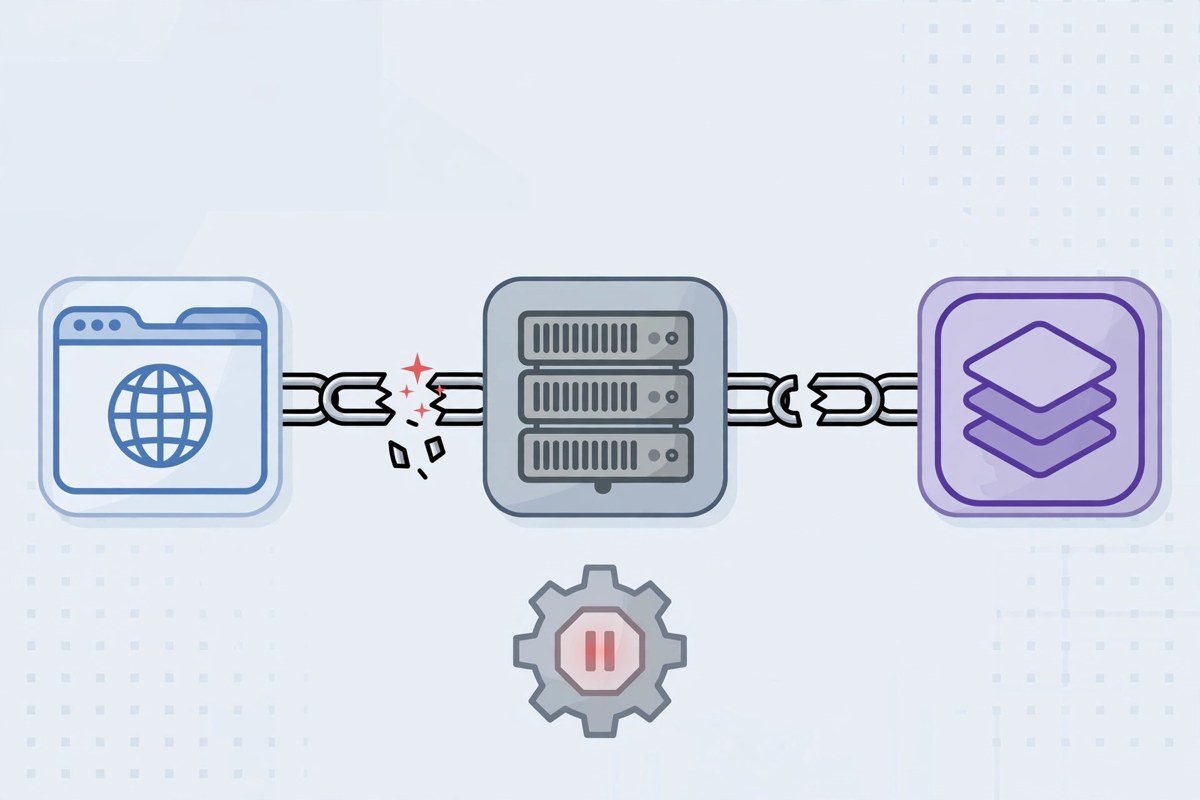
The application stops before it can answer requests, so IIS reports that the ASP.NET Core app failed to start.
Common Causes of the ASP.NET Core Startup Failure
Most 500.30 failures fall into a handful of categories. Working through them in order, from the most common to the less obvious, is usually faster than changing settings at random.
The first, and very common, cause is a missing or mismatched .NET runtime. ASP.NET Core applications target a specific version of .NET, and the server must have a compatible runtime installed. If you publish a framework-dependent application that targets one version, and the server only has an older version, or only the .NET runtime without the ASP.NET Core runtime, the application cannot start. This often happens after a developer upgrades a project to a newer framework version but the server has not been updated yet, or after moving an application to a new server where the hosting bundle was never installed. A self-contained deployment avoids this particular problem by including the runtime with the application, but it brings its own trade-offs in package size and patching, so many teams still use framework-dependent publishing.
The second common cause is a problem with web.config or with the ASP.NET Core Module itself. The web.config file in your published output tells IIS how to start the application: which process to run, which arguments to pass, and how stdout logging should behave. If that file is missing, damaged, edited by hand in a way that breaks its structure, or left over from a different kind of application, IIS may fail to launch the app at all. Similarly, if the ASP.NET Core Module is not installed, is an older version than the application expects, or has been disabled for the site, the in-process hosting arrangement cannot work. Installing the ASP.NET Core hosting bundle on the server is the usual way to get the correct module and runtime together, and it is worth verifying after any server rebuild or migration.
A third category is an application crash during startup itself. This is the case where the runtime and the module are fine, but your code throws an exception before the web host is fully built. Typical examples include a missing configuration value, a connection string that points to a database the server cannot reach, a dependency injection registration that fails, a certificate that cannot be loaded, or a file path that exists on a developer machine but not on the server. These are real application errors, but they only surface as 500.30 because they happen so early that no request handling has begun. The fix here is in the code or the configuration, not in IIS, and the logs will usually point straight at the failing line or the missing value.
Permissions are a fourth, often overlooked, cause. The identity that runs the application pool needs read access to the application folder, and in many cases write access to specific folders such as logs or temporary file locations. If a deployment copied files with restrictive permissions, if the application pool identity was changed, or if the site was moved to a new drive or folder, the application may not be able to read its own files or write its logs. The result can be a startup failure that looks mysterious until you check the folder permissions. Related to this is the case where a file is locked by another process, or where an antivirus or file-sync tool interferes with the published files during deployment.
Finally, there are environment and binding problems. An application may behave differently because it is running under the wrong environment name, so it picks up development settings on a production server, or production settings that point to resources that do not exist yet. The ASPNETCORE_ENVIRONMENT setting controls this, and a mismatch can change logging, configuration files, and error handling in ways that break startup.
Port and binding conflicts are less common for in-process IIS hosting, because IIS manages the binding, but they matter a great deal for other hosting models, such as running behind a reverse proxy or running the application directly with its built-in web server. If another process is already listening on the port your application expects, or if a binding is misconfigured, the application may exit immediately.
One useful way to think about these causes is to separate them into three questions. Can the server run this application at all, which covers the runtime and the module? Can IIS find and launch it correctly, which covers web.config and the site configuration? And can the application finish its own startup, which covers code, configuration values, permissions, and external dependencies? Answering those three questions in order will usually lead you to the right fix without unnecessary changes.
Fixing IIS and the ASP.NET Core Module Configuration
If you host on IIS, start your configuration check with the ASP.NET Core Module and the site settings, because these are quick to verify and they rule out a whole class of problems at once.
First, confirm that the ASP.NET Core hosting bundle is installed on the server and that its version matches, or is newer than, what your application requires. You can check the installed modules in IIS Manager, and you can check the installed runtimes from the command line on the server. If the hosting bundle is missing, install it and restart IIS so the module is loaded. If it is present but old, update it to a version that supports your target framework. After a hosting bundle installation, a restart of the IIS service is often needed before the change takes effect, and skipping that restart is a surprisingly common reason why a fix appears not to work.
Next, look at the application pool. The pool should use the “No Managed Code” setting for its .NET CLR version when hosting ASP.NET Core in-process, because the application brings its own runtime rather than relying on the classic .NET Framework pipeline. The pool identity should have the permissions described earlier, and the pool should not be set to stop immediately on a rapid failure in a way that hides the real error during testing. While you are there, check that the site is pointing at the correct physical path — the folder that contains the published application, not a source folder, a parent folder, or an older deployment folder. A site that points at the wrong folder can produce confusing results, especially if an old web.config is sitting in that folder.
Then open the published web.config file and read it carefully. In a normal ASP.NET Core publish, this file contains an aspNetCore element that names the process path, usually the dotnet executable or the application executable for a self-contained deployment, along with arguments and hosting model settings. Check that the process path and arguments match the files that are actually present in the folder. If the application was published as framework-dependent, the process path should point to dotnet with your application assembly as an argument. If it was published as self-contained, it should point to the application executable itself. A mismatch here, often caused by copying files from one deployment type to another without republishing, will prevent startup.
Also check the stdout log settings in web.config. By default, stdout logging may be disabled, which means the most useful diagnostic information is simply not being written anywhere. Temporarily enabling stdout logging, and pointing it at a folder the application pool identity can write to, is one of the most valuable troubleshooting steps you can take. You should treat this as a diagnostic setting, not a permanent production setting: stdout logs can grow quickly, and they may contain sensitive information, so enable them while you diagnose, capture the failure, and then decide whether to leave them on with proper log rotation or turn them back off.
Finally, verify the hosting model. The in-process model is the default and the expected setup for most IIS deployments, but if web.config specifies an out-of-process model, or if it was changed during troubleshooting, make sure the rest of the configuration matches that choice. Mixing settings from the two models, or leaving a stale handler mapping behind, can produce startup failures that are hard to explain until you compare the file against a fresh publish from the same project. When in doubt, republish the application cleanly and compare the new web.config with the one on the server, rather than editing the server copy by hand over and over again.

Checking the ASP.NET Core Module, application pool, and web.config settings is the fastest way to rule out IIS configuration problems.
How to Read stdout Logs and Event Viewer Entries
Once the basic configuration looks correct, the logs will tell you what actually happened during startup. There are two places to look first, and they complement each other well.
The stdout log is the output that your application writes to the console as it starts. When stdout logging is enabled in web.config, ANCM captures that output and writes it to a log file in the folder you specify. This file is often the most direct evidence you will get. A typical useful entry will name the exception type, describe the failure in plain language, and include a stack trace that points to the code or configuration step that failed. For example, it might show that a configuration key was missing, that a database connection could not be opened, or that a required file was not found. Read the first error in the file, not just the last line, because later lines are often consequences of the first failure rather than the cause itself.
To use stdout logs effectively, enable them, reproduce the error by browsing to the site, and then open the newest log file immediately. If no log file appears, that itself is information: it may mean the application never got far enough to produce output, that the log folder path is wrong, or that the application pool identity cannot write to that folder. Fix the folder and permissions first, then try again. Remember to check the timestamps on the log files so you are reading the file from your latest test, not from an older failure that has already been fixed.
The Windows Event Viewer is the second place to look, and it is valuable because it records failures even when stdout logging is off or when the application fails before it can write anything. Open Event Viewer on the server and look under Windows Logs, in the Application log, and under the IIS-related logs if they are present. Entries from IIS, from the ASP.NET Core Module, or from the .NET runtime will often describe the startup failure, the process that exited, and sometimes an error code that helps narrow the cause. Pay attention to the time of each entry and match it to the moment you reproduced the error, so you do not chase an unrelated warning from earlier in the day.
A practical habit is to check both sources together. If the Event Viewer shows that the worker process crashed, and the stdout log shows an exception during configuration, you have a consistent story: the application threw during startup and IIS reported it as 500.30. If the Event Viewer shows a module or runtime error but the stdout log is empty, the problem is more likely in the hosting setup than in your code. If both are empty, check that you reproduced the error after enabling logging, that you are looking on the correct server, and that the site is really the one producing the error — in environments with multiple servers behind a load balancer, it is easy to check the logs on the wrong machine.
Do not be discouraged if the first log entry looks technical. You do not need to understand every line of a stack trace to use it. Look for the exception name, the message, and any file path, configuration key, or connection name it mentions. Those three pieces are usually enough to decide whether the problem is a missing runtime, a bad configuration value, a permissions issue, or a code bug, and they give you the exact terms to search for in the official documentation or to discuss with a colleague.

The stdout log and Event Viewer together usually reveal the first startup error, which is the one that matters most.
Step-by-Step Fix for IIS and General Hosting
With the background in place, here is a practical order of operations for HTTP Error 500.30 you can follow. Work through it step by step, testing the site after each change, so you know which change actually fixed the problem.
Start by reproducing HTTP Error 500.30 and capturing evidence. Browse to the site, note the exact time, and then check the stdout log and the Event Viewer as described above. Write down the first error you find. This prevents the common trap of making several changes at once and never learning which one mattered.
Next, verify the runtime and the hosting bundle. Confirm that the server has the ASP.NET Core runtime for the version your application targets, and that the hosting bundle is installed and current. If anything is missing, install it, restart IIS, and test again. This single step resolves a large share of 500.30 errors, particularly after framework upgrades or server moves.
Then verify the published output itself. Republish the application from a clean build if you have any doubt about the files on the server, and make sure the deployment copied every file, including configuration files and any content files the application needs at startup. Compare the published folder against a fresh publish, and check that web.config matches the expected output for your deployment type. If you deploy by copying files while the application is running, use a deployment method that avoids locked files, such as stopping the site or the application pool during the copy, or using a deployment slot or staging folder.
After that, check permissions and the application pool identity. Confirm that the pool identity can read the application folder and write to the log folder and any other folders the application needs. If you recently changed the identity, moved the site, or tightened folder security, restore the necessary access and test again. Also confirm that the application pool is configured for no managed code and that the site points at the correct physical path.
Now look at configuration and environment. Confirm the ASPNETCORE_ENVIRONMENT value for the site, and check that the configuration files for that environment exist in the published output and contain valid values. Check connection strings, external service addresses, certificate paths, and any settings that are read during startup. If a setting is stored in environment variables or a secrets store on the server, confirm that it is present for the application pool identity, not just for your own user account when you test interactively. A value that works when you run the application manually from a command prompt, but fails under IIS, is often an environment or permissions difference rather than a code difference.
If the application still fails, run it directly on the server as a diagnostic step. From a command prompt on the server, run the application executable or the dotnet command with your application assembly, using the same working directory and environment settings as IIS would. Running it this way often shows the startup exception directly in the console, without needing to dig through log files. If it starts successfully this way but fails under IIS, the problem is in the IIS configuration, the pool identity, or the environment variables. If it fails the same way when run directly, the problem is in the application, its configuration, or its dependencies, and the console output will usually say so.
For hosting that does not use IIS, the same logic applies with different tools. If you run behind a reverse proxy, check that the proxy is forwarding to the correct port and that the application is actually listening on that port. If you run the application as a service, check the service logs and confirm the working directory and environment variables for the service account. If you run in a container, check the container logs, confirm that the correct image and runtime are in use, and verify that any mounted configuration files and secrets are present inside the container. In every case, the question remains the same: can the process start, and what is the first error it reports?
Once the site loads again, do not stop there. Test the main pages and the features that depend on startup configuration, such as database access and authentication, to make sure the fix was complete and not just enough to get a home page to render. Then turn off any temporary diagnostic settings you no longer need, such as verbose stdout logging, or set up proper log rotation if you decide to keep it.
Prevention Checklist for Future Deployments
Most HTTP Error 500.30 errors are deployment problems, which means they are also preventable with a short checklist. You do not need an elaborate process — a few consistent habits will catch the majority of cases before they reach production.
Before every deployment, confirm the target framework version and the runtime installed on the server. If the project has been upgraded, update the server first, or publish as self-contained if that fits your patching strategy. Keep a note of the runtime version alongside each release so the next person deploying does not have to guess.
Use a repeatable publish and deployment process rather than copying files by hand. A clean publish, a consistent deployment folder, and a step that stops the site or pool during the copy will prevent stale files, locked files, and mismatched web.config files. After deployment, verify the site immediately, and keep the previous deployment available so you can roll back quickly if the new version fails to start.
Treat configuration as part of the deployment, not as an afterthought. Check that environment-specific settings exist on the server, that secrets and connection strings are present for the application pool identity, and that the environment name is correct. A simple smoke test after deployment — loading the home page and one authenticated or database-backed page — will catch most startup and configuration problems while they are still easy to fix.
Monitor the application after deployment, even briefly. Check the Event Viewer or your logging system for startup warnings, confirm that the application pool stays running, and watch for rapid-failure stops that suggest the application is crashing repeatedly. Setting up basic health monitoring, so you are alerted when the site returns server errors rather than learning about it from visitors, turns a 500.30 error from a mystery into a routine alert with logs already waiting for you.
Finally, document the fix when you find one. A short note — what the error was, what the first log entry said, and what change resolved it — will save the next person, who may be you in six months, from repeating the same investigation. Over time, those notes become a troubleshooting guide for your own environment, which is far more useful than a generic list because it reflects your servers, your deployment process, and your application.
Frequently Asked Questions
What does HTTP Error 500.30 mean in simple terms?
It means your ASP.NET Core application failed to start. IIS is running and tried to launch the app, but the app stopped before it could handle requests, so IIS reports the startup failure instead of your site.
Is HTTP Error 500.30 caused by a problem in my website code?
HTTP Error 500.30 can be caused by a problem in your website code, but not always. Sometimes the cause is a missing runtime, a module or web.config problem, or a permissions issue, and the code itself is fine. The logs will show whether the failure was in the hosting setup or during your application’s own startup code.
Why do I see only a short error page instead of the real exception?
IIS does not show detailed exception information to remote visitors by default, for security reasons. The detailed error is recorded on the server instead, in the stdout log and the Windows Event Viewer, which is where you should look when diagnosing the problem.
Can I fix HTTP Error 500.30 without access to the server?
Usually not completely. You can check whether the problem follows a recent deployment and you can ask the hosting provider or server administrator to check the runtime, module, and logs. The actual startup error, however, is only visible on the server, so server access or help from someone who has it is normally required.
Does restarting IIS fix HTTP Error 500.30?
Restarting IIS can help with HTTP Error 500.30 after you install or update the hosting bundle, or after you fix a configuration problem, because it reloads the module and the application. On its own, though, a restart will not fix a missing runtime, a bad configuration value, or a startup exception — the application will simply fail again the next time it tries to start.
Conclusion
HTTP Error 500.30 – ASP.NET Core app failed to start looks alarming, but it is really a focused diagnostic message: the application did not finish starting. That focus is your advantage. Instead of searching the entire application, you can check the runtime and the ASP.NET Core Module, verify web.config and the application pool, confirm permissions and environment settings, and then read the stdout log and the Event Viewer for the first startup error. In most cases, one of those checks will reveal the cause, and the fix will be a single, clear change — installing a runtime, correcting a configuration value, restoring permissions, or fixing a startup exception.
Keep the process calm and evidence-based when you face HTTP Error 500.30. Capture the error, read the logs before changing settings, test after each change, and keep a short checklist for future deployments. With those habits, a 500.30 error becomes a routine troubleshooting task rather than a long outage, and your next deployment is much less likely to run into the same problem.
Read Also: 127.0.0.1:18789 OpenClaw Canvas Access (2026 Guide)

Admin
Contributor at Daily Scope 67.
Related reading

192/16 Network Meaning and Subnet Guide (2026 Guide)
192/16 is shorthand for a large private network range. Here is what the /16 means, how many addresses it covers, and when you will meet it.
Read story
192.168.50.1 Router Login and Admin Setup (2026 Guide)
192.168.50.1 is the admin address for some routers and modems. Here is the full login guide, plus troubleshooting and security tips.
Read story
192.168.100 Router Login and Admin Setup (2026 Guide)
192.168.100 looks like a router address but it is missing a piece. Here is what it really means and the full address to use for your admin login.
Read story