
In this article
In this article
- What Http://Localhost:5173 Actually Is
- Why Port 5173?
- How a Local Development Server Works
- How to Run It: Starting Your Vite Dev Server
- What You See When You Open Localhost:5173
- What to Do When the Page Won’t Load
- How to Change the Port
- Localhost vs. a Live Website
- Security Basics: Is Localhost:5173 Safe?
- Frequently Asked Questions
- Conclusion
If you typed npm run dev, pressed Enter, and then saw a message telling you to open http://localhost:5173, you probably did exactly what most new developers do: you clicked the link, wondered for a second whether you had just opened some strange website, and then watched your project appear in the browser. Nothing about that moment is accidental, and nothing about it means your work is already live on the internet. That address is a local address. It points back to your own machine, to a small development server that is running right now, only for you, while you build and test a project.
In plain terms, http://localhost:5173 is the default address Vite uses for its local development server. Vite is a popular build tool for modern front-end projects, and when you start it in development mode, it serves your project files through your own computer so you can preview changes instantly in the browser. The http:// part tells the browser to use the standard web protocol. The localhost part tells it to look on your own computer rather than somewhere out on the internet. And 5173 is simply the port number Vite listens on by default — think of it as a numbered door on your machine that this particular server uses.
That distinction matters, because a lot of confusion around localhost comes from treating it like a normal website address. It looks like one. It behaves a lot like one in the browser. But it is not registered, hosted, or reachable by anyone else in the way a public domain is. If you close the terminal, stop the server, or shut down your computer, that address stops working. If a friend on another network types the same address into their browser, they will not see your project — they will see their own machine, or nothing at all. Understanding that one idea clears up most of the mystery around localhost:5173, and it makes the rest of this guide much easier to follow.
What Http://Localhost:5173 Actually Is
Let us break the address down piece by piece, because each part is doing a specific job.
localhost is a hostname that always refers to the computer you are currently using. Behind the scenes, it resolves to the loopback address 127.0.0.1. That is a special IP address reserved for this exact purpose: traffic sent to it never leaves your machine. It loops back. So when your browser requests localhost, it is not going out to a router, a data centre, or a hosting provider. It is asking a program running on your own computer to respond.
The port number, 5173, comes after a colon. On any computer, many programs can listen for network traffic at the same time, and ports are how the operating system tells them apart. A port is just a number, and a server claims one so that requests sent to that number reach the right program. Your browser already knows that ordinary web traffic without a port usually means port 80 for HTTP, but development servers deliberately use less common, higher-numbered ports so they do not clash with other services you might already have running.
Put together, http://localhost:5173 means: use HTTP, stay on this computer, and talk to whatever program is listening on port 5173. In the case most developers run into, that program is Vite’s development server, serving the project folder you started it from. If nothing is listening on that port, the browser has nothing to talk to, and you get a connection error instead of a page. That error is not a sign that something is broken in your code, necessarily — often it just means the server is not running at that moment.
It is also worth clearing up a common misunderstanding early. Localhost is not a file on your computer, and it is not a folder you can open in the usual way. It is a network address that happens to point inward. You still need a server program to answer when the browser knocks on that door. Without the server, the address alone does nothing useful. With the server running, it becomes an incredibly convenient way to preview work without deploying anything, paying for hosting, or exposing unfinished work to the public.

Why Port 5173?
If localhost is your own computer, why does Vite need a specific port at all, and why 5173 in particular? The short answer is convention, plus a practical need to avoid collisions.
Every server on a machine needs its own port if it wants to be reachable independently. If two programs tried to listen on the same port at the same time, the second one would fail to start, because the operating system can only hand that port to one program at a time. That is why you sometimes see an error like “port already in use.” It is the system telling you, politely but firmly, that the door you asked for is already occupied.
Vite’s developers chose 5173 as the default dev port. It is high enough to avoid the well-known ports used by standard web servers and other system services, and it is distinctive enough that when you see it in a terminal or a browser tab, you can reasonably guess a Vite dev server is involved. Other tools use other defaults for the same reason. That is why you might see different port numbers in different tutorials: the number itself is not magical, it is just the default that a particular tool has settled on so that, in most cases, it starts without a fight.
There is nothing sacred about 5173, either. You can change it, and later in this guide we will look at how. The default is a convenience, not a requirement. What matters is that the browser and the server agree on the same number. If Vite is listening on 5173 and you visit localhost:5173, they match and you see your project. If Vite is listening on a different port because 5173 was busy, you need to visit that other port instead. The terminal output will tell you which one it actually chose, which is why it is always worth reading that output rather than assuming the default.
For beginners, the practical takeaway is simple: do not memorise 5173 as if it were a website address you need to remember forever. Treat it as Vite’s usual starting point. When it works, great. When it does not, the port is one of the first things to check, and it is usually easy to fix.
How a Local Development Server Works
A development server sounds more complicated than it is. At its core, it is a small program that waits for requests from a browser, finds the right files on your disk, and sends them back so the browser can display a page. The difference between a dev server and a production server is mostly about what each one is optimised for: a dev server is optimised for speed of feedback while you work, while a production server is optimised for reliability, security, and serving many visitors at once.
When you run a Vite project in development mode, Vite watches your project files. You edit a component, save the file, and Vite notices the change almost immediately. It then updates what the browser is showing, often without you needing to press refresh. This is one of the reasons developers like working this way: the loop between changing code and seeing the result is very short. You are not building a final, optimised bundle on every save and uploading it somewhere. You are previewing work in progress, directly from your source files, through that local server.
That also explains why the page you see on localhost:5173 can look slightly different from the final built version of the same project. In development, the server is prioritising fast updates and helpful error messages. When you later build for production, the tool creates a separate, optimised set of files meant to be hosted on a real server. Those two modes serve different purposes, and comparing them side by side can be confusing if you expect them to be identical. They are not supposed to be. Development is for building and testing. Production is for sharing.
Another useful mental model is to think of the dev server as a waiter in a restaurant that only serves one table: you. It takes your browser’s request, goes to the kitchen — your project folder — and brings back exactly what was asked for. If you ask for a file that does not exist, or if the kitchen is closed because the server stopped, you get an error instead of a meal. No one else is ordering from that waiter, and no one else can walk into that restaurant from the internet, because the restaurant is inside your own computer.
How to Run It: Starting Your Vite Dev Server
In most projects, starting the server takes only a couple of steps, and they are the same steps you will repeat dozens of times a day once you get used to the workflow.
First, open a terminal and move into your project folder. This part matters more than people realise. The server serves the project in the folder you are standing in when you start it. If you start it from the wrong folder, or from a parent folder that does not contain the project, it will either fail or serve something unexpected. A quick check of the folder contents — looking for the project’s configuration and source files — can save a lot of head-scratching later.
Second, make sure the project’s dependencies are installed. In a typical JavaScript project, that means running the package manager’s install command once after you first clone or create the project, and again if dependencies change. Without those dependencies, the dev command may fail before the server ever starts, and the error message will usually point to a missing module rather than to the port.
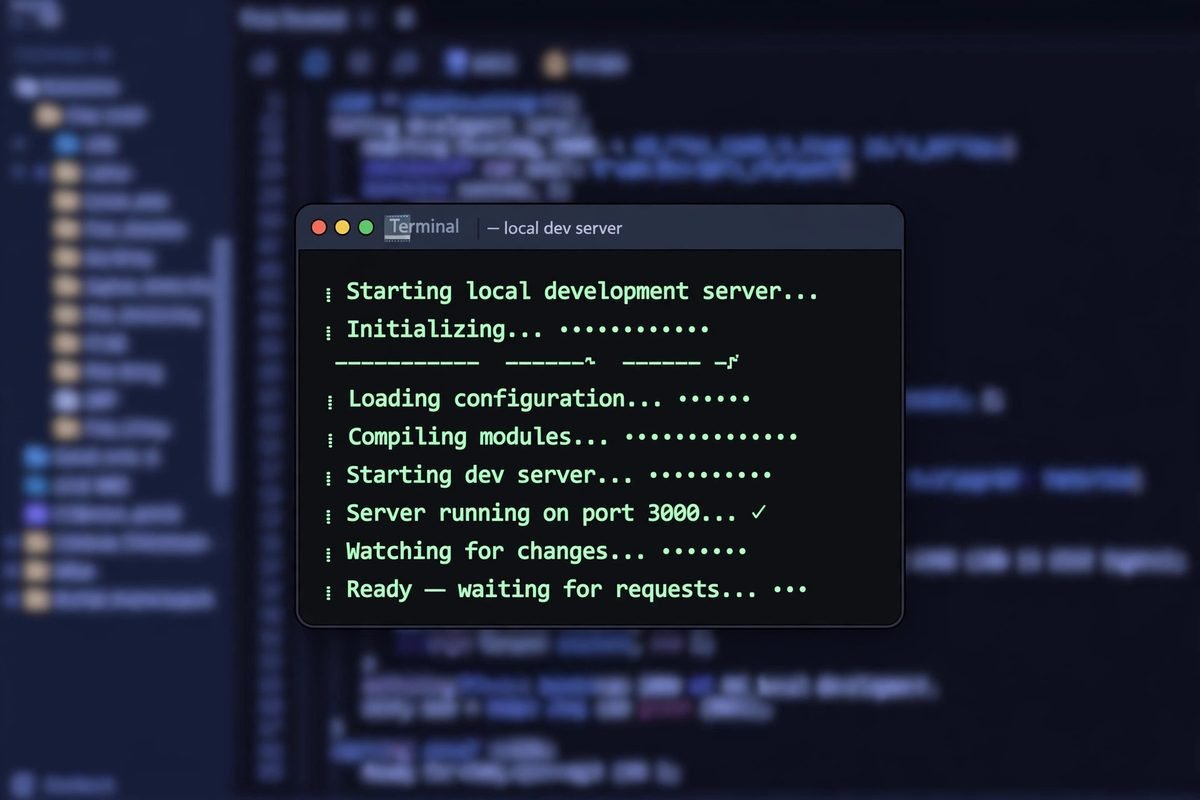
Third, run the dev command. In most Vite projects this is npm run dev, although some projects use a different package manager, in which case the equivalent command does the same job. If everything is in place, the terminal will print some startup information, including the local address. That is your cue to open the browser and visit the address shown — very often http://localhost:5173, but always trust the terminal output over memory if it shows a different port.
To stop the server, go back to the terminal where it is running and interrupt it, usually with Ctrl+C. That frees the port and stops serving the project. This is an important habit to build. Leaving old servers running in forgotten terminal windows is one of the most common reasons a new server later reports that its port is already in use. You did not break anything; you just have an earlier server still holding the door.
If you close the terminal window without stopping the server cleanly, the process may end anyway, depending on your system, but it is cleaner to stop it explicitly. Think of it as closing a shop properly rather than just walking away and hoping the lights go out on their own.
What You See When You Open Localhost:5173
What actually appears in the browser depends entirely on the project you started. If you created a fresh starter project, you will usually see a welcome page with the project’s name, some links, and a counter or demo element you can click. That is normal. It is there to prove the setup works. If you opened an existing project you have been working on, you will see that project itself, with whatever pages, styles, and content you have built so far.
What you should not expect to see is a polished, public-facing website with a custom domain, analytics, or real visitor traffic. You are looking at a work-in-progress, served locally. Images might load from your project folder. Styles might change as you edit them. Errors might appear in the browser console or as an overlay in the page itself when something in your code breaks. Those error overlays, while annoying, are actually helpful: they are the dev server telling you, in plain view, what went wrong and where, so you can fix it without hunting through logs.
It is also normal for the browser tab to show localhost:5173 in the address bar, and for the page to feel a little different from a live site in small ways — for example, it may reload automatically when you save, which a live site would never do for a visitor. That automatic behaviour is a feature of development, not a bug. It is there to shorten your feedback loop.
If the page looks blank, do not panic immediately. A blank page can mean a JavaScript error, a missing route, or a component that rendered nothing. Open the browser’s developer tools and check the console for errors. Often the message there is far more specific than the blank screen suggests, and it will point you toward the file and line where the problem lives.
What to Do When the Page Won’t Load
This is the section most developers end up searching for, usually after staring at an error page for longer than they would like to admit. The good news is that localhost problems tend to fall into a small number of familiar categories, and working through them in order solves most cases.
Start with the simplest question: is the server actually running? Look at your terminal. If you see no dev server output, or if the terminal is sitting at a normal prompt with no server process, the server is not running, and the browser has nothing to connect to. Start it again from the correct project folder and watch for the local address in the output.
Next, check that you are visiting the right port. If the terminal says the server is listening on a different port — because 5173 was already in use, for example — then visiting localhost:5173 will fail even though a server is running perfectly well elsewhere. Copy the address from the terminal output exactly, or click the link printed there, rather than typing the default from memory.
Then consider the “port already in use” error itself. This usually means another dev server, or another program, is already listening on 5173. You have two sensible options: stop the other process, or let the new server use a different port. Stopping the old server is cleaner if you no longer need it. Letting Vite pick another port is fine if you need both running, but remember to use the new address it prints. What you should avoid is repeatedly trying to force the same port while the old process still holds it; that loop will keep failing in exactly the same way.
A wrong directory is another quiet culprit. If you started the server from a folder that does not contain the project, the server may start but serve the wrong thing, or fail to find the files it needs. Change into the correct project folder, stop the old server, and start again. It sounds basic, and it is — which is precisely why it catches even experienced developers when they are switching between several projects.
Firewall and network software can also interfere, although this is less common for localhost traffic, since that traffic is not supposed to leave the machine. If you have recently installed security software, a VPN, or a proxy tool, and localhost suddenly stops working, it is worth checking whether that software is intercepting local traffic. Temporarily disabling it for a test — and re-enabling it afterwards — can confirm whether it is the cause, but do not leave security software off permanently just to make a dev server work. If a security tool is blocking local traffic, its settings are the right place to fix it.
Finally, check the obvious browser-side issues. A stale tab, a cached error page, or a typo in the address can all masquerade as a server problem. Try a hard refresh, try the address in a fresh tab, and double-check that you typed localhost and the port correctly. It is unglamorous advice, but it resolves a surprising number of “broken server” reports.
Troubleshooting table
| Problem you see | Most likely cause | What to try first |
|---|---|---|
| Browser says the site can’t be reached | Dev server is not running | Start the server from the correct project folder and use the address printed in the terminal |
| Port already in use | Another server or program holds port 5173 | Stop the old server, or use the different port Vite offers |
| Blank page with no error in the tab | JavaScript error or empty render | Open the browser console and read the error message |
| Wrong project appears | Server started in the wrong directory | Stop the server, move into the right project folder, and restart |
| Page loads, then stops updating on save | Server process stalled or terminal lost focus in some setups | Restart the dev server and check the terminal for errors |
| Address works on your machine but not for a friend | Localhost only works on the machine running the server | Deploy the built project to hosting if others need to see it |
Work through that table from top to bottom, and resist the temptation to reinstall everything at the first error. Reinstalling dependencies can help when a package is genuinely missing or corrupted, but it will not fix a server that simply is not running, a port that is occupied, or an address typed incorrectly. Fix the simple cause first, and save the heavier steps for when the simple ones have been ruled out.
How to Change the Port
Changing the port is straightforward, and there are a few ways to do it depending on how your project is set up. The cleanest way in most Vite projects is to set the port in the project’s configuration, so that every time you start the dev server it uses the port you chose. That way you do not have to remember a command-line flag each time, and anyone else working on the same project gets the same behaviour when they run it.
Alternatively, you can pass a port when you start the server, which overrides the default for that one session. This is handy for a quick test — for example, when 5173 is busy and you just want to get running without editing any files. The trade-off is that you have to remember to do it again next time, and you have to use the new port in the browser.
Whichever method you use, remember the golden rule from earlier: the browser address and the server port must match. After changing the port, look at the terminal output to confirm which address the server actually printed, and visit that address. If you change the configuration but keep visiting the old port out of habit, you will see the same connection error as before, and you may wrongly conclude that the change did not work.
It is also worth choosing a port sensibly. Pick a higher-numbered port that is not already used by another service on your machine, and avoid the well-known low ports that system services tend to occupy. There is no need to pick a memorable or meaningful number; any free port will do the job. The point is to have a door that is yours, free, and consistent, so that your workflow is predictable from one session to the next.
If you work on several projects at once, giving each one its own port can be a practical habit. It avoids the daily dance of stopping one server to start another, and it means you can keep two projects open in different tabs without confusion — as long as you keep track of which port belongs to which project. A short note in the project’s documentation, or even just the terminal output, is usually enough.
Localhost vs. a Live Website
It helps to put localhost and a live website side by side, because they look similar in the browser but differ in almost every way that matters once you want other people to see your work.
A localhost address works only on the machine running the server. A live website works for anyone with the link, anywhere, because it is hosted on a server connected to the internet and reached through a public domain name. Localhost requires no domain, no hosting account, and no deployment step. A live site requires all of those, plus decisions about performance, security, and maintenance that do not apply while you are just previewing locally.
Localhost is also forgiving in a way a live site cannot be. You can break things, reload, edit, and break them again, and no visitor ever sees the mess. A live site, by contrast, shows every mistake to anyone who visits at that moment, which is why developers test locally first and deploy only when they are reasonably confident. That separation — private experimentation versus public presentation — is one of the most valuable habits in web development, and localhost is the tool that makes it easy.
Another difference is persistence. A live site stays up as long as its hosting does, whether your laptop is on or off. A localhost server disappears the moment you stop it or close your laptop. That is not a flaw; it is the nature of local development. If you need something to stay available, you need to build the project and deploy it. Localhost is a workshop, not a shopfront.
Finally, performance comparisons between the two can be misleading. A page that loads instantly on localhost may load more slowly live, because live loading involves the real internet, a distant server, and other visitors sharing resources. Conversely, a page that feels slow locally because your machine is busy may feel fine live. Use localhost to judge functionality and design, and use proper testing and hosting tools to judge real-world performance.
Security Basics: Is Localhost:5173 Safe?
For most developers working on their own machine, localhost:5173 is safe in the specific sense that it is not exposed to the internet by default. Because localhost traffic loops back within your own computer, someone on another network cannot simply type your localhost address and see your project. That built-in isolation is reassuring, and it is why local development is a sensible place to experiment.
That does not mean you should be careless. A few basic habits keep local development safe without adding friction. First, do not paste secrets — such as private API keys, passwords, or tokens — directly into front-end code that you later deploy, even if you first tested it locally. Local testing does not make a secret safe to ship. If a project needs a secret, use the proper environment and configuration approach for that project, and keep secrets out of code that ends up in the browser.
Second, be careful about exposing a local server to your wider network. Some tools offer an option to make a dev server reachable from other devices on the same network, which can be useful for testing on a phone, for example. That is a deliberate choice, and it changes the security picture: your project is no longer only on your machine. Only enable that kind of network exposure when you understand what it does and you actually need it, and turn it off when you are done.
Third, keep your tools and dependencies reasonably up to date, and pay attention to warnings from your package manager. Local development is not immune to vulnerable dependencies, even if the server itself is not public. Good hygiene — updating when you can, removing packages you no longer use, and not installing packages from untrusted sources — protects both your machine and anything you eventually deploy.
In short, localhost itself is not a security risk to lose sleep over, but the habits around it still matter. Treat local work as private by default, expose it deliberately rather than accidentally, and keep secrets out of front-end code. Those three habits will serve you well far beyond this one port number.
Frequently Asked Questions
What does localhost:5173 mean?
It means a web server running on your own computer, listening on port 5173, reached over HTTP. In most cases today, that server is Vite’s development server, serving a project you started from a terminal. It is not a public website, and it only works while that server is running on that machine.
Why do I see localhost:5173 instead of a normal website address?
Because you are previewing a project locally, not visiting a deployed site. Developers use localhost so they can build and test quickly without buying a domain or deploying unfinished work. Once the project is built and hosted, it gets a normal public address instead.
Can someone else open my localhost:5173 link?
No, not from another computer or network, in the normal local setup. Localhost always refers to the computer making the request, so if a friend types the same address, their browser looks on their own machine, not yours. To share your work, you need to deploy the built project to hosting and share that public link.
What should I do if localhost:5173 shows “site can’t be reached”?
Check first whether the dev server is actually running, and whether the terminal printed a different port. Restart the server from the correct project folder, use the exact address from the terminal, and check for a “port already in use” message. Those three checks resolve most cases, and the troubleshooting table above covers the rest.
Can I change localhost:5173 to a different port?
Yes. You can set a different port in the project’s Vite configuration, or pass a port when starting the server for a single session. Just remember to visit the new port in the browser, and to check the terminal output to confirm which address the server is actually using.
Is localhost:5173 the same as a production website?
No. Localhost is a development preview, optimised for fast feedback while you edit code. A production website is a built, optimised version of the project, hosted on a public server and available to visitors. They may look similar, but they serve different purposes, and you should not judge final performance or public behaviour from a local preview alone.
Conclusion
Http://localhost:5173 looks like a small, forgettable address, but once you understand it, it becomes a reliable signpost in your daily workflow. It tells you that a development server is running on your own machine, that Vite is serving your project on port 5173, and that you are in the safe, private space where building and testing happen before anything goes public. When it works, you can iterate quickly and see changes almost as soon as you save them. When it does not work, the fix is usually simple — check that the server is running, check the port, check the folder — rather than a deep mystery in your code.
Keep that mental model with you: localhost means this computer, 5173 means Vite’s usual door, and the terminal output is the source of truth for which address to visit. With that in place, localhost:5173 stops being a confusing string in the address bar and becomes what it was always meant to be — a convenient, local window into the project you are building.
Read Also: ANL Luxury Real Estate Advisor: Your Premier Gateway to Milan’s Exclusive Property Market

Admin
Contributor at Daily Scope 67.
Related reading

192/16 Network Meaning and Subnet Guide (2026 Guide)
192/16 is shorthand for a large private network range. Here is what the /16 means, how many addresses it covers, and when you will meet it.
Read story
192.168.50.1 Router Login and Admin Setup (2026 Guide)
192.168.50.1 is the admin address for some routers and modems. Here is the full login guide, plus troubleshooting and security tips.
Read story
192.168.100 Router Login and Admin Setup (2026 Guide)
192.168.100 looks like a router address but it is missing a piece. Here is what it really means and the full address to use for your admin login.
Read story