
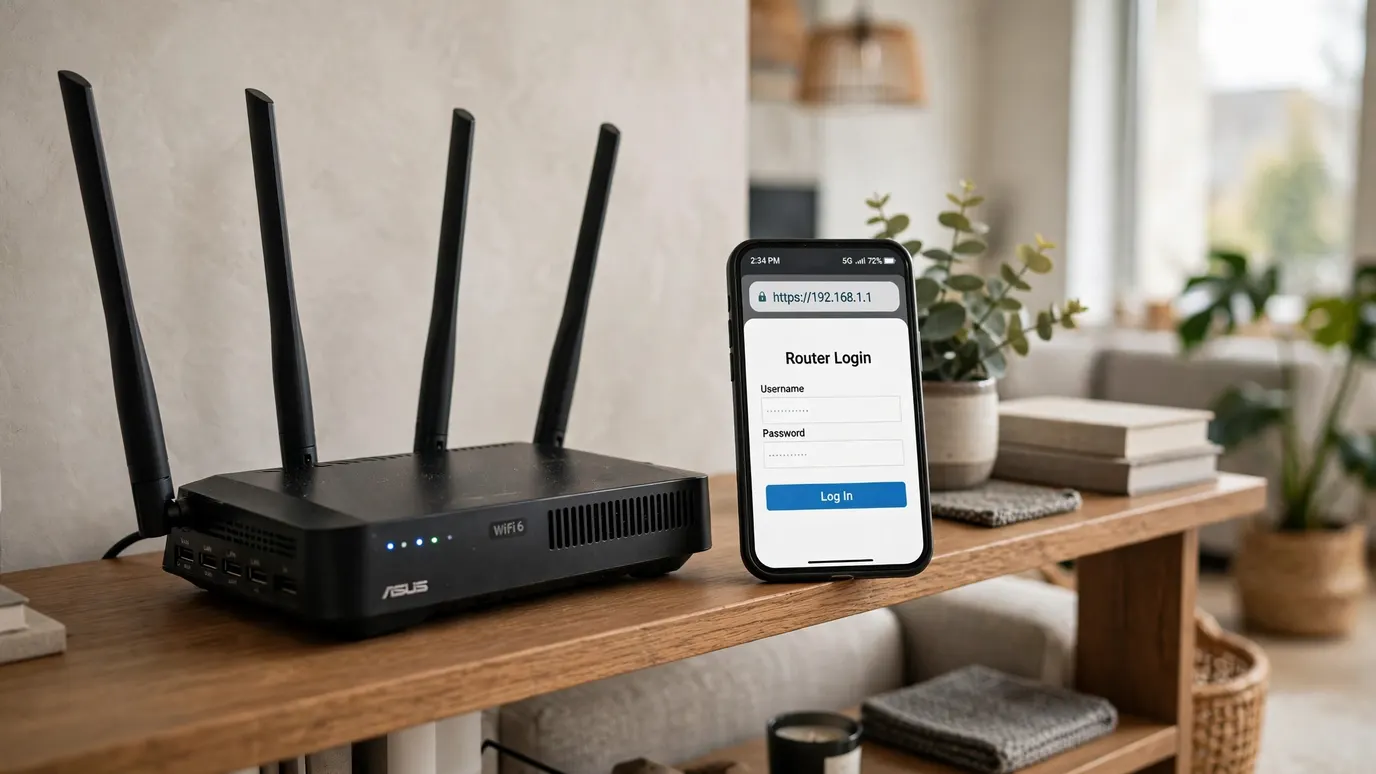
In this article
If you have ever typed an address like 192.168.1.254 into your browser and wondered what should happen next, you are in the right place. In short, 192.168.1.254 is a private IP address that some routers and modems use as the doorway to their admin panel. Type it into the address bar of a browser on a device connected to that router, and you should reach a login screen. From there, you can change your Wi-Fi name and password, check which devices are connected, and tighten up your security settings.
That is the short answer. The rest of this guide covers the parts that usually trip people up: what to do when the page will not load, how to tell whether your router even uses this address, and what to do when the username and password you are trying do not work. Nothing here requires technical knowledge, and you will not need to install anything.
In this article:
- What Is 192.168.1.254?
- How to Log In to Your Router at 192.168.1.254
- What You Can Change Inside the Admin Panel
- How to Find Your Actual Gateway Address
- If 192.168.1.254 Won’t Load
- Common Login Problems and Fixes
- Keeping Your Router Secure
- Frequently Asked Questions
- Conclusion
What Is 192.168.1.254?
Every device on your home network has an address so that traffic knows where to go, a bit like house numbers on a street. Your phone, your laptop, and your smart TV each get one. Your router has one too, and that address is often called the gateway address because it is the gateway between your home network and the internet.
192.168.1.254 is one of the addresses set aside for private networks. That word matters. Private means it only works inside your own network. You cannot type it into a browser on someone else’s Wi-Fi and reach your router, and nobody on the internet can use it to reach your home network directly. It is not a website, and it is not something you can search for. It only has meaning when you are connected to a network where a router is actually using that address.
Some routers and modems use 192.168.1.254 as their default gateway. Others use a different address entirely, which is why this address works for some households and does nothing at all for others. Neither outcome means your router is broken. It usually just means your router was set up with a different gateway address, and the section later in this guide on finding your actual gateway will help you pin it down in under a minute.
When people talk about a “router login” or “admin panel,” they mean the settings pages that live behind this address. The panel is where the router’s real controls sit. Your Wi-Fi name, your Wi-Fi password, the security type your network uses, and the list of connected devices are all in there. Internet providers sometimes set these up for you when they install the connection, but the panel stays available afterwards so you can change things yourself whenever you need to.
One point worth clearing up early: the address you type to reach the admin panel is not the same thing as your Wi-Fi password, and it is not the same as your internet provider account password either. You might need up to three different sets of details in home networking life — the Wi-Fi password your devices use to join the network, the admin login for the router’s settings pages, and your provider account details — and mixing them up is one of the most common reasons a login attempt fails. Keeping them separate in your head will save you a lot of frustration.
How to Log In to Your Router at 192.168.1.254
This is the practical part. Work through it in order, and do not skip the first step, because it is the one people most often get wrong.
Step 1: Connect to the router’s network
Your device has to be connected to the router you want to manage, either over Wi-Fi or with an Ethernet cable. If you are on mobile data, or connected to a neighbour’s network, or sitting in a coffee shop, 192.168.1.254 will not take you to your home router. An Ethernet cable is the most reliable option if you have one handy, especially if your Wi-Fi is acting up, but Wi-Fi works fine for normal login and settings changes.
Step 2: Open a browser and type the address
Open any ordinary browser — Chrome, Edge, Firefox, Safari, whichever you normally use — and type 192.168.1.254 into the address bar at the top, then press Enter. Type it into the address bar, not into a search engine’s search box. If you type it into a search box, you will just get search results about the address instead of the login page.
Take care with the dots and digits. A small typo, a missing dot, or an extra number will send you somewhere else or nowhere at all. There is no need to add anything before or after it. Some browsers will accept it with a prefix, but plain 192.168.1.254 on its own is the cleanest way to try it first.
Step 3: Enter the admin username and password
If your router does use this address, you should now see a login screen asking for a username and password. This is where the label on your router becomes your best friend. Many routers and modems have a sticker on the bottom or back that lists the default admin username and password, along with the default Wi-Fi name and password and the gateway address itself. Defaults vary by brand and model, so there is no single combination that works everywhere, and guessing is a poor strategy. Check the label first.
If you or someone in your household changed the admin password in the past, the label’s default will no longer work, and you will need the changed password instead. This catches a lot of people out years after installation, because the changed password was set once and then forgotten. If you keep passwords in a notebook or a password manager, that is the place to look before anything more drastic.
Step 4: Look around before changing anything
Once you are in, take a minute to look at the layout before you start clicking. Admin panels differ a lot from one brand to another, so the exact menu names will not match every guide you read online. Look for sections with names along the lines of Wireless, Wi-Fi, Network, Security, or Administration. You do not need to understand every page. For most households, the useful settings are the Wi-Fi name, the Wi-Fi password, and the security options, and those are usually grouped together.
If you ever feel unsure about a setting, leave it alone and come back to it. Changing a setting you do not understand, especially anything related to how the router connects to your provider, can knock your internet off until it is put back. The settings covered in this guide are safe, everyday ones. The more advanced pages can wait.
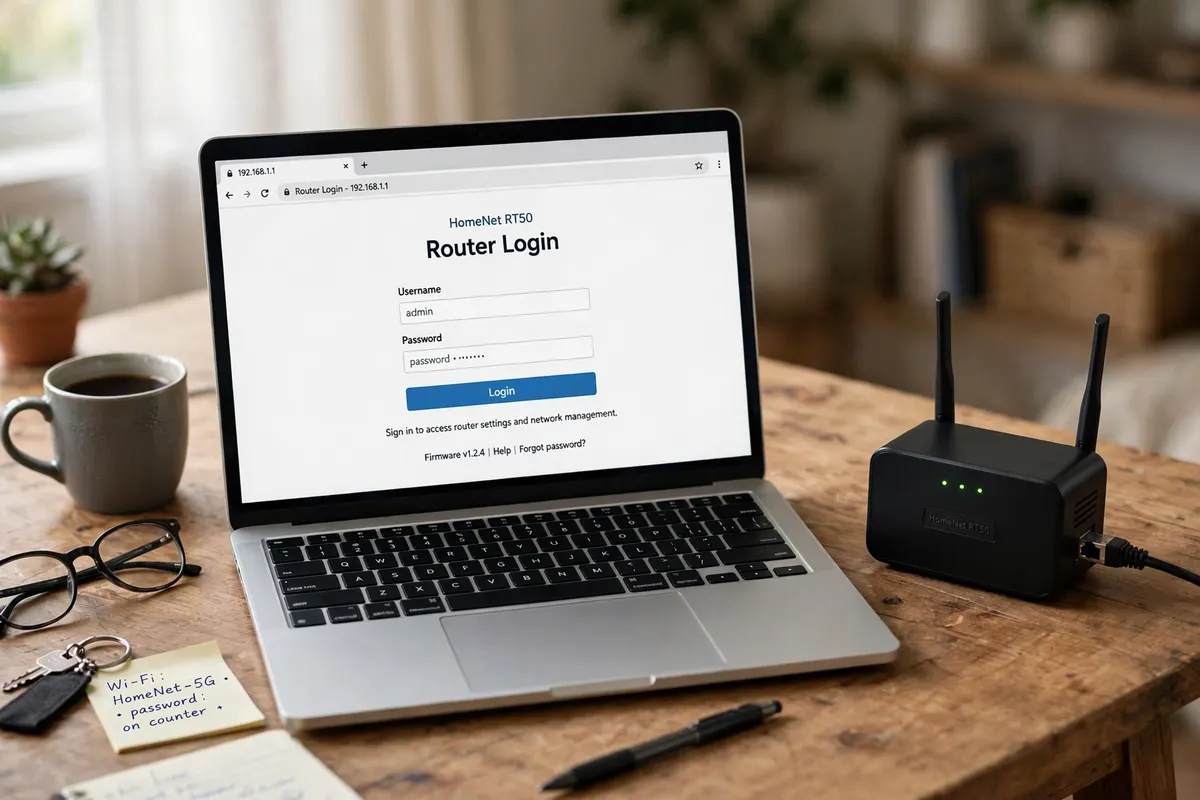
A laptop on a home desk showing a router login screen in a browser, with the router beside it
What You Can Change Inside the Admin Panel
Logging in is only useful if you know what is worth changing once you are there. Here are the settings most people actually need.
Change your Wi-Fi name
The Wi-Fi name, often labelled SSID in the panel, is the name you see when you look for networks on your phone. You can change it to something recognisable, which is handy if you have ever stared at a list of similar network names in a block of flats and wondered which one is yours. After you change it, every device will need to reconnect to the new name, so do this at a moment when nobody is in the middle of something important.
Change your Wi-Fi password
This is the single most useful change for most households. If your Wi-Fi password is still the one printed on the router label, and that label is visible to visitors or anyone who has been in your home, changing it is sensible. Choose something long enough to be hard to guess but easy enough that you can type it into a new device without swearing. After changing it, reconnect your devices one by one. If a device keeps failing, forget the network on that device first and then join it fresh with the new password — that clears out the old saved password that is causing the conflict.
Check your security type
In the wireless security settings, look for the security mode or encryption type. Modern, secure options are generally labelled with WPA2 or WPA3 wording, sometimes with extra letters after them. If your network is set to something older, or to no security at all, that is worth fixing, because an open or weakly protected network is easy for anyone nearby to join. If you are not sure which option to pick, the newer WPA option your panel offers is usually the right choice, though very old devices sometimes struggle with the newest setting. If an old device stops connecting after a change, that is the setting to revisit.
See which devices are connected
Most admin panels have a page listing connected devices, sometimes called Attached Devices, Clients, or DHCP Clients. A quick look here is surprisingly reassuring. You will usually recognise your phones, laptops, TV, and smart speakers, sometimes by name and sometimes only by a string of characters. If you spot something you do not recognise at all, do not panic — a device name can be cryptic, and a family member’s new gadget is the usual explanation. But if you genuinely cannot account for it, changing your Wi-Fi password will disconnect it, and it will not be able to rejoin without the new password.
Restart the router from the panel
Many panels include a restart or reboot option. This is the same as turning the router off and on again, just done through software. It is a useful first step when the internet is slow or flaky, and it is tidier than pulling the plug because it lets the router shut down properly. Your connection will drop for a minute or two while it comes back up, so warn anyone else in the house first.
How to Find Your Actual Gateway Address
If 192.168.1.254 does not bring up a login page, the most likely explanation is that your router simply uses a different gateway address. Rather than trying addresses at random, find the real one. It takes less than a minute on any device.
On Windows, open the Command Prompt or Terminal, type ipconfig, and press Enter. Look for the entry for your active connection, and read the number next to Default Gateway. That number is your router’s address.
On a Mac, open System Settings, go to Network, select your active connection, and look for the router address shown there. On a phone, open your Wi-Fi settings, tap the network you are connected to, and look for the gateway or router entry in the details. The wording varies slightly between devices, but the idea is the same everywhere: your device already knows where the router lives, and it will tell you if you ask in the right place.
Once you have that address, type it into your browser’s address bar exactly as shown. If it brings up a login screen, that is your admin panel, and everything in this guide applies in the same way — only the number in the address bar is different.
It is also worth checking the label on the router itself. As well as the default login details, it often prints the gateway address. If the label’s address and your device’s gateway address disagree, trust your device’s reading, because the label describes the factory setup and the router may have been changed since.
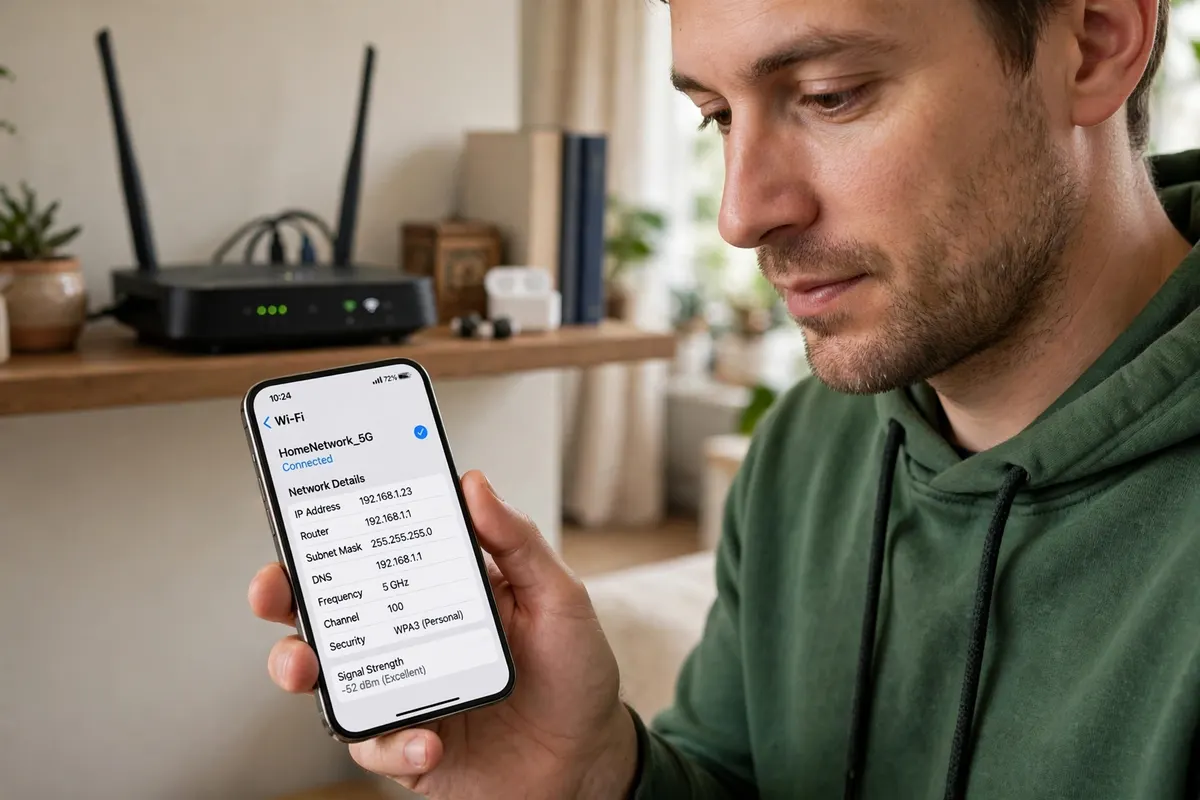
A person checking network details on a phone to find the 192.168.1.254 router gateway address, with the router in the background
If 192.168.1.254 Won’t Load
A page that will not load is annoying, but it is usually caused by one of a handful of simple things. Work through these in order rather than trying them all at once, so you know which one fixed it.
First, confirm you are connected to the right network. If your phone has switched to mobile data, or your laptop has joined a different network, the address will not resolve. Turn mobile data off temporarily on a phone while you try, just to rule it out, and check the Wi-Fi name your device is actually connected to.
Second, check for typos and the address bar problem. Make sure you typed the address into the browser’s address bar, not a search box, and that every digit and dot is correct. Copying and pasting the address from a reliable source is a fair way to rule out a typing slip, but do not paste it into a search engine by accident.
Third, try a different browser, or a private or incognito window in the same browser. Browser extensions, saved cache, and old redirects can occasionally interfere with local addresses. A clean private window rules those out quickly. If the page loads there but not in your normal window, clearing the browser cache for that address usually sorts it.
Fourth, restart the router. Unplug it, wait about thirty seconds, plug it back in, and give it a couple of minutes to come fully back up before trying again. This sounds like a cliché because it works so often. Routers run for weeks or months without a break, and a restart clears temporary glitches that can stop the admin pages responding even while the internet itself seems fine.
Fifth, try a wired connection if you have been using Wi-Fi. A cable removes Wi-Fi signal problems from the equation entirely. If the page loads over a cable but not over Wi-Fi, the issue is with the wireless side of things, not the address.
Sixth, check whether your device has a manually set network address that conflicts with the router’s range. This is less common, but if someone previously set a fixed address on the device, it may no longer match the router’s network. Setting the device back to obtaining its address automatically usually resolves it, and this setting lives in the device’s network properties.
If none of this works, and your device’s own gateway reading points to a different address, use that address instead. And if even the correct gateway address will not load, the router itself may need attention from your internet provider, especially if the internet connection is down as well. There is no shame in that outcome — at that point the problem is very likely on the hardware or line side, not something you have done wrong.
Common Login Problems and Fixes
Getting the page to load is one battle. Getting past the login screen is another. Here are the problems that come up most often, and what to do about each.
The password is rejected even though you are sure it is right. Double-check that you are entering the admin password, not the Wi-Fi password — they are different things, and the login screen wants the admin one. Also watch out for capital letters and stray spaces, especially if you are copying from a label where a character like a zero and a capital O look alike. Typing it slowly, character by character, fixes more logins than people expect.
You have tried the label’s default and it does not work. That usually means the admin password was changed at some point, either by you, by a family member, or by the technician who installed the connection. Ask around the household before doing anything drastic, because someone may remember changing it. If nobody knows it, the remaining option is a factory reset, covered below — but treat that as a last resort, because it wipes your settings.
The login screen never appears at all, just a blank page or an error. Go back to the troubleshooting section above. This is almost always a connection or address problem, not a password problem. Confirm the gateway address from your device’s network details before assuming the router is at fault.
The page loads but looks broken or half-finished. Try another browser, or a private window. Admin pages are sometimes built with older web technology that one browser handles better than another, and a different browser is a quick test.
You are locked out after too many attempts. Some routers temporarily block further logins after repeated failures, as a security measure. Wait a while — often around half an hour, though it varies — and try again with the correct details. Repeated guessing in quick succession just extends the lockout, so patience genuinely helps here.
The factory reset option
If the admin password is truly lost, most routers have a small reset button, often recessed so it needs a pin or paperclip to press. Holding it for the length of time described in the router’s documentation restores the factory settings, including the default login details on the label. The catch is that it also wipes your Wi-Fi name, Wi-Fi password, and any custom settings, so you will need to set those up again afterwards. Only use it when you have no other way in, and make a note of the new details once you have set them.
Keeping Your Router Secure
You do not need to become a security expert to keep a home router reasonably safe. A few habits cover most of the risk.
Change the admin password from the default if you have not already. The defaults are printed on labels and widely known, so a default admin password is only slightly better than no password at all. Pick something distinct from your Wi-Fi password, and store it somewhere you will actually find it again.
Keep your Wi-Fi password private and change it when circumstances change — for example, if you have had work done in the house and gave the password to tradespeople, or if a former housemate still knows it. There is no need to change it weekly, but changing it when the circle of people who know it changes is sensible.
If your router offers automatic firmware updates, leave that switched on. Firmware is the router’s internal software, and updates fix security issues and bugs over time. If updates are manual, checking every few months is enough for most households. Do not interrupt a firmware update once it starts, and do not turn the router off during one.
Turn off remote management unless you specifically need it. Remote management lets the admin panel be reached from outside your home network, which is useful in rare cases but widens the attack surface for everyone else. For a normal household, it should stay off.
Finally, if your router offers a guest network, consider using it for visitors instead of handing out your main Wi-Fi password. Guests get internet access, but they stay separate from your own devices. It is a small setup step that pays off every time someone visits.
A home router on a shelf with a small notebook beside it, suggesting secure password habits and router care
Frequently Asked Questions
Is 192.168.1.254 a website?
No. It is a private address that only works on your own local network. It is not a public website, it cannot be reached from the internet, and typing it into a search engine will only show you information about it, not the login page itself.
Do all routers use 192.168.1.254?
No. Some routers and modems use it, but many use different addresses. If it does not work for you, find your actual gateway address from your device’s network settings, as described earlier in this guide, and use that instead.
What if I do not know my router’s admin username and password?
Check the label on the bottom or back of the router first, since defaults vary by brand and model and the label is the reliable source for your particular device. If the details were changed and you cannot remember them, a factory reset restores the defaults, but it also wipes your other settings, so treat it as a last resort.
Why does the login page say the connection is not private?
Local admin pages often use a security certificate that your browser does not recognise, because the address is a private one rather than a public website. Browsers warn about this by default. On your own home network, reaching your own router’s panel, this warning is expected and does not by itself mean something is wrong. Still, make sure you are on your own network and have typed the address correctly before proceeding.
Can I log in to my router from my phone?
Yes. As long as your phone is connected to the router’s Wi-Fi network, you can open a browser on the phone, type the gateway address into the address bar, and log in the same way you would on a computer. Some settings pages are easier to use on a larger screen, but the login itself works fine on a phone.
Will changing my Wi-Fi password disconnect my devices?
Yes, every device will need the new password before it can reconnect. That is normal, and it is also why changing the password is an effective way to remove a device you do not recognise. Reconnect your own devices one at a time, and if one keeps failing, forget the network on that device and join it fresh.
Conclusion
192.168.1.254 is simply one of the private addresses that some routers and modems use for their admin panel. If it is your router’s address, logging in is straightforward: connect to the network, type the address into your browser’s address bar, and sign in with the admin details from the router’s label or the password you set yourself. If the page will not load, your router probably uses a different gateway address, and your device’s network settings will tell you what it is in seconds.
Once you are in, the changes that matter most are also the simplest: a Wi-Fi name you recognise, a strong Wi-Fi password, a modern security setting, and an admin password that is no longer the factory default. Do those, note the details somewhere safe, and you have covered the essentials without touching anything risky.
If you get stuck, work through the problem in stages — connection first, address second, password third — instead of changing everything at once. Most router login problems turn out to be one small mix-up, and finding it methodically is faster than guessing.
Read Also: Toyo Trunk Shape Toolbox T-192: Features & Uses (2026)

Admin
Contributor at Daily Scope 67.
Related reading
192/16 Network Meaning and Subnet Guide (2026 Guide)
192/16 is shorthand for a large private network range. Here is what the /16 means, how many addresses it covers, and when you will meet it.
Read story
192.168.50.1 Router Login and Admin Setup (2026 Guide)
192.168.50.1 is the admin address for some routers and modems. Here is the full login guide, plus troubleshooting and security tips.
Read story
192.168.100 Router Login and Admin Setup (2026 Guide)
192.168.100 looks like a router address but it is missing a piece. Here is what it really means and the full address to use for your admin login.
Read story
1 comment